2.1. Terraform/OpenTofu Configuration
Overview
This configuration section defines how Terraform or OpenTofu executes within the workflow — including state management, approval checkpoints, drift detection, CLI customizations, and lifecycle extensions.
SG Managed Terraform Backend
When enabled, StackGuardian manages Terraform state automatically, ensuring secure storage, versioning, rollback support, and collaborative execution. Disable this only if your Terraform code includes a custom backend configuration (such as S3, GCS, or Azure Storage).
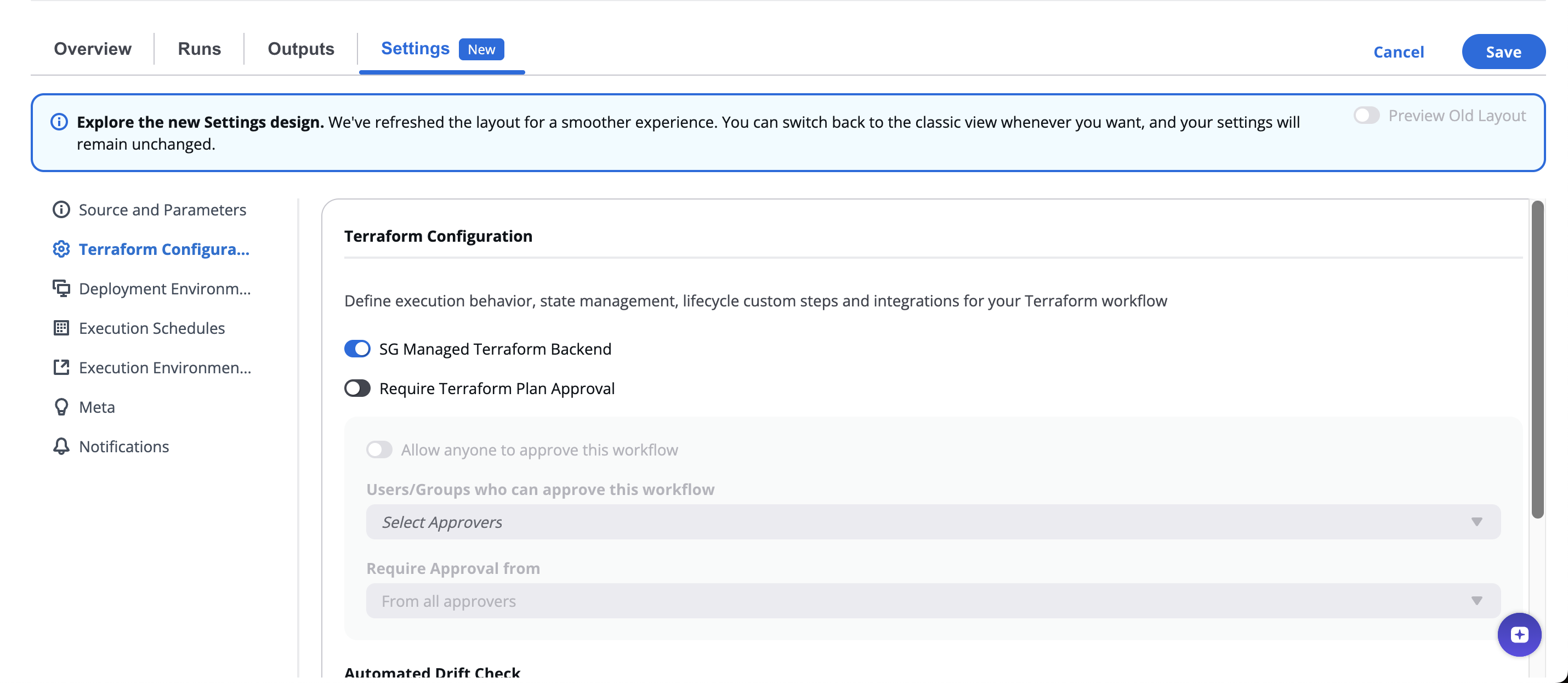
Require Approval For Workflow Run
When enabled, Create and Destroy Workflow runs pause until the required approvals are met. This ensures changes are reviewed before deployment, supporting compliance and change-control processes.
The Configure Approval section appears with additional settings. These settings apply to the Workflow Run. Any Lifecycle Custom Steps where approval is enabled inherit these settings:
| Setting | Description |
|---|---|
| Allow anyone to approve this workflow | When enabled, any authenticated user can approve and only one approval is needed. The Eligible Approvers and Required approvers fields are disabled. |
| Eligible Approvers | Select the Users or User Groups who can approve this Workflow. You can combine multiple individual Users with User Groups. |
| Required approvals | Set the minimum number of approvals needed before the run can proceed (for example, "From at least 1 approver"). |
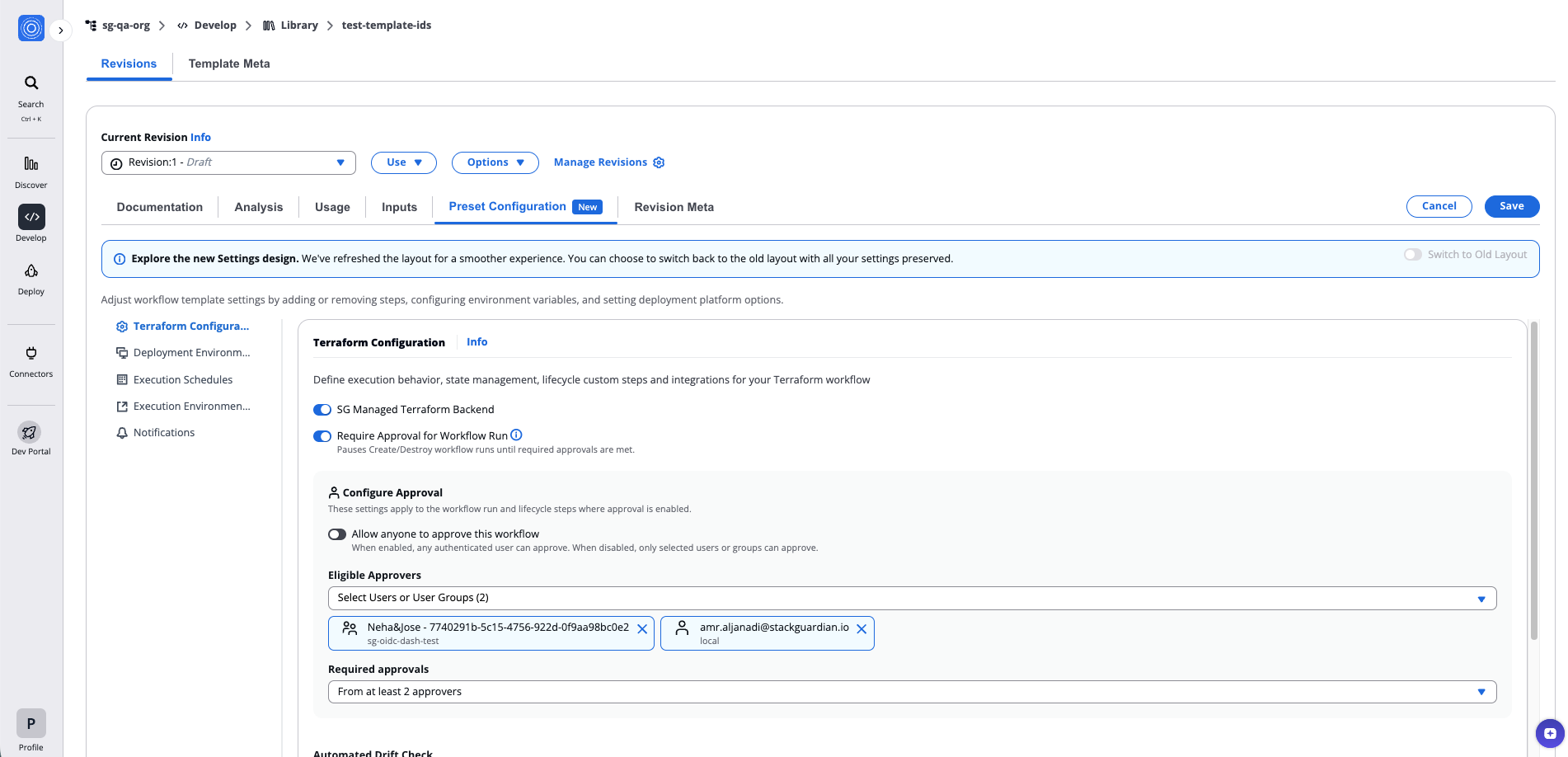
Require Approval for Workflow Run
For details on how to review and approve workflow runs, approval logic for mixed identity types, and external approval systems, see Review and approve Workflow Runs.
Automated Drift Detection
Drift detection identifies differences between the deployed infrastructure and the Terraform configuration.
Options include:
- None – Disable drift detection.
- Weekly / Daily / Every 6 Hours / Every 2 Hours – Predefined schedules.
- Custom – Use a cron expression for precise control.
When selecting Custom, the interface provides fields for minute, hour, day, and month parameters, plus a preview of the next five runs.
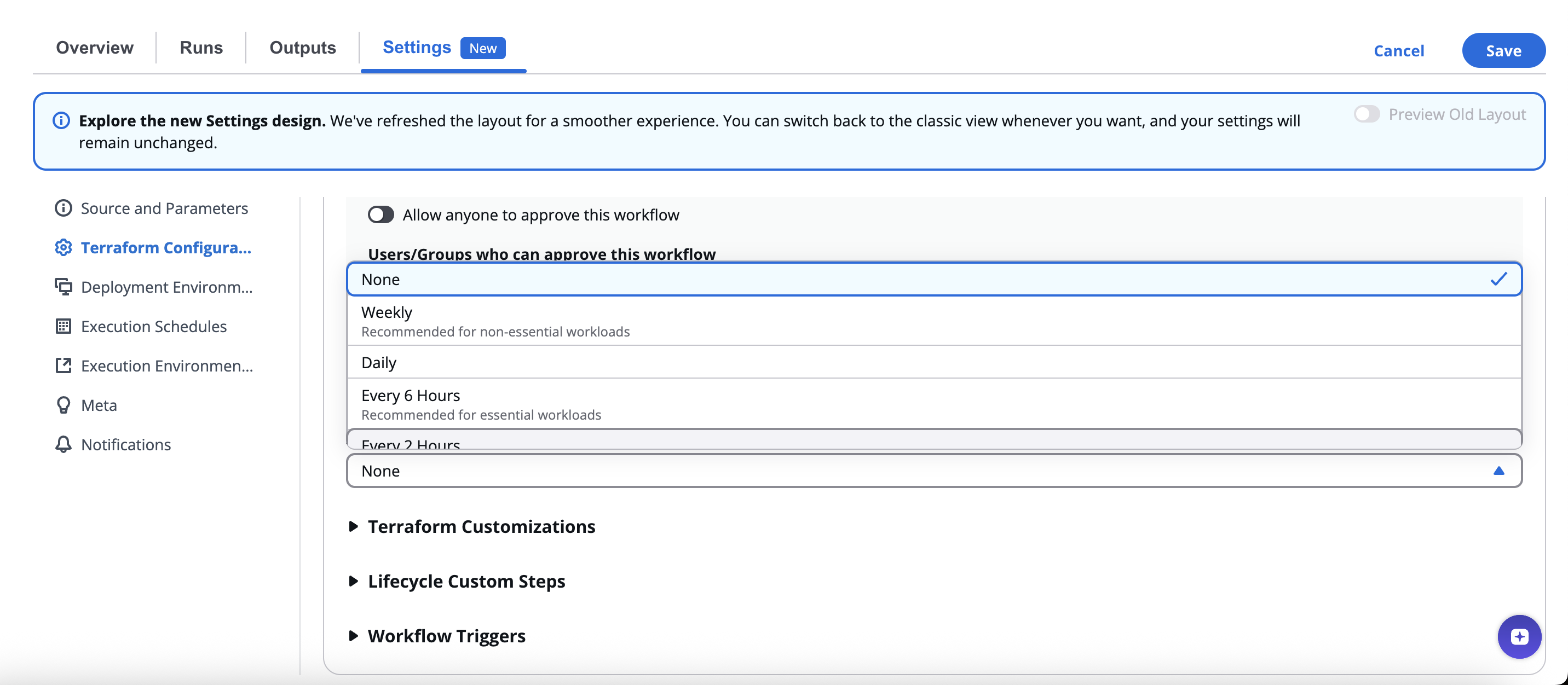
Automated Drift Detection
Drift detection ensures deployed resources remain compliant with desired configurations and helps detect manual or unauthorized changes.
Terraform/OpenTofu Customizations
Advanced controls for tuning execution:
| Setting | Description |
|---|---|
| Terraform/OpenTofu Version | Select the Terraform/OpenTofu version used in execution. |
| Extra Init CLI Options | Add flags to customize terraform init (e.g., -upgrade). |
| Extra Plan CLI Options | Add flags for terraform plan. |
| Workflow Step Timeout | Define maximum execution time per step (default: 2100 seconds). |
| Custom Mount Points | Optionally mount local directories or dependencies when using private runners. |
| Custom Terraform Path | to execute a specific binary version. |

Terraform/OpenTofu Customizations
Terraform/OpenTofu Version
Select the Terraform/OpenTofu version used to execute this workflow runtime. Three options are available:
-
Managed Version: Use a platform-managed Terraform/OpenTofu version. Select a major.minor version from the dropdown — the latest patch is applied automatically (e.g.
1.5 (latest patch) → 1.5.7).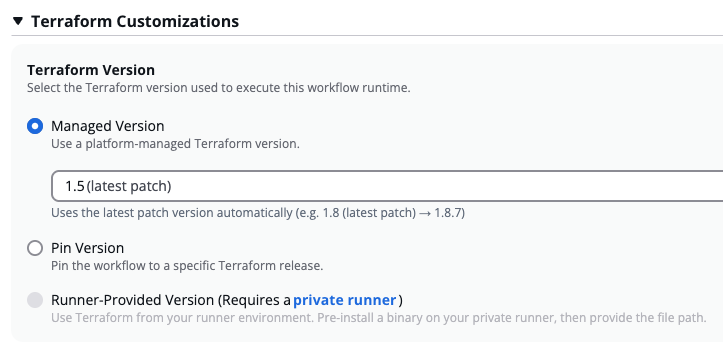
Managed Version
-
Pin Version: Pin the workflow to a specific Terraform/OpenTofu release. Enter the version in major.minor.patch format (e.g.
1.5.7).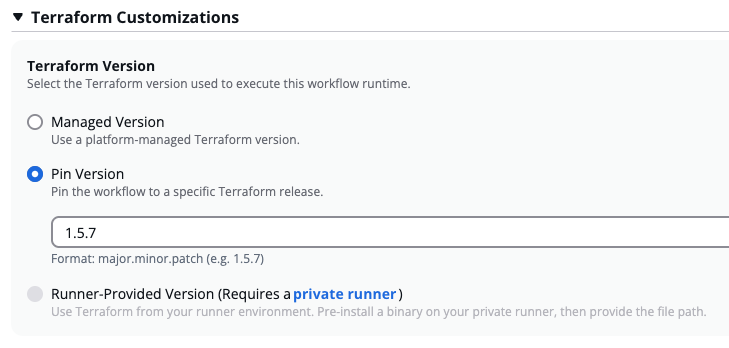
Pin Version
infoStackGuardian offers Terraform up to
v1.5.7. For newer versions, use a Custom Runtime Image or a Runner-Provided Version. -
Runner-Provided Version: Use a Terraform binary pre-installed on your private runner. Requires a private runner. When selected, a Mount your own version subsection appears — use Add Path + to provide the path to the binary on your runner. The mounted binary is used for all Terraform commands (
init,plan,apply).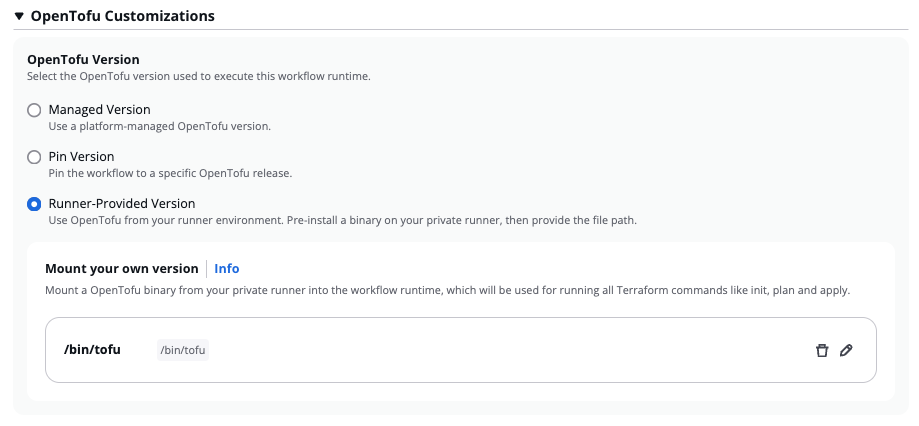
Runner-Provided Version
Custom Runtime Image
For full control over the runtime environment, you can also provide a Custom Runtime Image — a custom Docker image built on top of the StackGuardian base image, extended with your own tools and dependencies. See Custom Runtime Image for details.

Custom Runtime Image
Mount Point
When using private runner groups for deploying workflows, one or more Mount Points can be added under the lifecycle custom steps. These are essential for mounting paths from the private runner to the runtime container, such as files or certificates needed during the execution of the workflow.
Mount Points Setup
To add a Mount Point to a workflow:
-
Source Path: Absolute path on the private runner where the directory or file exists that you want to mount inside the workflow step container. For instance:
/usr/bin/terraform1_9_5 -
Target Path: Path inside the workflow container where the source directory or file will be mounted. For example:
/usr/bin/terraform1_9_5 -
Is Read Only: Ensures that the mounted path is read-only, preventing any modifications inside the container.
Use CLI flags and mounts to adapt Terraform execution to specific environments and compliance policies.
Lifecycle Custom Steps
Lifecycle Custom Steps allow users to inject custom logic or extend behavior at different Terraform lifecycle stages: Init, Plan, and Apply. Use them for validation, compliance scans, or post-deployment automation.
Available Stages
Each stage supports pre and post hooks:
- Add Pre Init+
- Add Pre Plan+ / Post Plan+
- Add Pre Apply+ / Post Apply+
Adding a Custom Step
When adding a new lifecycle step, you can either:
- Enter Command – Execute a custom shell command.
- Add a Step – Add an existing workflow step template.
Add Step Dialog Fields
| Field | Description |
|---|---|
| Step Name | Unique identifier (e.g., security-scan). |
| Approval | Optionally add an approval checkpoint for the step. |
| Workflow Step Template | Select a predefined step from the library (e.g., /demo-org/ansible-test-data). |
| Workflow Step Template Revision | Choose the template version (e.g., :1). |
| Workflow Step Timeout | Set step timeout in seconds. |
| Require Approval for this step | Inherit eligible approvers and approval count from the Workflow approval settings. |
| Command Override | Override the default command from the Docker image. |
| Input Variables with noCode Form | Enable graphical input of variables. |
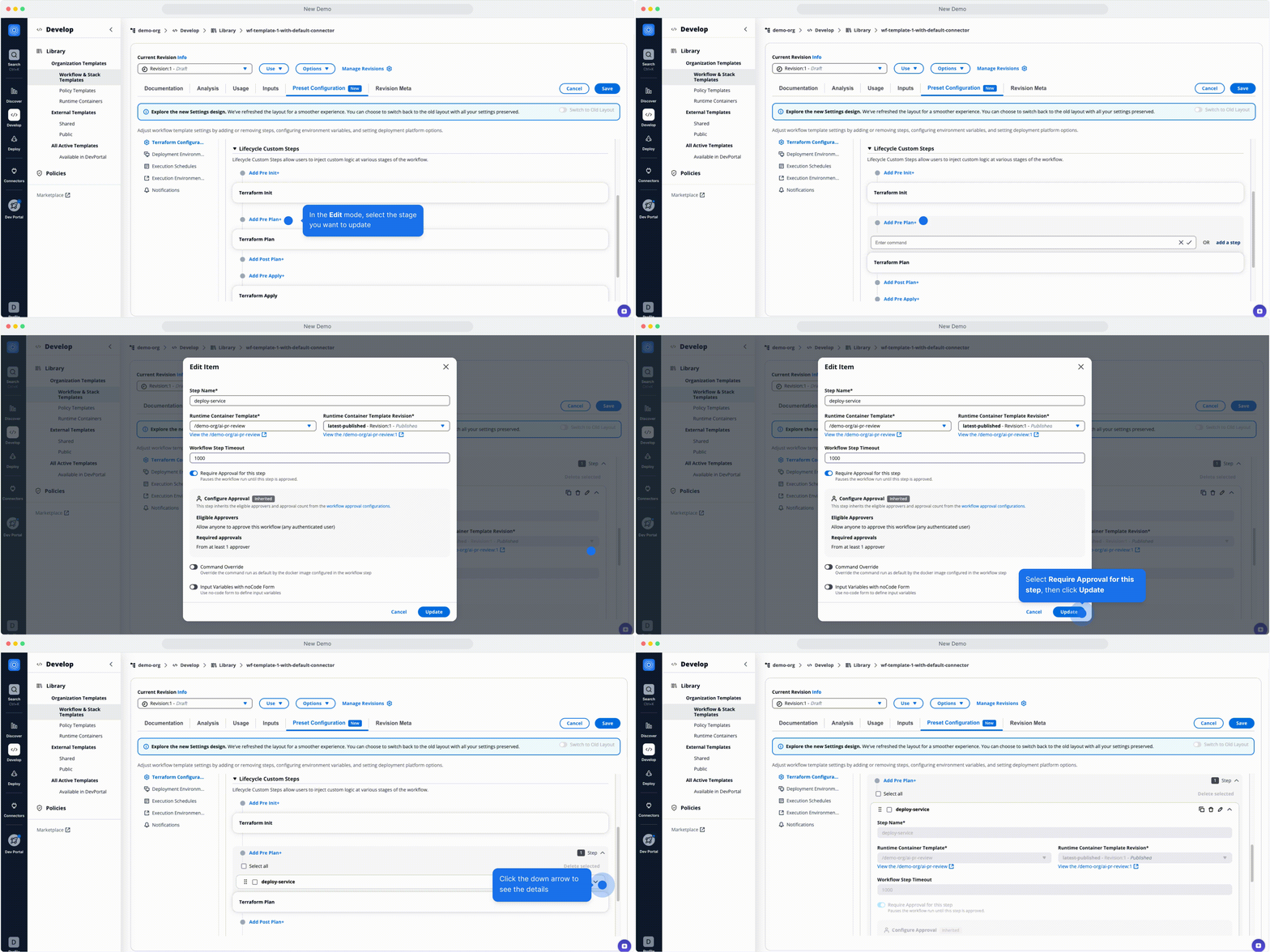
Add Step Dialog Fields
Workflow Triggers
The Workflow Triggers section enables automation based on workflow results or drift events.
It allows chaining other workflows and sending webhooks to external systems.
Workflow Chaining
Run other workflows automatically based on the outcome of the current workflow.
Available triggers:
- On Error – Fires when the workflow finishes in an errored state.
- On Success – Fires when the workflow finishes successfully.
Each trigger includes:
| Field | Description |
|---|---|
| Condition (when Terraform Action is) | Specify which Terraform action (Create, Destroy, Plan) should trigger the chain. |
| Workflow Group, Stacks and Workflows | Choose which workflows to trigger. |
| Action Type | Select what action the next workflow should perform. |
You can define multiple chained workflows using Add + to build complex orchestration pipelines.
Example: If a Create workflow fails, trigger a rollback workflow. If it succeeds, trigger an application deployment.
Webhook Triggers
Webhooks allow external systems to receive notifications or trigger actions when workflows complete or detect drift.
Available trigger types:
-
On Error – Fires when a workflow ends in an errored state.
-
On Success – Fires when a workflow completes successfully.
-
On Drift Detection – Fires when drift is found between the current and desired state.
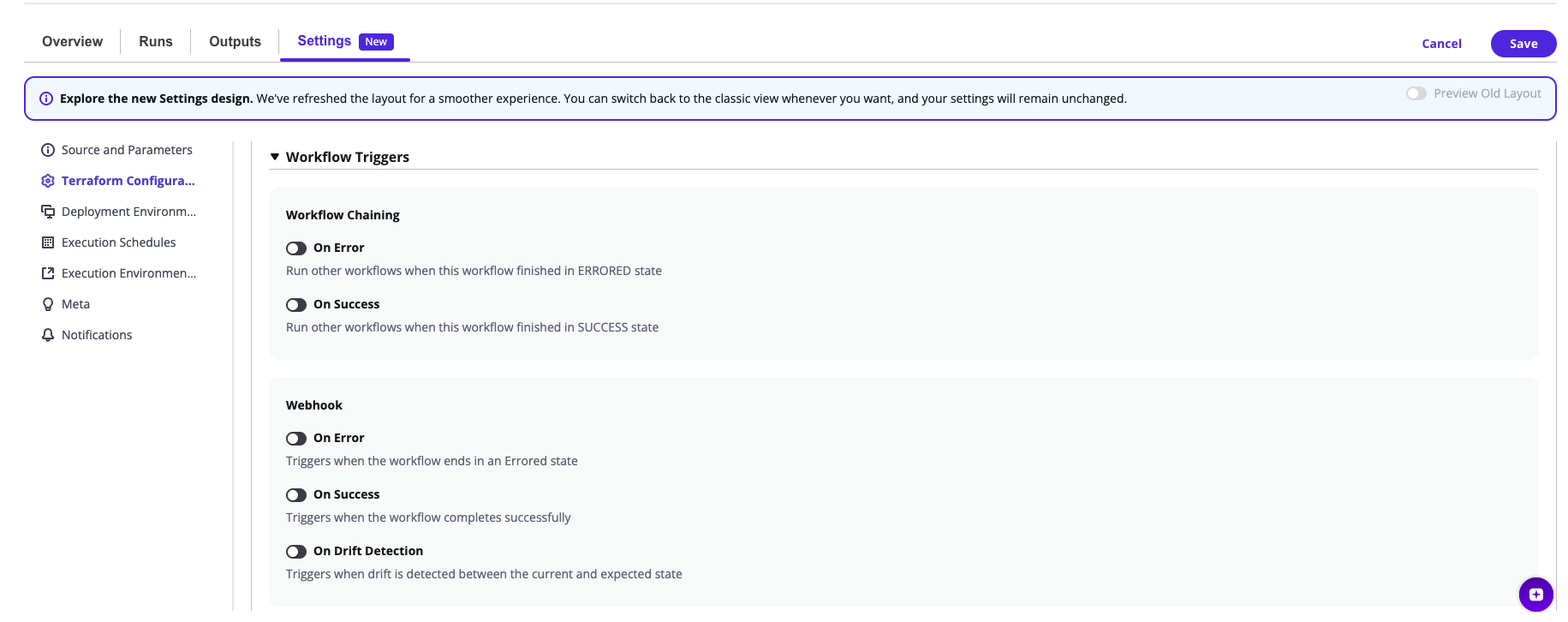
Each webhook includes:
| Field | Description |
|---|---|
| Webhook Name* | Name for identification. |
| Webhook URL* | Target endpoint for event payloads. |
| Webhook Secret | Optional token for payload signing. |
You can add, clone or delete multiple webhooks per trigger and manage them via Select All or Delete Selected options.
Example:
- On Success → Notify Slack or GitLab pipeline.
- On Error → Trigger PagerDuty or send a failure event to an incident management tool.
- On Drift Detection → Send updates to monitoring dashboards.