4. Execution Schedules
The Execution Schedules section automates workflow runs on a fixed or recurring basis — enabling continuous operations like nightly builds, compliance checks, or Terraform drifts without manual intervention.
This feature is available for both Custom and Terraform/OpenTofu workflows, and can manage multiple active schedules simultaneously.
4.1 Overview
The Execution Schedules tab, under Settings, allows users to define, edit, or delete scheduled runs for a workflow.
You can:
-
Add multiple schedules with different recurrence settings
-
Enable or disable individual schedules
-
Apply Infrastructure-as-Code (IaC) variables for scheduled runs
-
Manage or bulk delete schedules
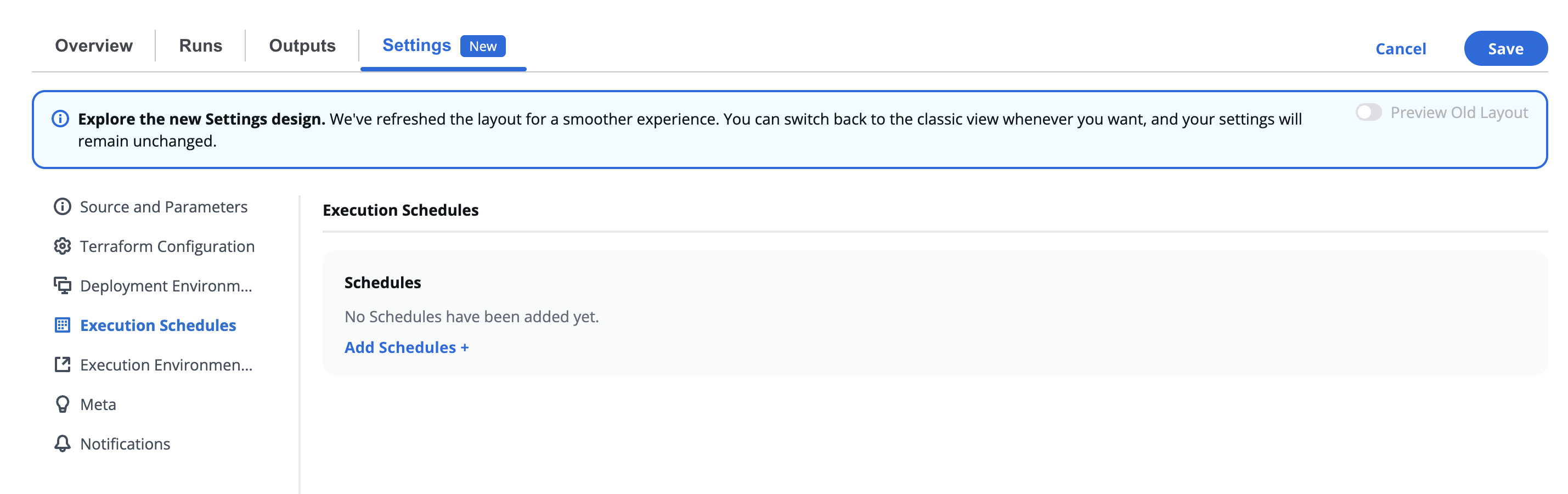
⚙️ Automated schedules ensure workflows execute consistently, improving operational reliability and governance.
4.2 Managing Multiple Schedules
When one or more schedules are created, they appear in a table view.
| Feature | Description |
|---|---|
| Select All | Selects all existing schedules for bulk actions. |
| Delete Selected | Removes all checked schedules. |
| Schedule Name | Each schedule is listed with a unique name (e.g., Schedule 1). |
| Add Schedules + | Opens the configuration form for creating a new schedule. |
| Clone Schedules | Clone existing schedules for more flexibility and ease |
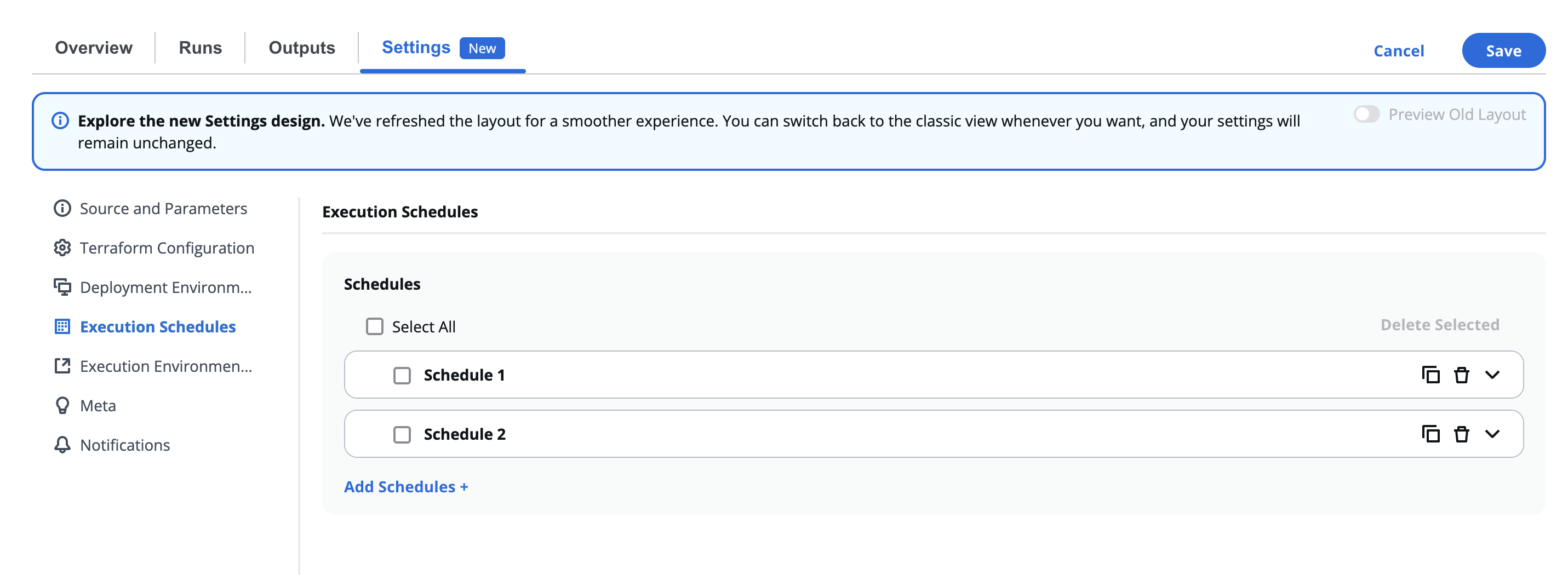
Each schedule can be individually toggled, edited, or deleted.
This multi-schedule feature is especially helpful for workflows that require different run cadences — for instance:
- Daily: Terraform plan validation
- Weekly: Security compliance check
- Monthly: Cost optimization audit
4.3 Adding or Editing a Schedule
Click Add Schedules + (or edit an existing one) to open the schedule configuration form.
| Field | Description |
|---|---|
| Enabled | Toggles the schedule on or off. |
| Description | Optional field for identifying the purpose of the schedule. |
| Schedule* | Defines recurrence — choose between preset or custom intervals. |
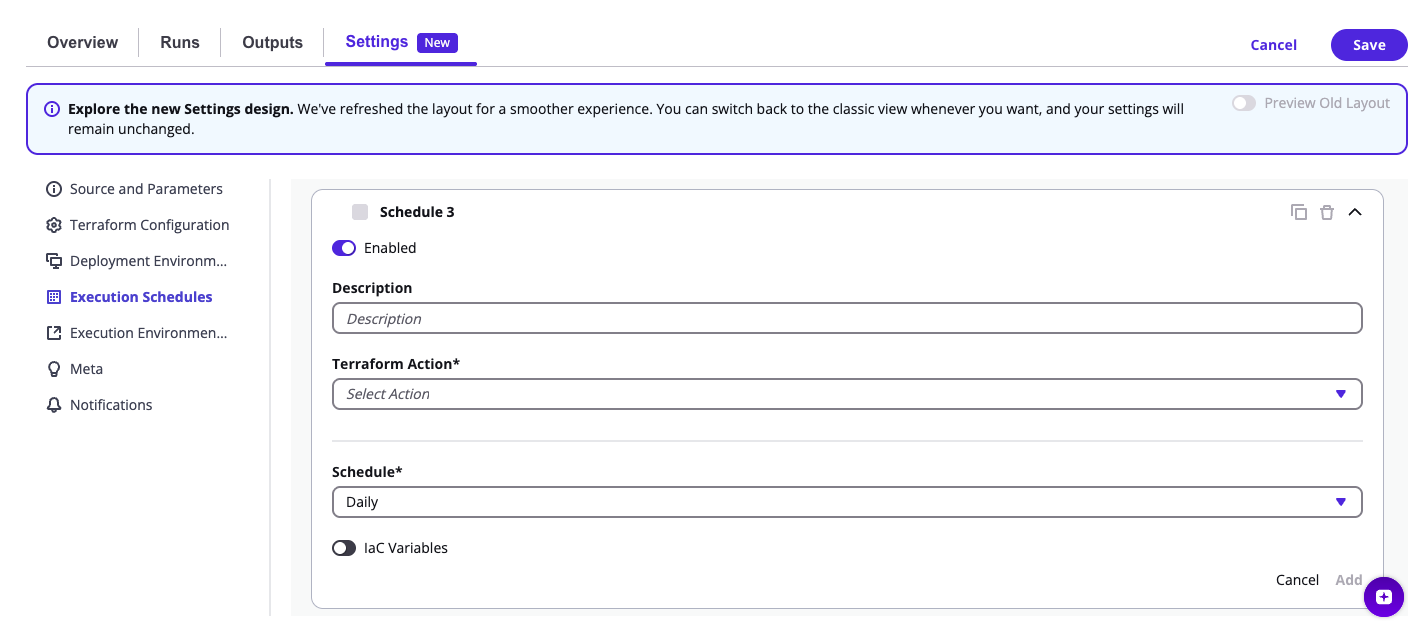
4.4 Schedule Frequency Options
| Option | Description |
|---|---|
| Weekly | Runs every Monday at 12:00 (noon). |
| Daily | Runs every day at 12:00 (noon). |
| Every 6 Hours | Runs at 00:00, 06:00, 12:00, and 18:00 UTC. |
| Every 2 Hours | Runs at 2-hour intervals. |
| Custom | Allows defining an advanced cron expression. |
💡 The system automatically converts UTC-based times into your local timezone for preview.
4.5 Custom Schedule (Cron Syntax)
When Custom is selected, detailed cron (UTC+0) fields appear.
You can define each time unit manually for complete flexibility.
| Field | Description |
|---|---|
| Minutes | Minute(s) of execution (0–59). |
| Hours | Hour(s) of execution (0–23). |
| Day of Month | Days to execute (1–31 or * for all). |
| Month | Month(s) of execution (1–12 or JAN–DEC). |
| Day of Week | Days of the week (0–6 or SUN–SAT). |
| Year | Optional, to limit runs to specific years. |
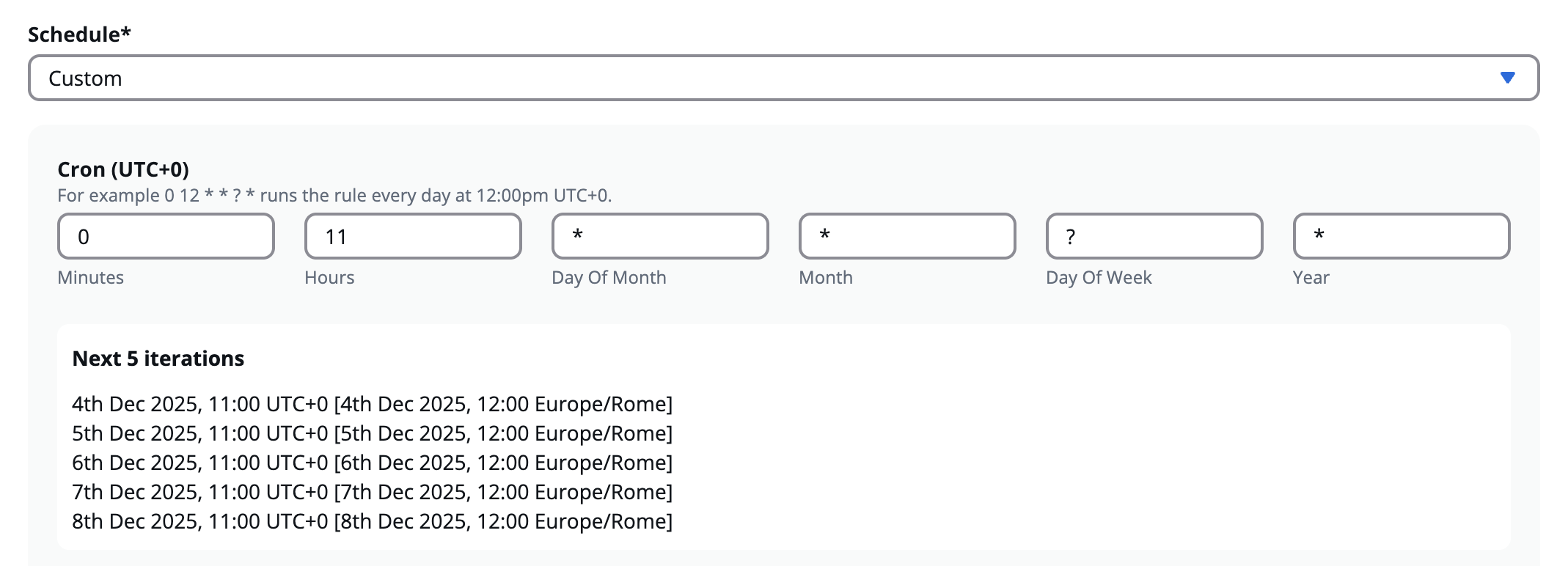
Below the cron fields, a Next 5 Iterations section automatically displays upcoming scheduled run times in both UTC and local timezone.
Example:
Minutes: 0
Hours: 11
Day of Month: *
Month: *
Day of Week: ?
Year: *
Result:
Runs daily at 11:00 UTC (12:00 Europe/Rome).
Cron scheduling allows precise timing for maintenance windows, testing cycles, or recurring operations.
4.6 IaC Variables
The IaC Variables section defines environment-specific variables used during scheduled runs.
When enabled, a JSON editor appears — allowing you to write or paste variable definitions directly in structured format.
Example:
{
  "environment": "production",
  "region": "us-east-1",
  "backup_enabled": true}
These variables are passed into the workflow at runtime, ensuring consistent configuration across all scheduled executions.
| Field | Description |
|---|---|
| IaC Variables Toggle | Enables or disables custom variable injection. |
| Code Editor | Define JSON-formatted variable sets. |
This feature is especially useful for Terraform and Ansible workflows where variable consistency across time-based runs is critical.
4.7 Schedule Management Actions
Each existing schedule can be controlled directly from the main list:
| Action | Description |
|---|---|
| Edit | Modify frequency, description, or variables. |
| Delete | Permanently remove a schedule. |
| Duplicate | Clone an existing schedule configuration for reuse. |
| Enable / Disable Toggle | Temporarily pause or resume a schedule without deleting it. |
These controls streamline workflow lifecycle automation and simplify complex scheduling setups.