1. Source and Parameters
This section controls where your workflow’s source code comes from and how its input variables are provided.
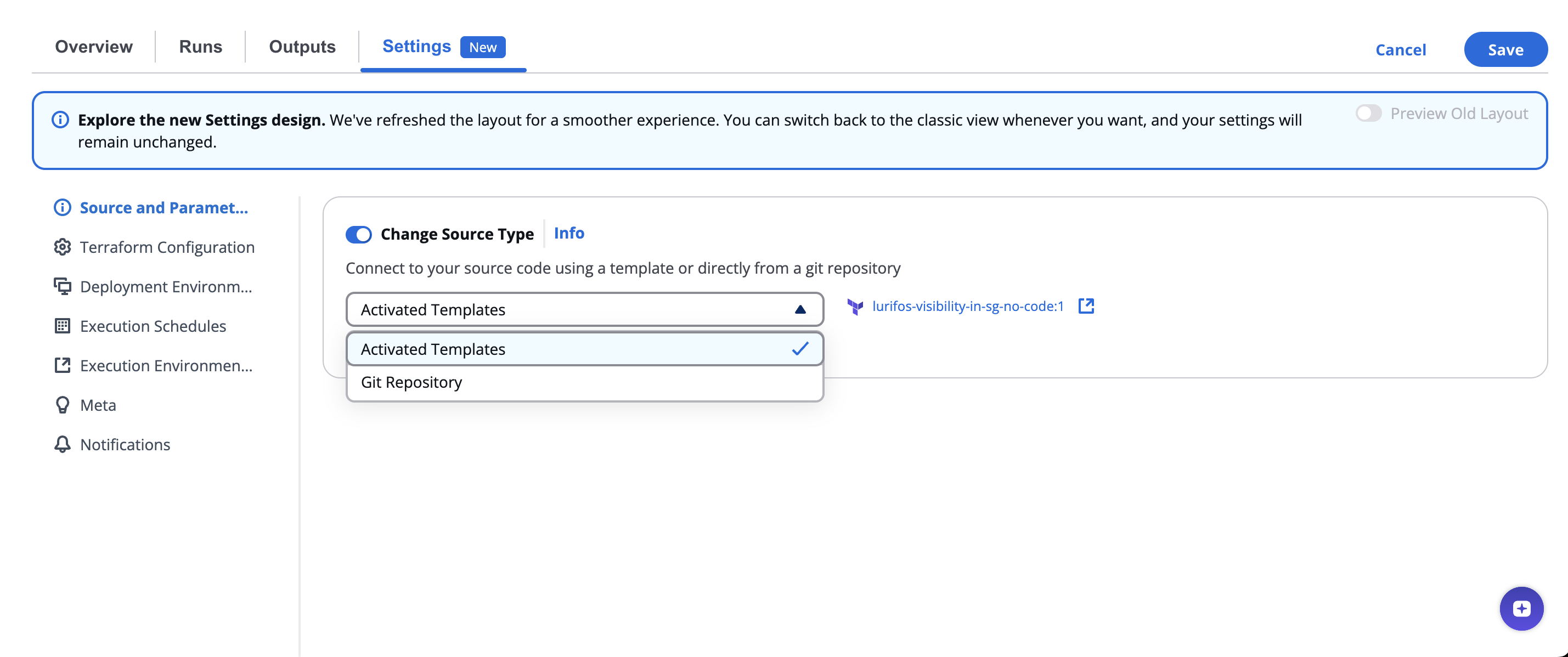
Source Type
There are two main ways to define the source:
-
Activated Templates – Use pre-activated templates available within your organization.
Select from the list of existing templates and choose the desired revision.
-
Git Repository – Connect directly to a version control system (e.g., GitHub, GitLab, Bitbucket, or custom Git).
Define the repository, authentication method, and branch or commit.
Switching Source Type
- Toggle Change Source Type to switch between Activated Template and Git Repository modes.
- Changing the source type allows you to migrate from a managed template to a Git-based configuration.
Activated Templates Mode
When using Activated Templates:
-
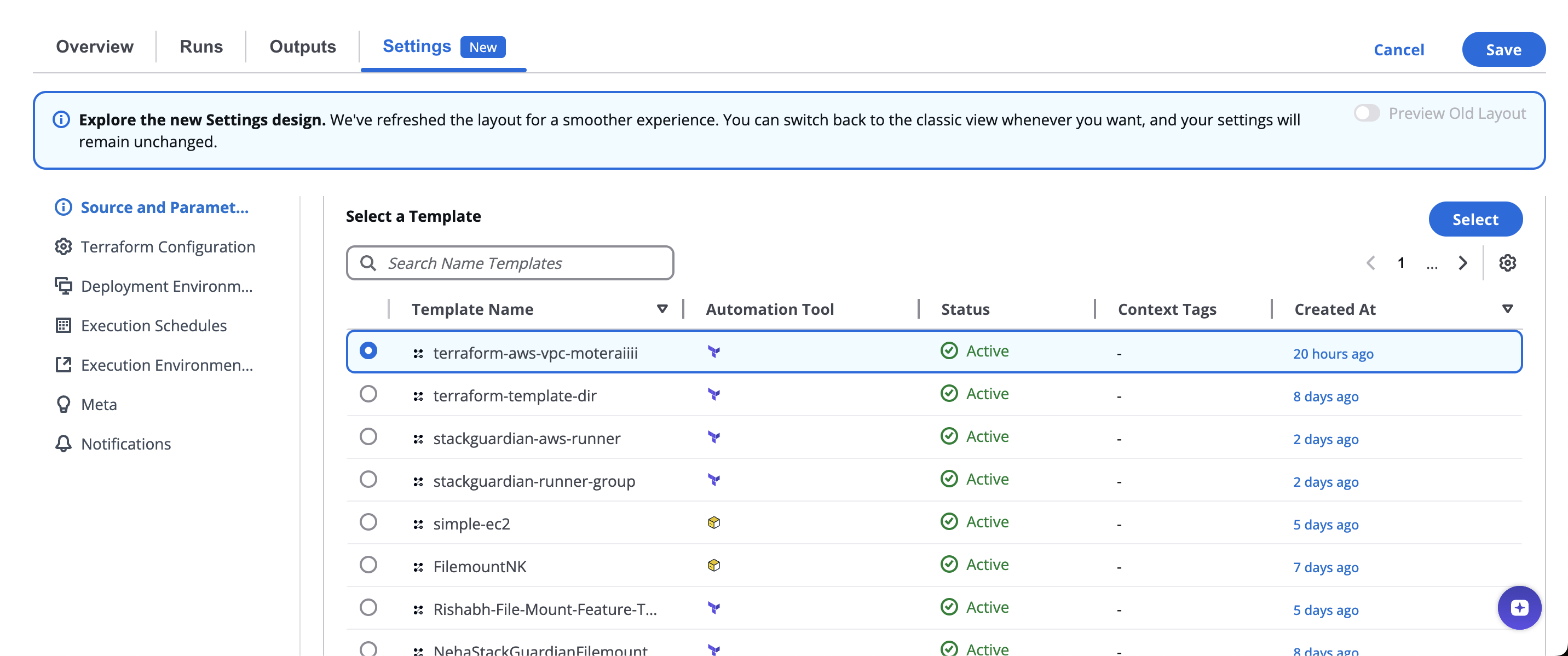
Template Selection – Choose from available activated templates.
Each template includes details such as:
- Template Name
- Automation Tool (Terraform, Ansible, etc.)
- Status (Active/Inactive)
- Creation Date
-
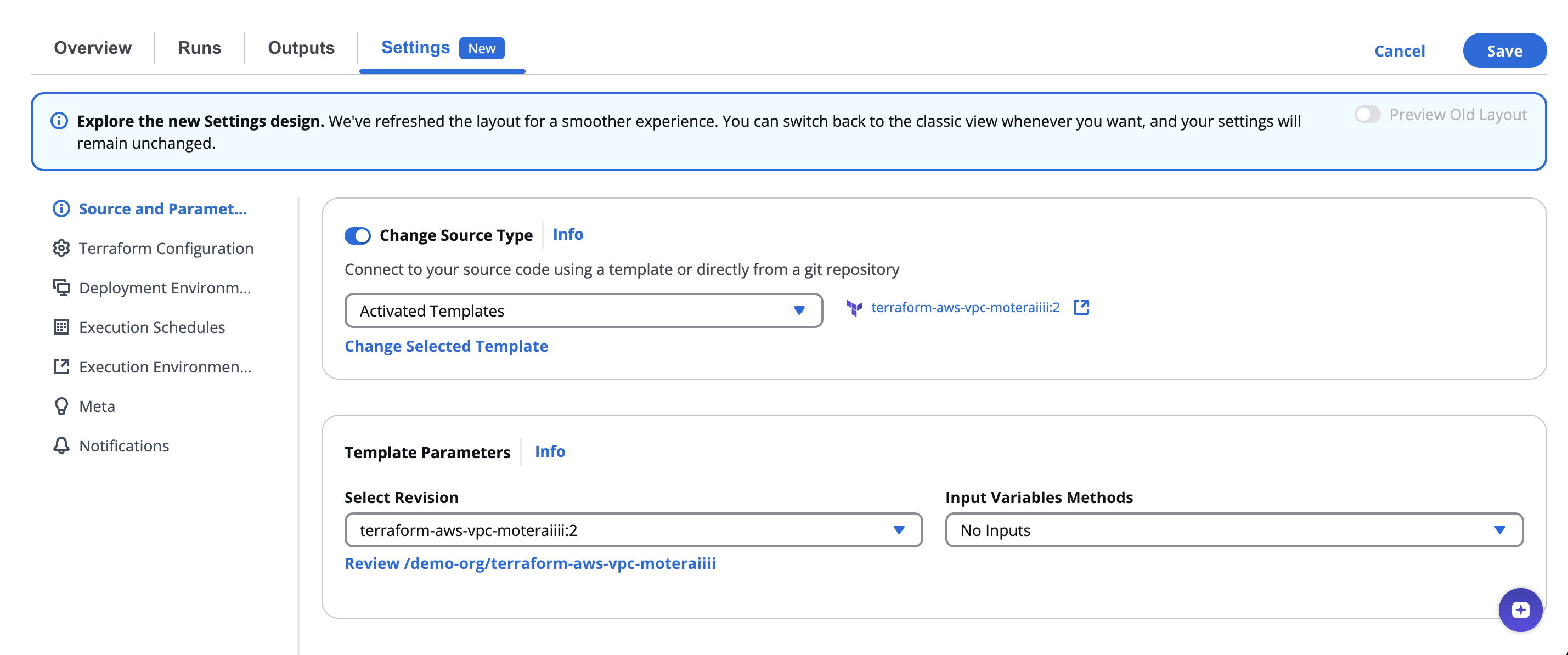
Template Parameters – Choose the template revision and define Input Variable Methods:
JSON-formatted input– Enter variables in JSON format.
-
Review Link – A shortcut to view the template definition or configuration.
💡 Use this mode when you want to quickly reuse organization-approved templates with standardized settings.
Git Repository Mode
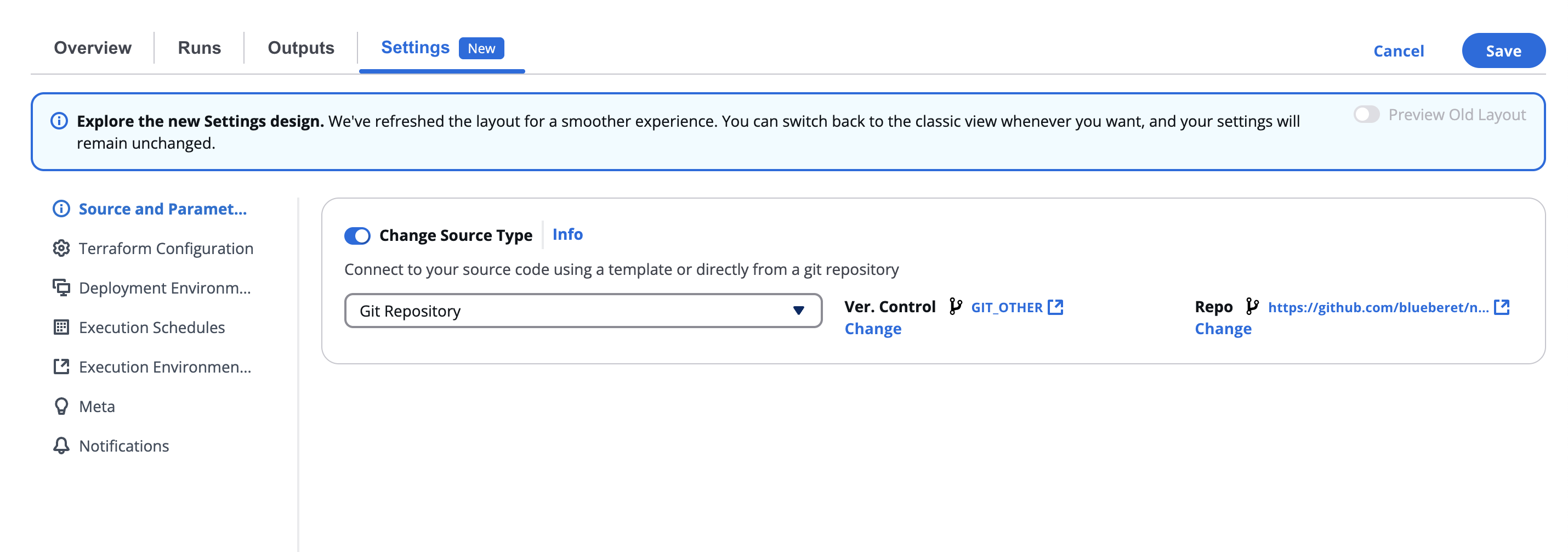
When connecting directly to a Git repository:
-
Version Control – Select a pre-configured VCS connector (e.g.,
github_com,Git Others) or add a new one. -
Repository URL – Provide the repository path, for example:
https://github.com/org/project-template-tf -
Authentication Method – Choose an authentication option for private repositories:
No Auth– For public repositories- Secret-based or integrated connectors – For private repos (e.g.,
/secrets/vault-token,/integrations/github_com)
-
Branch, Tag, or Commit – Specify which version of the code to pull (e.g.,
main,develop, or a commit SHA). -
Working Directory – Define the path within the repository containing the IaC configuration (e.g.,
/infra,/modules/vm). -
Sparse Checkout Config (optional) – Use for partial repository checkout.
-
Enable git core.autocrlf – Automatically converts line endings during checkout (recommended for Windows-based environments).
Input Variables Methods
Input variables define the configuration values passed into your IaC templates.
You can select one of the following input formats:
- No Inputs – Use when no external variables are needed.
- JSON-formatted input – Define variables directly as a JSON object.
- SG noCode
You can also:
- Add IaC Variables dynamically using the “Add IaC Variable +” option.
- Toggle Show in Editor to view or modify them inline.
🧩 IaC variables make workflows flexible and reusable across environments.
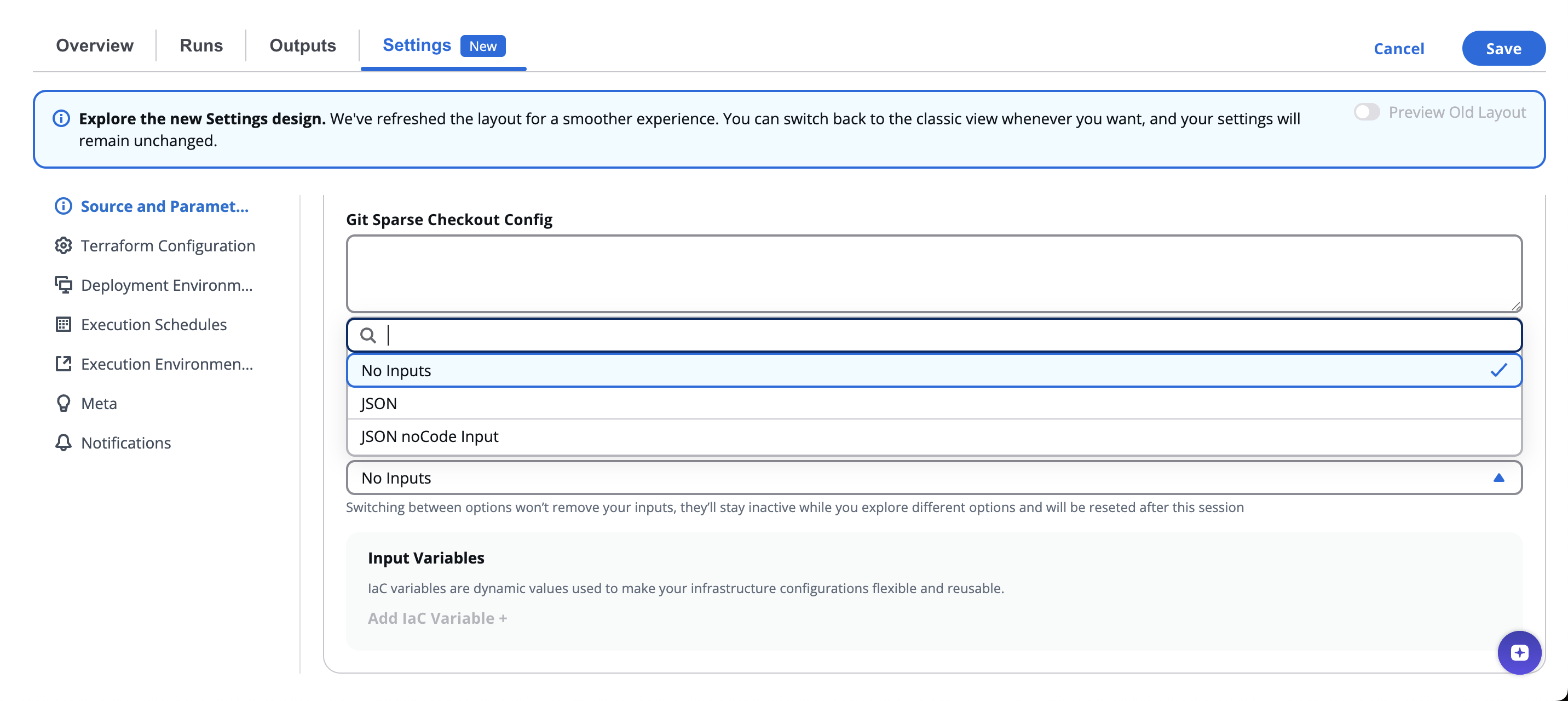
Your inputs won’t be lost when switching options — they’ll just be inactive while you explore and will reset when the session ends.