Activate and deactivate workflows
Overview
Workflows in StackGuardian have two statuses: active and inactive. All new workflows start as inactive. Active workflows count toward your plan's billing limit and appear in default search results. When a workflow is inactive, the Overview, Runs, and Outputs tabs are disabled, state files and artifacts are inaccessible, and any workflows that depend on them will fail to resolve their references — but any automation that triggers a run will reactivate it automatically.
| Active | Inactive | |
|---|---|---|
| New runs | Allowed | Allowed — running an inactive workflow reactivates it |
| Schedules | Run normally | Run normally — workflow reactivates if a scheduled run executes |
| VCS triggers | Run normally | Run normally — workflow reactivates if a trigger fires |
| Drift detection | Runs normally | Runs normally — workflow reactivates if drift is detected |
| Overview tab | Accessible | Disabled |
| Runs tab | Accessible | Disabled |
| Outputs tab | Accessible | Disabled |
| State file downloads | Allowed | Blocked |
| Artifacts | Accessible | Blocked |
| Settings changes | Allowed | Allowed |
| Billing | Counts toward your active workflow limit | Does not count |
| Search results | Included | Excluded |
Automatic transitions
Workflows transition between active and inactive automatically based on run outcomes.
Terraform and OpenTofu
| Event | Result |
|---|---|
| Any run (normal, drift, schedule, or VCS trigger) | Workflow becomes active |
| Successful destroy with Deactivate Workflow after Destroy enabled | Workflow becomes inactive |
Custom and Ansible
| Event | Result |
|---|---|
| Any run (normal, drift, schedule, or VCS trigger) | Workflow becomes active |
Custom and Ansible workflows can only be deactivated manually by an organization admin.
Manual activation and deactivation
Activation and deactivation permissions differ:
- Deactivation — organization admins only
- Activation — any user with modify permissions on the workflow
To activate or deactivate a workflow:
- Navigate to Settings > Meta and select the Activate workflow / Deactivate workflow button
- Select Save to apply the change.
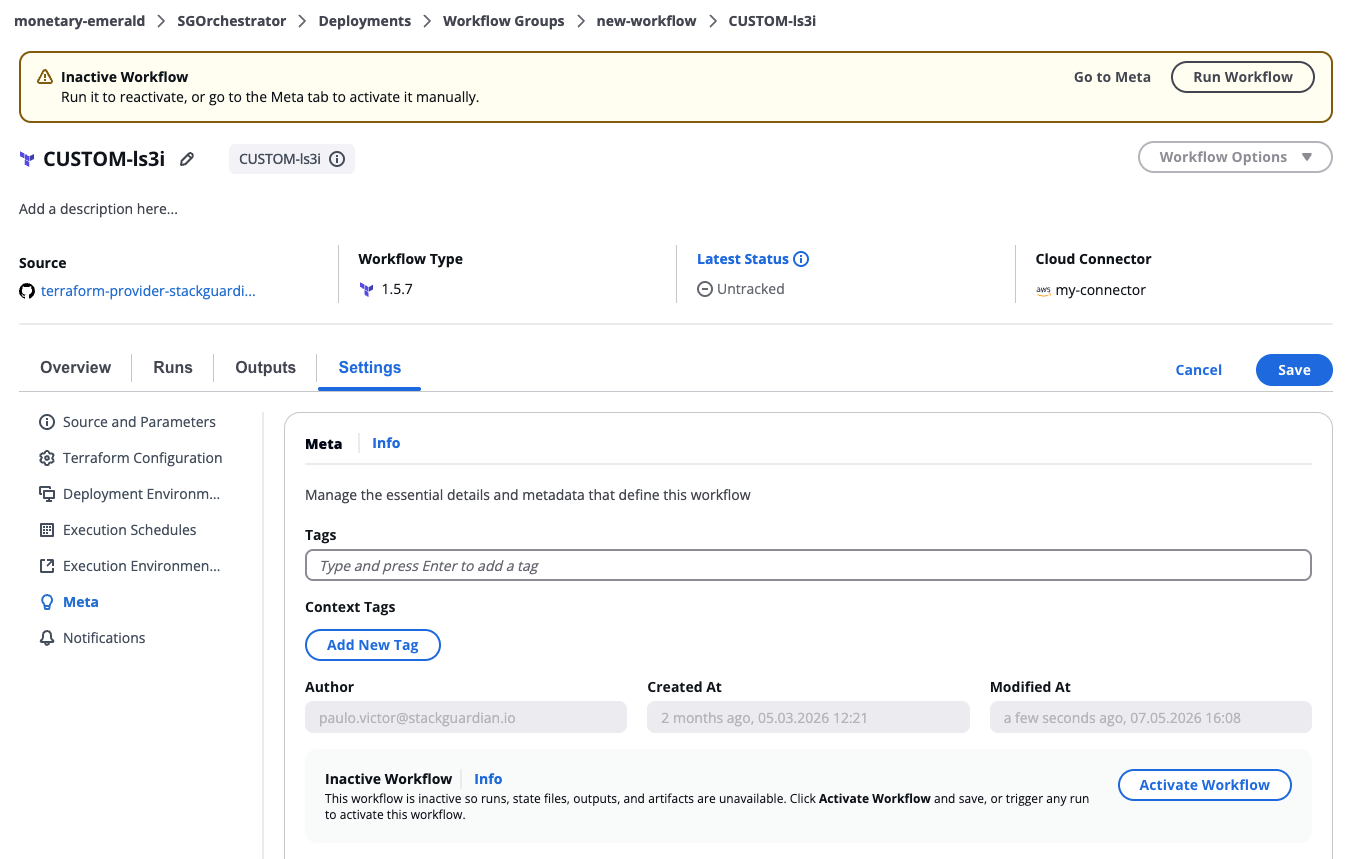
Activate or deactivate a workflow
Manual activation and deactivation is also available via the StackGuardian API.
Deactivating a workflow does not destroy its resources. To remove provisioned infrastructure, run a destroy separately.
If other workflows reference the outputs of a workflow you are deactivating, those workflows will fail when they attempt to resolve the reference. Review dependencies before deactivating.
Settings are preserved when a workflow is inactive. You don't need to reconfigure anything when reactivating.
Billing and active workflow limits
Only active workflows count toward your plan's active workflow limit. Inactive workflows are not billed.
Free plan: If running a workflow would exceed your active workflow limit, the run is blocked with the following error:
Maximum active workflow threshold reached.
To run the workflow, deactivate an existing active workflow first.
Paid plans (CreditCard, Standard, Professional, and Enterprise): If running a workflow would exceed your active workflow limit, the additional workflow is billed at on-demand pricing and the run proceeds without being blocked.
Workflows in stacks
Deactivating a stack deactivates all workflows within it. Outputs, artifacts, state files, and run logs become inaccessible for every workflow. Individual workflow-level control within stacks is not currently supported.