API Keys
StackGuardian APIs use predictable, resource-oriented URLs, accept JSON-encoded request bodies, and return JSON-encoded responses. The API uses standard HTTP response codes and verbs to indicate success or failure.
Base URL: Use this as the base for all API endpoints.
- EU Region
- US Region
https://api.app.stackguardian.io/api/v1
https://api.us.stackguardian.io/api/v1
Use the base URL that corresponds to the region where your StackGuardian organization is hosted.
Authentication
Authenticate against the StackGuardian API using an API Key. Generate the API Key in your Organization's settings, then pass it in the Authorization HTTP header:
Authorization: apikey <API_KEY>
Your API key's permissions depend on your user type and authentication method. There are two types of tokens:
-
User-bound tokens (
sgu_) - Personal tokens that inherit your user permissions -
Organization-level tokens (
sgo_) - Organization-wide tokens for CI/CD and shared automation
Permission inheritance
Local users and individual SSO users
- ✅
sgu_tokens inherit all assigned permissions - Works as expected
SSO group members only
- ❌
sgu_tokens won't work - Use
sgo_tokens instead
SSO users with both direct and group permissions
- ⚠️
sgu_tokens inherit only direct user permissions - Group permissions are not included
- This causes a mismatch: UI shows combined permissions, but your token only has user permissions
When to use each type
Use sgu_ tokens for:
- Personal scripts and development
- Local users or SSO users with direct permissions
Use sgo_ tokens for:
- CI/CD pipelines
- SSO group members
- Shared team automation
Steps to Generate an API Key
Access, generate, and use StackGuardian API key for secure authenticated requests.
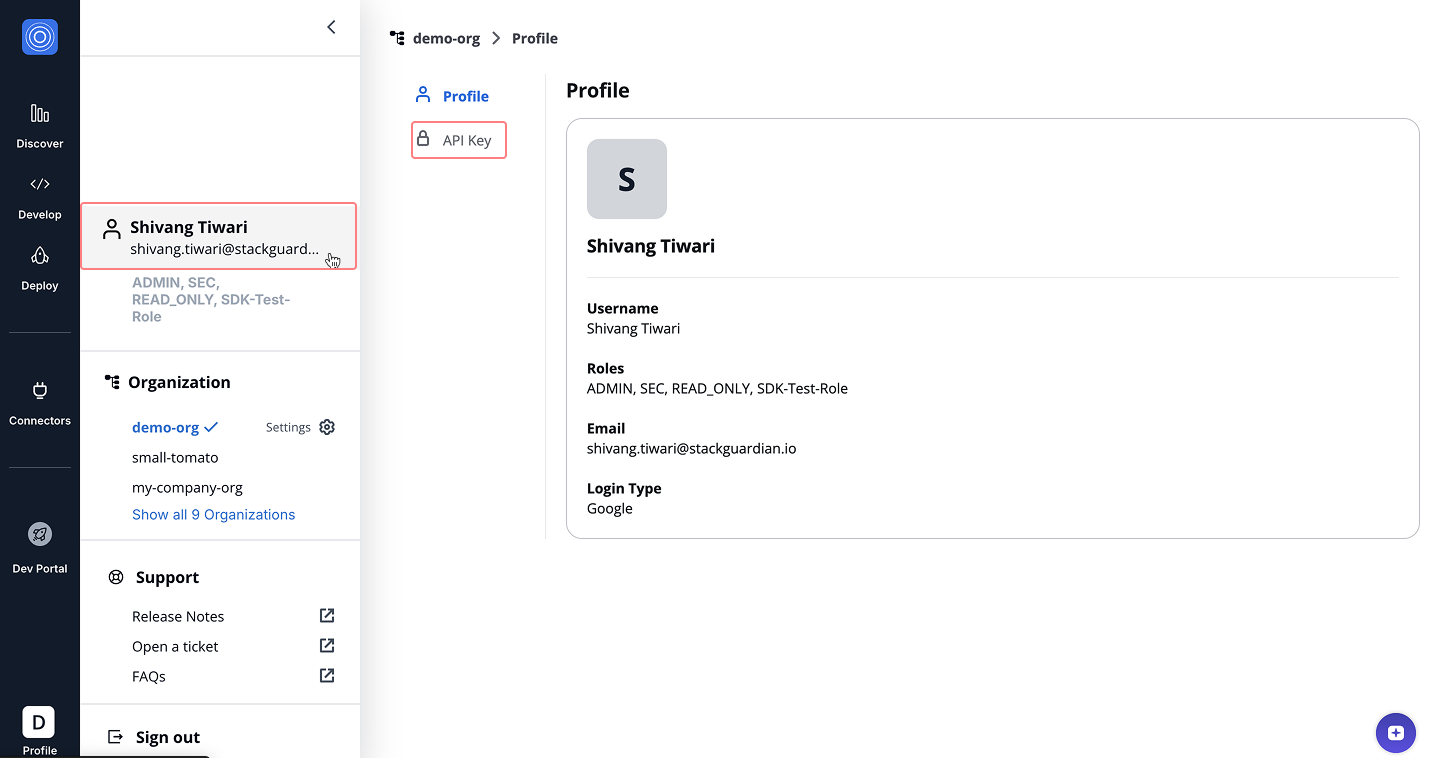
1. Open the API Key Tab
To access your API key:
- Click on profile, navigate Profile Settings → API Key
2. Generate and Copy the API Key
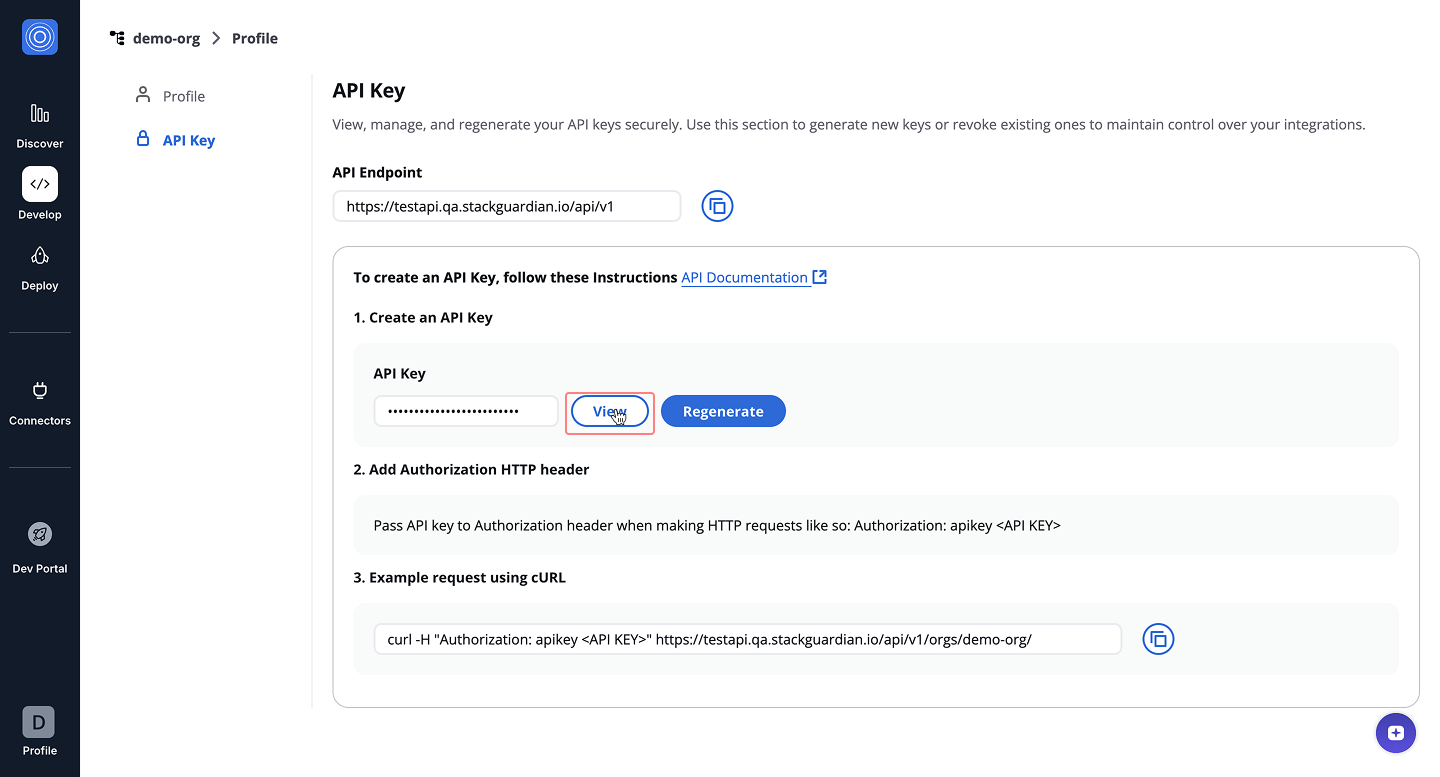
Manage current API key or generate a new one.
Viewing an Existing Key
Click the View button to reveal currently active API key.
- The key will be masked by default. Once visible, you can use the Copy button to copy it securely.
Keep the key confidential and store it in a secure password manager.
Regenerating the API Key
If you want to invalidate the current key and create a new one:
- Click the Regenerate button. This action deactivates the existing key and replaces it with a new one.
3. Making Requests
Once your key is copied, you can use it to authenticate HTTP requests to the StackGuardian API.
- EU Region
- US Region
curl -H "Authorization: apikey <API_KEY>" https://api.app.stackguardian.io/api/v1/orgs/<ORG_NAME>/
curl -H "Authorization: apikey <API_KEY>" https://api.us.stackguardian.io/api/v1/orgs/<ORG_NAME>/
You can run the command directly in a Unix-based terminal (Linux/macOS) or via Git Bash or WSL on Windows.
Errors
StackGuardian APIs follow standard HTTP response codes:
| Status Code | Description |
|---|---|
| 200 - OK | Request was successful. |
| 204 - OK | Request was successful, but no content to return. |
| 400 - Bad Request | Request was invalid due to missing or incorrect parameters. |
| 401 - Unauthorized | Invalid or expired API Key. |
| 403 - Forbidden | Access to the requested resource is not permitted. |
| 404 - Not Found | Resource does not exist. |
| 5xx - Server Error | Server encountered an issue. Please report it to support. |
Reporting Issues
If you encounter any issues: