Multi-Factor Authentication (MFA)
Multi-Factor Authentication (MFA) adds an extra layer of protection to your StackGuardian account. Once enabled, signing in requires both your password and a one-time code from an authenticator app.
info
This feature is only available for Local users, not for users who sign in with Google.
Enabling MFA
To enable MFA, follow these steps:
1. Install an Authenticator App
Install a time-based one-time password (TOTP) compatible app on your mobile device or desktop:
2. Activate MFA in StackGuardian
- Navigate to Profile → Settings → Security.
- Toggle the Activate Multi-Factor Authentication (MFA) switch to begin the setup.
3. Register Your Device
You’ll now be prompted to register a device:
- Enter a Device Name (e.g.,
StackGuardian) - Click Show QR Code to generate your MFA setup
- A QR code and secret key will be shown
You can now:
- Scan the QR code using your authenticator app, or
- Manually enter the secret key into the app (use "Show Secret Key" → Copy)
4. Verify Your Setup
- Enter the verification code shown in your app into the input field labeled Enter Code.
- Click Verify to complete the setup.
Disabling MFA
To disable MFA entirely:
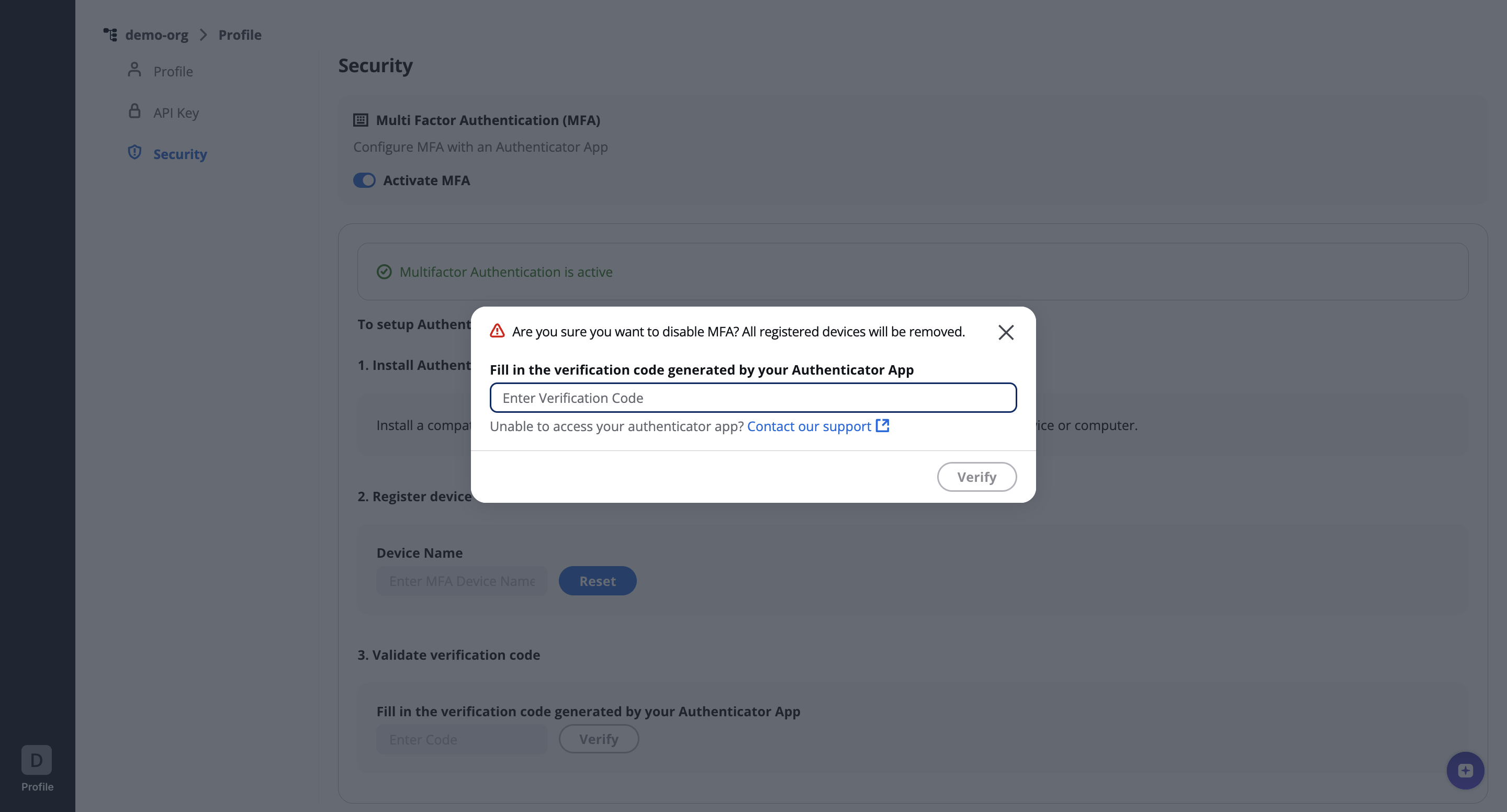
- Turn off the Activate MFA toggle.
- Confirm the action by entering the code from the auth app.
Lost Device or Can't Access Authenticator App?
If you lose access to your registered authenticator app:
- Contact your StackGuardian administrator, or
- Raise a support ticket
Our team will guide you through identity verification and assist in re-enabling MFA.