Review and approve Workflow Runs
Overview
When a Workflow Run requires approval, it pauses and displays an Approval Required status. Eligible approvers can review the run details and approve or cancel the run.
To set up approval requirements for your workflows, see Terraform/OpenTofu workflow configuration or Custom workflow configuration.
You can identify runs that need approval in two places:
- Workflow header: The Latest Status shows Approval Required. Select it to open the Approval Details modal.
- Runs tab: The Latest Status column shows Approval Required and the Approval Detail column displays a Review & Approve link
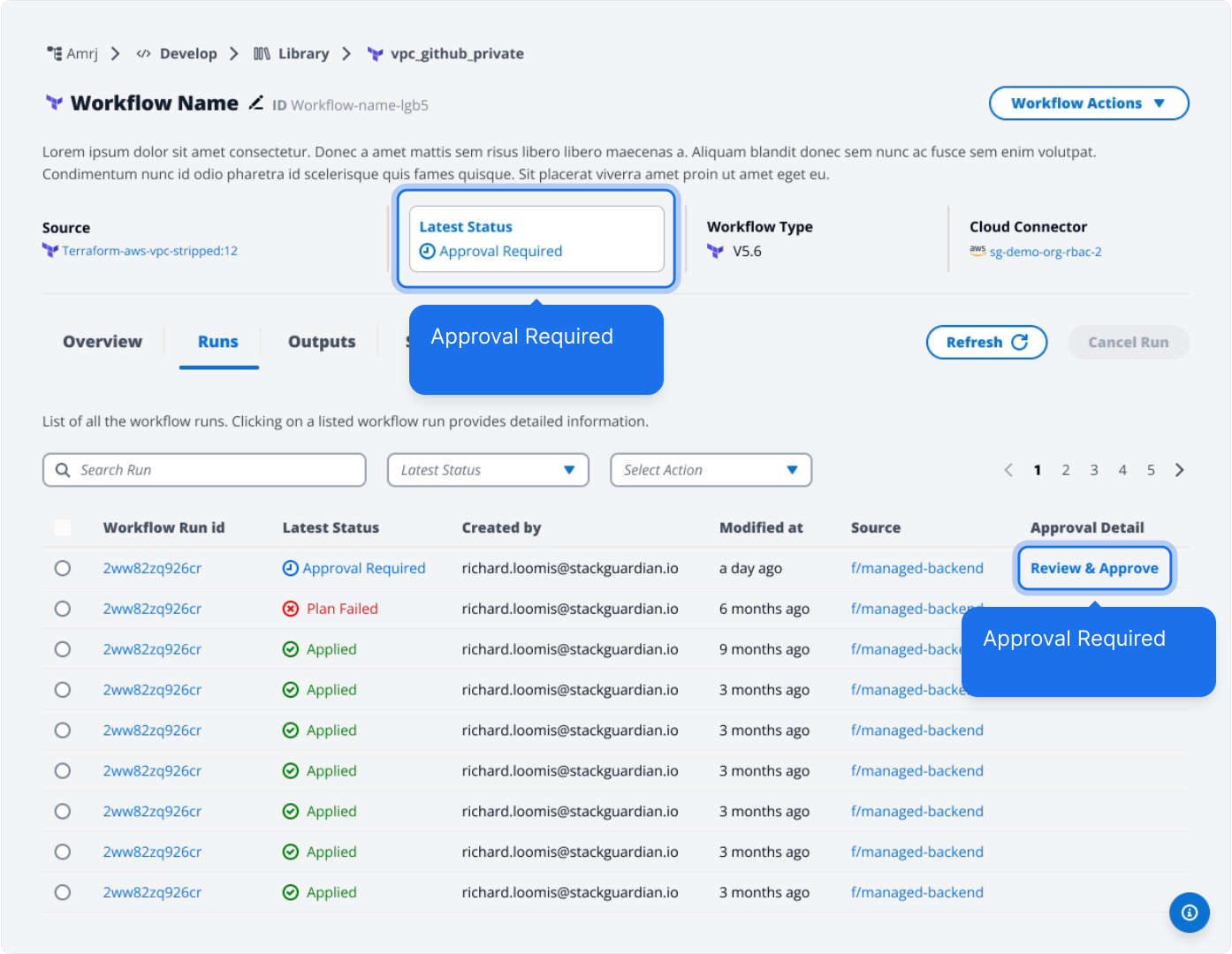
Approval Required
All users can view approval details, but only eligible approvers and admins can take action.
| Role | Can approve | Can cancel |
|---|---|---|
| Eligible approver | Yes | Yes |
| Admin (not an eligible approver) | No | Yes |
| Other users | No | No |
StackGuardian supports two identity types:
- SSO identities: Users and groups authenticated through your organization's identity provider (Okta, Azure AD, Google Workspace)
- Local identities: Users created directly in StackGuardian
These identity types are treated as distinct entities in approvals and role-based access control (RBAC).
Approval logic for mixed identity types
StackGuardian treats SSO identities and local identities as distinct entities. This affects how approvals are counted when you mix different identity types as eligible approvers.
Approval counting rules:
- SSO User + SSO Group: Counts as one approval entity. If the same person is listed as an SSO user and also belongs to an eligible SSO group, they can only approve once.
- SSO User + Local User: Counts as two distinct approval entities. The same person with both identity types can approve separately with each login method.
- SSO Group + Local User: Counts as two distinct approval entities. A person in the SSO group who also has a local account can approve separately with each login method.
Examples:
Eligible approvers: "SSO Group: DevOps" + "SSO User: email@company.com" (Jane is in DevOps)
- Jane can only approve once, even though she appears in both
- Required approvals: "From at least 2 approvers"
Eligible approvers: "SSO User: email@company.com" + "Local User: jane"
- Jane can approve with her SSO login, then approve again with her local login
- Required approvals: "From at least 2 approvers"
Eligible approvers: "SSO Group: DevOps" + "Local User: jane"
- Jane (in DevOps) can approve with her SSO login, then approve again with her local login
- Required approvals: "From at least 2 approvers"
Approval Details
The Approval Details screen displays:
Run details:
- Workflow name
- Run ID
- Who triggered the run
- Number of approval reasons
- Run status
Approval Reasons & Configurations:
For each approval reason (Workflow run, Lifecycle Custom Step, Workflow Step, or Policy), the modal displays:
- Eligible Approvers: Number or list of users and user groups who can approve
- Required approvals: Minimum number of approvals needed (e.g., "At least 2 approvers")
- Current Approval Count: How many approvals have been received, shown as a progress badge (e.g., "Progress: 2/2")
- Eligible approvers list: Table showing each approver's status (Pending, Approved, or Canceled), timestamp, and approval message
Select the context link to view the Workflow run details. This helps you make an informed decision before approving.
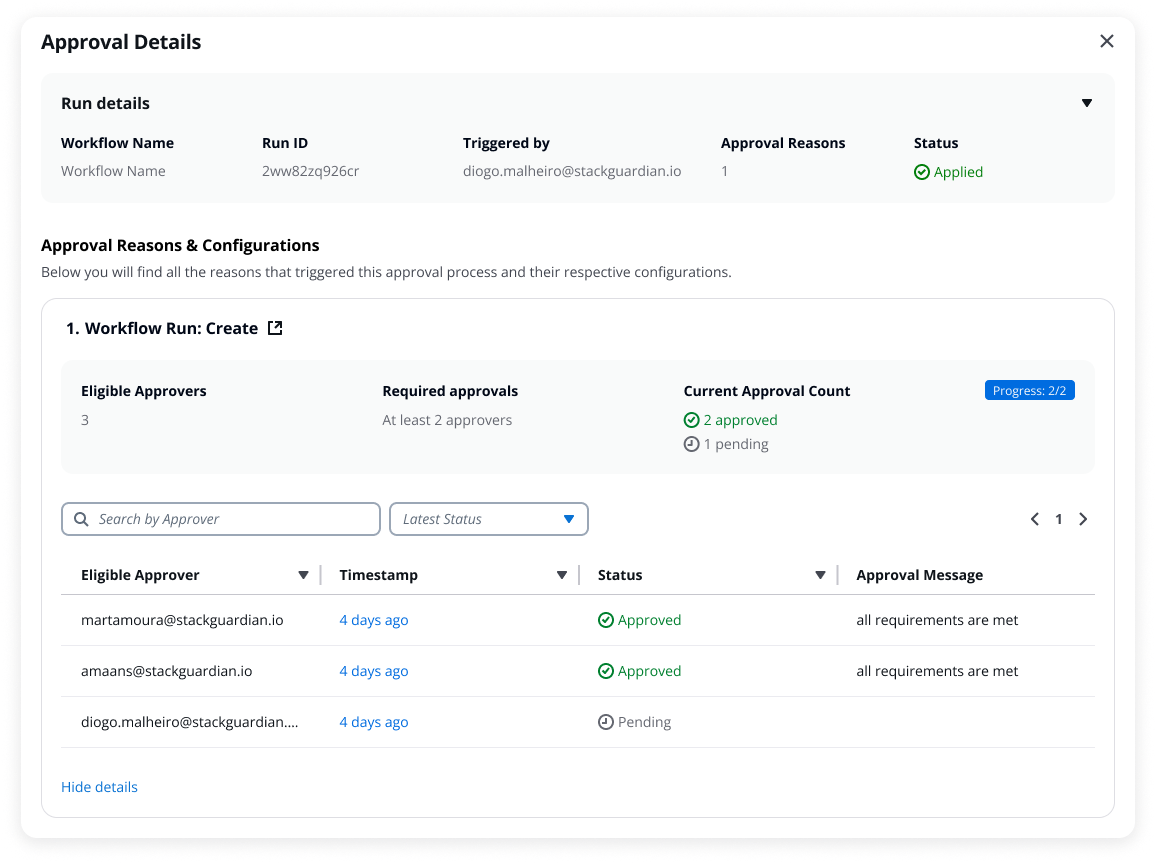
Approval Details
Approve a run
If you are an eligible approver:
- Select Review & Approve from the Runs tab or Workflow header.
- Review the run details and context.
- Add a message (optional).
- Select Approve.
When the required number of approvals is met, the run proceeds automatically. For example, if 2 approvals are required and 3 approvers are eligible, the run continues after any 2 approvers approve.
Multiple approval reasons
If the Workflow has multiple approval reasons (for example, a Workflow run and a Lifecycle Step), you approve each one individually:
- Workflow run approval
- Workflow Step approval (Lifecycle Custom Steps)
- Policy approval
Each reason may have different approval configurations. For example, the Workflow run might require 2 approvers while a Policy requires approval from all approvers.
When multiple reasons exist:
- Approve each reason individually
- Canceling any reason cancels the entire run
- The run only proceeds when all reasons are approved
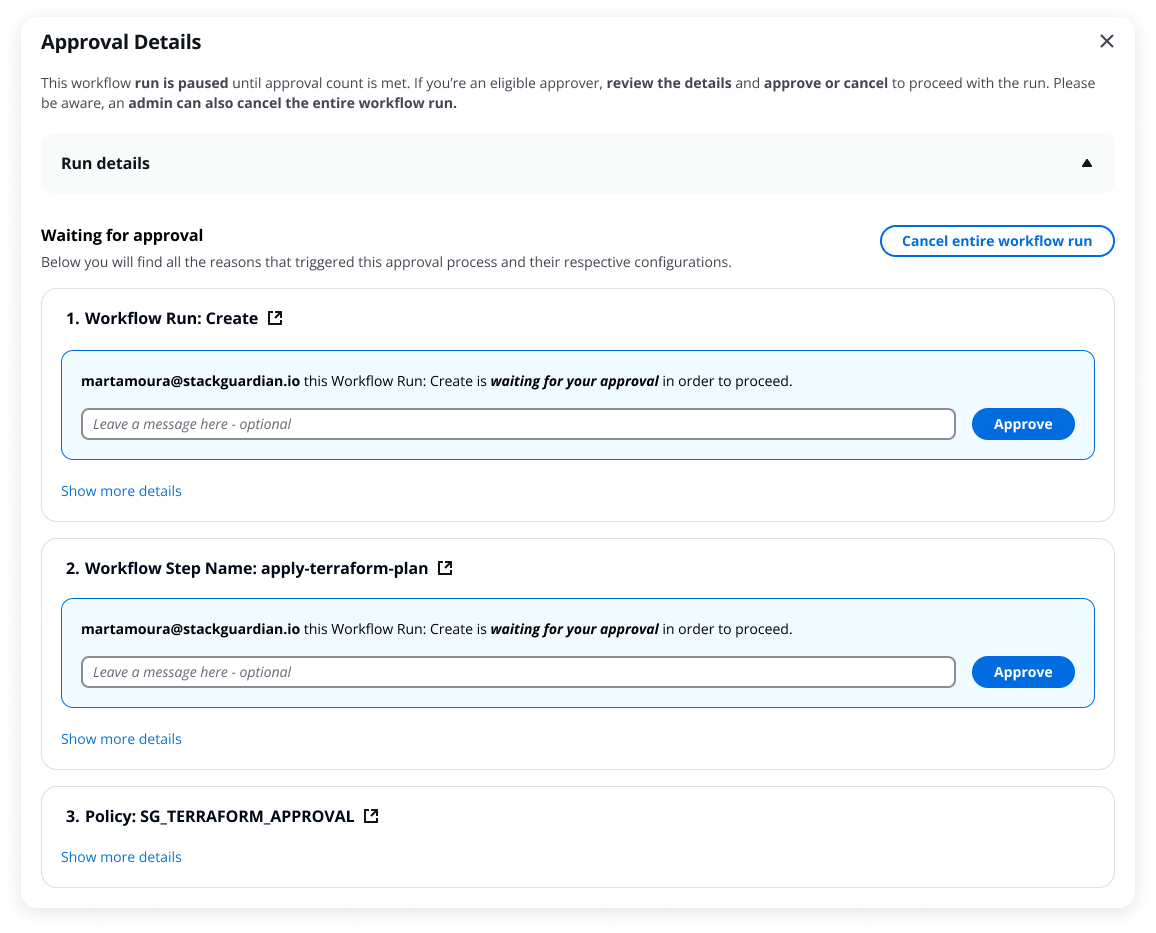
Multiple approval reasons
Approval reasons appear based on the workflow execution stage. The sequence depends on which lifecycle stages have approval enabled:
- Pre-plan + Workflow level: Pre-plan approval first, then workflow level approval
- Post-plan + Workflow level: Plan executes, then post-plan approval, then workflow level approval at apply stage
- Pre-apply + Workflow level: Plan executes, then pre-apply approval, then workflow level approval at apply stage
- Post-apply + Workflow level: Workflow level approval first, then post-apply approval after apply completes
- Workflow level + Policy: Policy approval (evaluated after plan) appears before workflow level approval
Cancel a run
Any eligible approver or admin can cancel a run awaiting approval.
- Select Review Approval from the Runs tab or Workflow header.
- Select Cancel entire workflow.
- Add a message (required).
- Confirm the cancellation.
Canceling stops the entire Workflow run. If multiple approval reasons exist, canceling one cancels all of them—even those already approved.
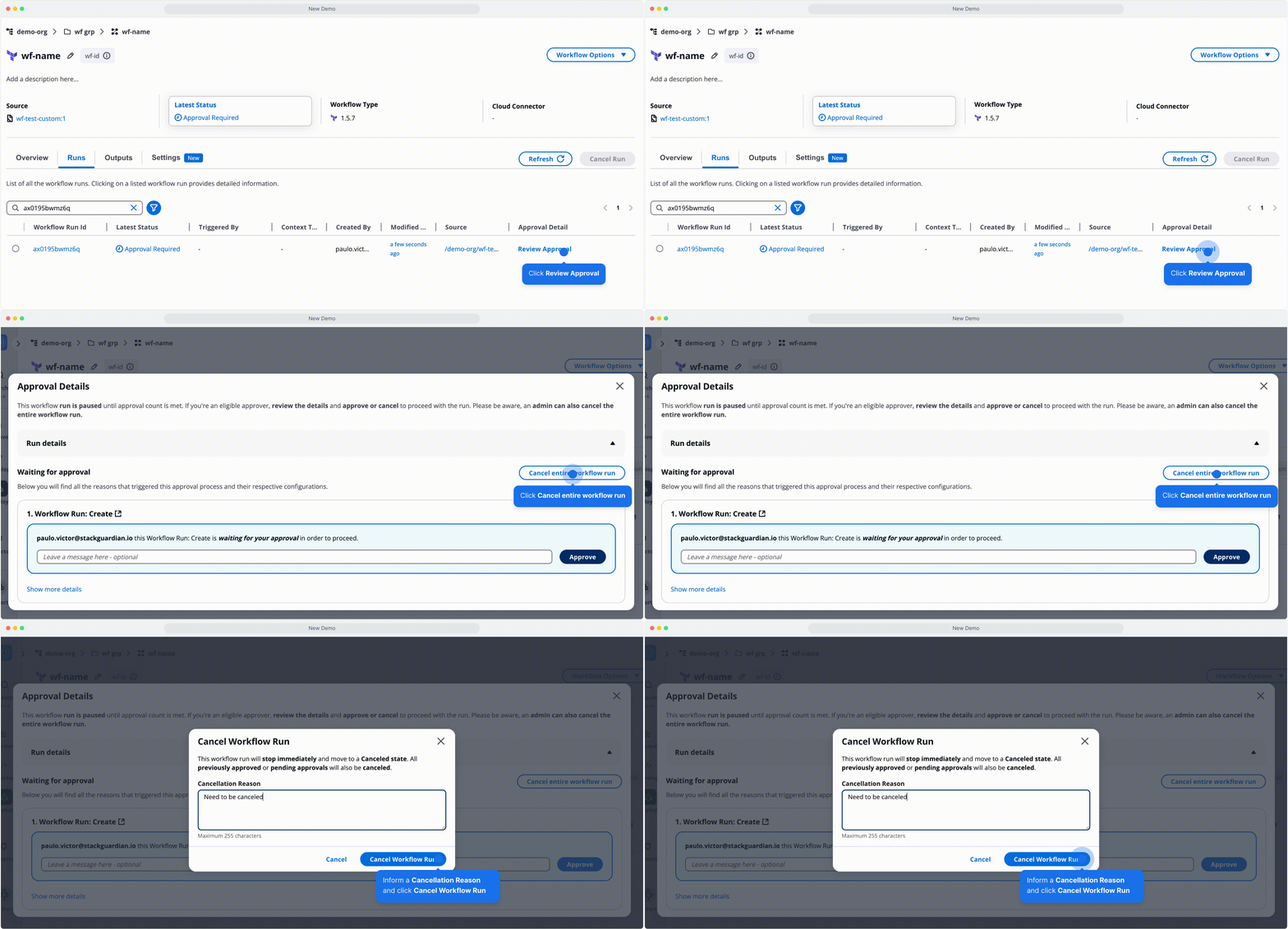
How to cancel the workflow run
Revoke your approval
If the required approval count hasn't been reached yet, you can revoke your approval:
- Select Review Approval from the Runs tab.
- Select Revoke.
Your approval is removed and the run returns to pending status. The revoke option is only available while other approvals are still pending.
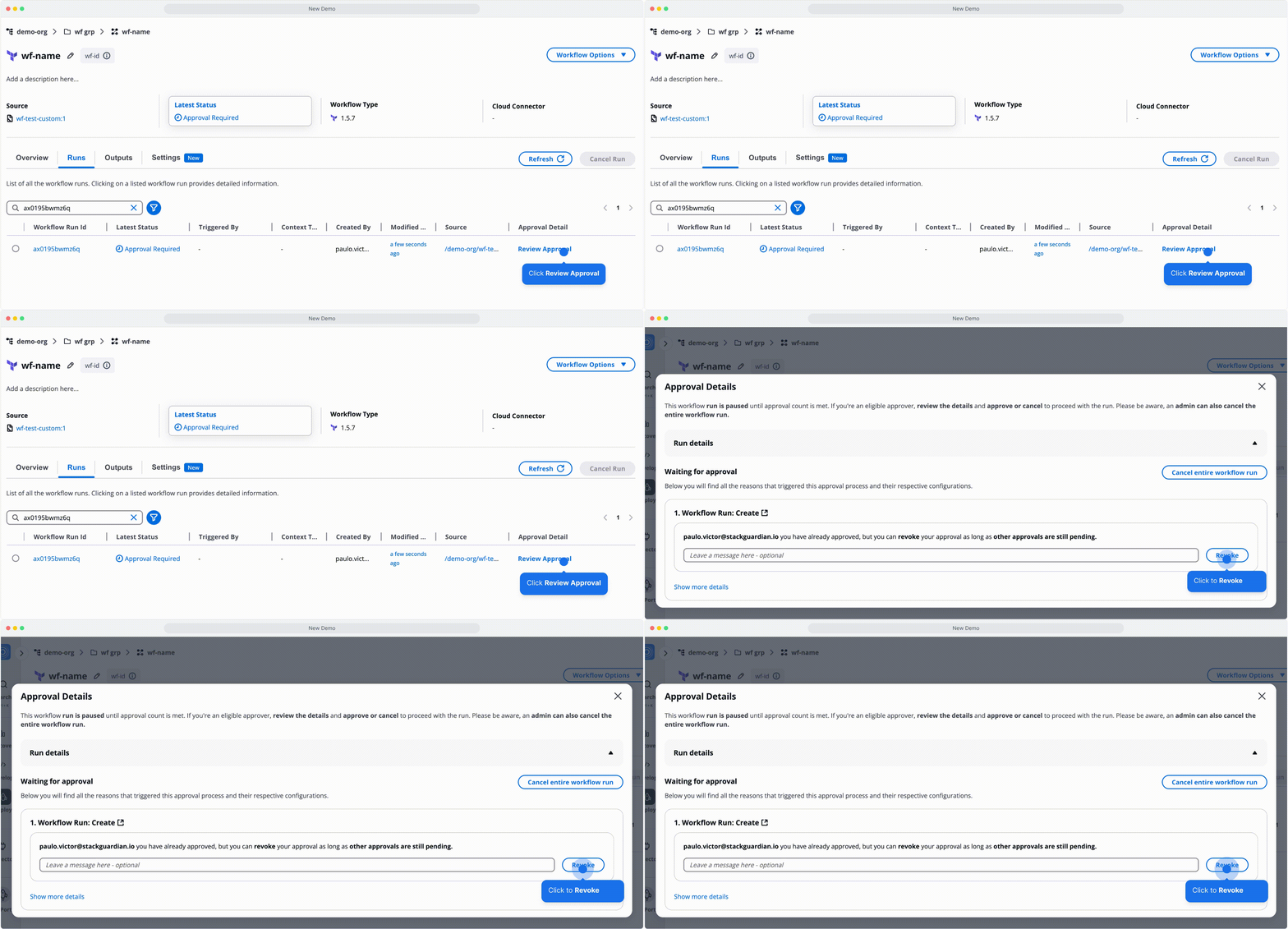
How to revoke an approval
External Approvals
External approvals let you use external systems like ServiceNow or Jira to manage workflow approvals instead of StackGuardian's internal approval system.
How it works
- Enable external approvals in your runner group (Settings > Runner Groups)
- Configure the external approval system in your external service (outside StackGuardian)
- Assign the runner group to your workflow (Settings > Execution Environment)
- When the workflow runs, StackGuardian sends an API call to the external service
- The workflow pauses with "Approval Required" status until the external system responds
- Once approved externally, the workflow continues normally
Configure external approvals
Step 1: Enable external approvals in runner group
Navigate to Settings > Runner Groups and configure:
| Field | Description |
|---|---|
| Approval Type | Select "External" |
| Approval Webhook URL | Endpoint where StackGuardian sends approval requests |
| Approval Webhook Secret | Optional token for securing webhook payloads |
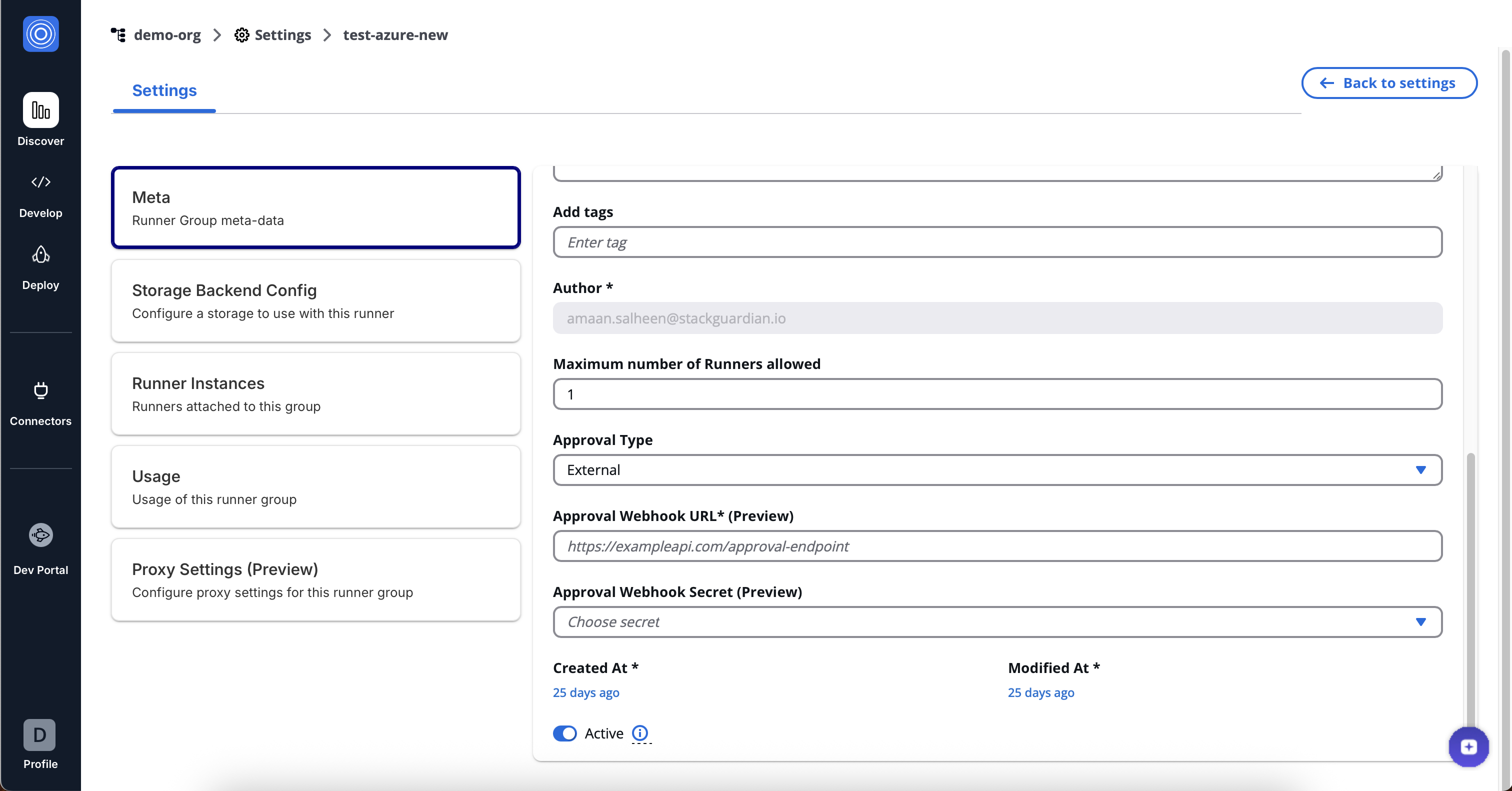
Enable external approvals in runner group
The actual approval logic and rules are configured in your external service, not in StackGuardian. StackGuardian only activates external approval mode and specifies where to send approval requests.
Step 2: Assign runner group to workflow
Navigate to your workflow Settings > Execution Environment:
- Set Runner Type to "Private"
- Select the runner group with external approvals enabled
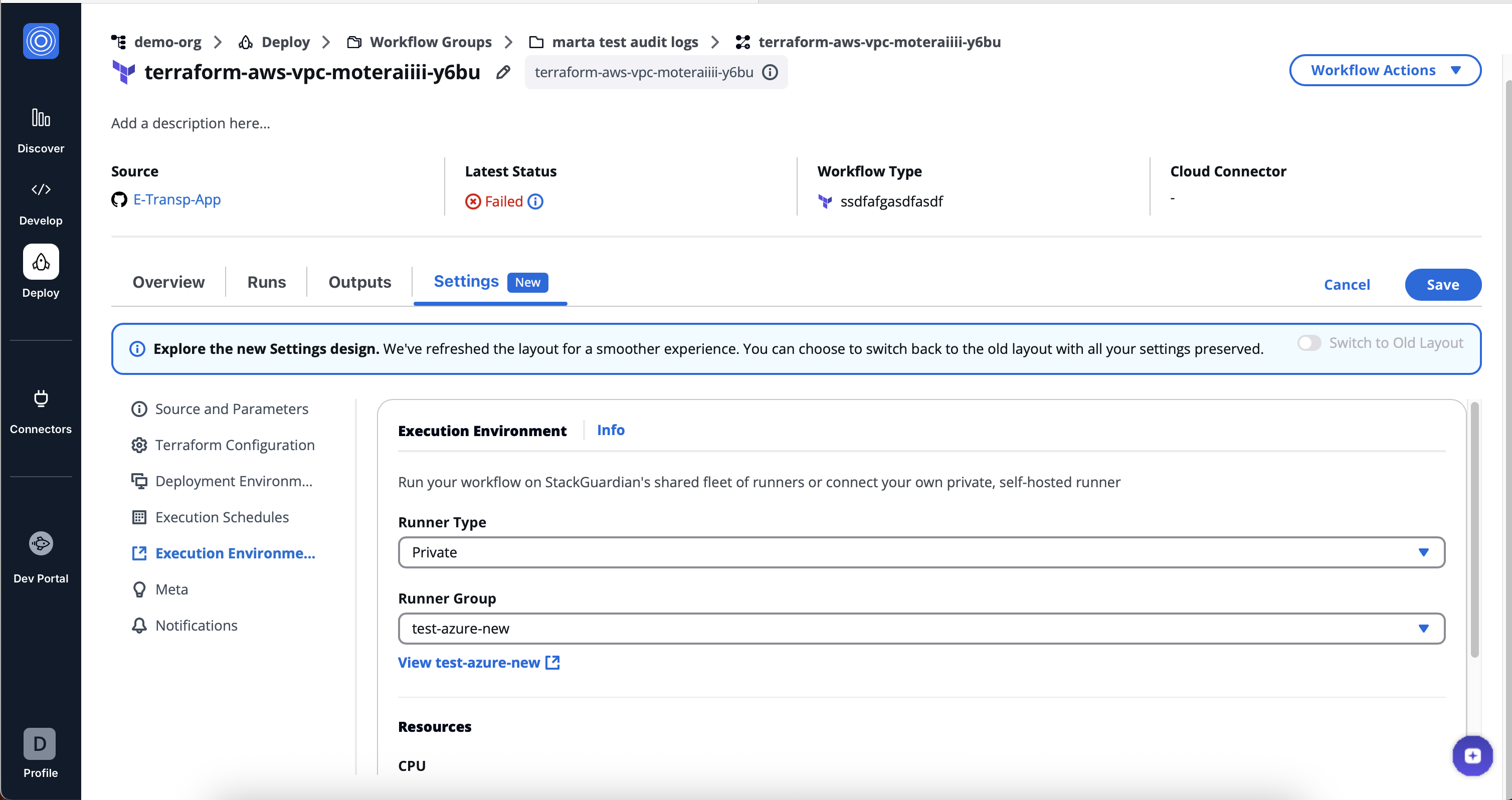
Assign runner group to workflow
Approval precedence
External approvals are the single source of truth and override all internal approval configurations:
- Workflow internal approvals: Disabled when external approvals are active
- Policy approvals: Disabled for policies linked to workflows using external approvals
- Lifecycle Custom Step approvals: Use the external system instead of internal settings
If you previously configured internal approvals and then enable external approvals, the internal approvals are placed on hold (not deleted) and ignored while external approvals are active.
Workflow approval section when external approvals are enabled
When a workflow uses a runner group with external approvals enabled, the workflow Settings > Terraform Configuration > Require Approval for Workflow Run section:
- Displays automatically (cannot be disabled)
- Shows "External approval is enabled for this workflow."
- Includes a link to manage the runner group configuration
- Prevents any internal approval configuration changes
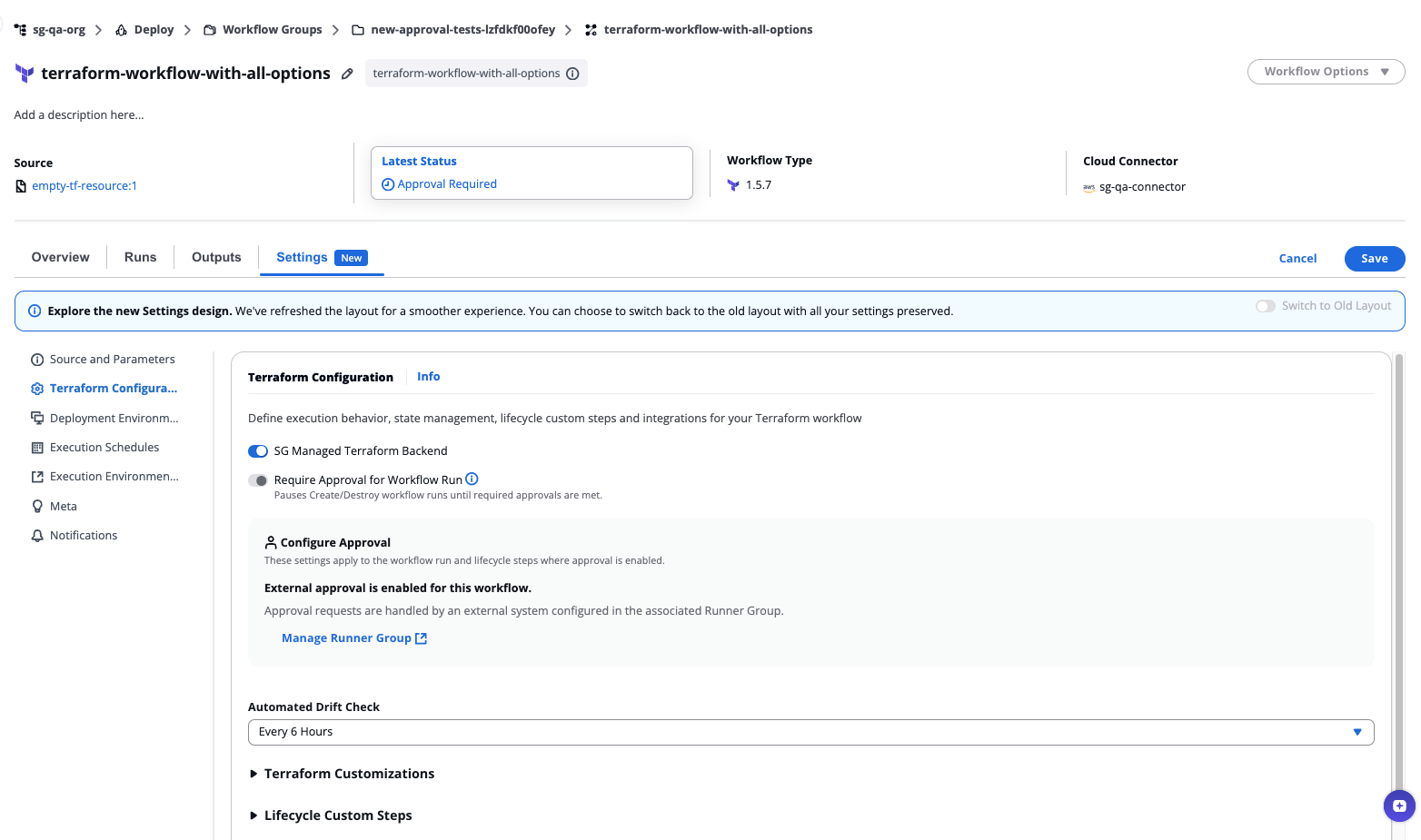
Workflow approval section when external approvals are enabled
Approval Details modal with external approvals
The Approval Details modal adapts based on whether the external system has responded and what information it provides.
Before external approval is granted
When a workflow run is awaiting external approval:
- Displays "Approval requests are handled by an external system, configured in the associated Runner Group"
- Shows approval reasons (what requires approval)
- Includes link to the runner group configuration
- No action buttons for regular users
- Cancel button only for admins (internal cancellation is still possible for admins)
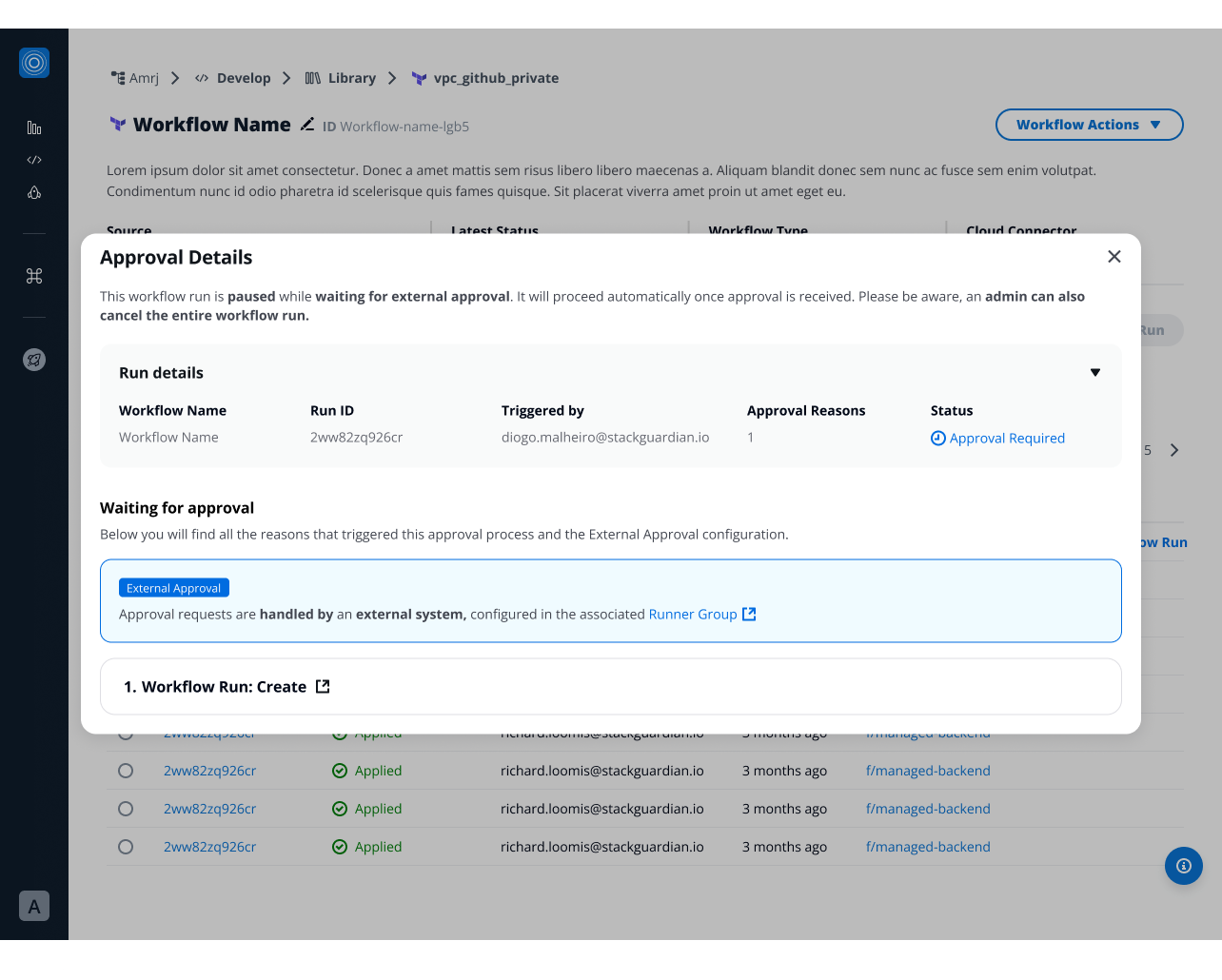
Before external approval is granted
After external approval is granted
Once the external system approves, the modal displays one of two formats depending on the external system configuration:
Without approval details:
- "This workflow run was approved by an External approval configured in the associated Runner Group"
- Shows approval reasons only
- No additional approver information available
With approval details:
- Shows approval reasons
- "Show more details" option reveals:
- Who approved
- When they approved
- Approval message
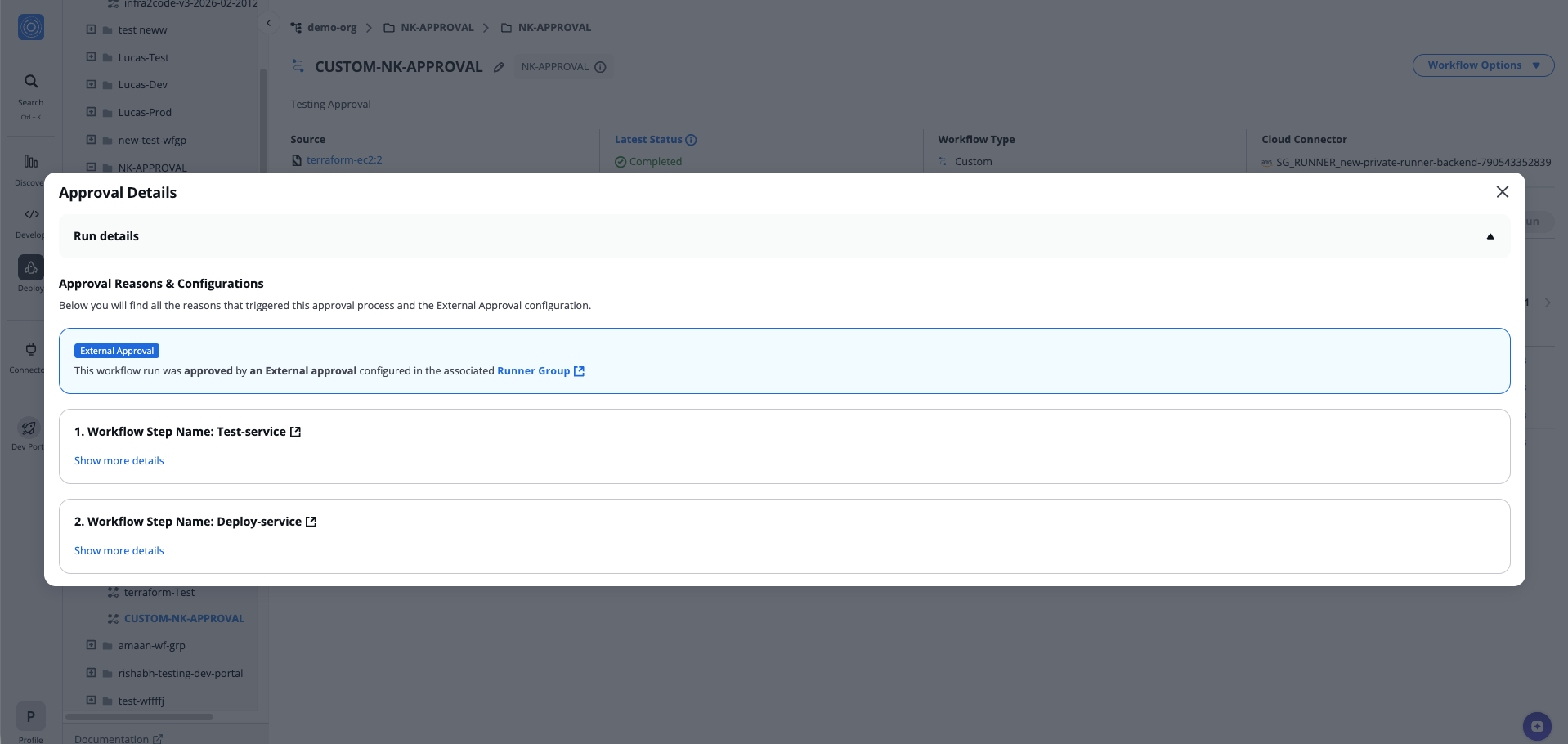
After external approval is granted
Whether you receive detailed approval information depends on how your external approval system is configured.
After external approval is rejected or canceled
When the external system rejects or cancels the approval request, the Approval Details modal shows:
- "This workflow run was canceled. External Approval is configured in the associated Runner Group"
- Link to the runner group configuration
- Cancellation details (when provided by external system):
- Eligible approver: Email of who canceled
- Timestamp: When they canceled
- Approval Message: Reason for cancellation
The workflow run status changes to "Cancelled" and cannot be restarted.
Approval reasons list:
- Shows all approval reasons that were pending (Workflow Run, Workflow Steps, Policies)
- Each reason displays as a numbered list item with a link to view details
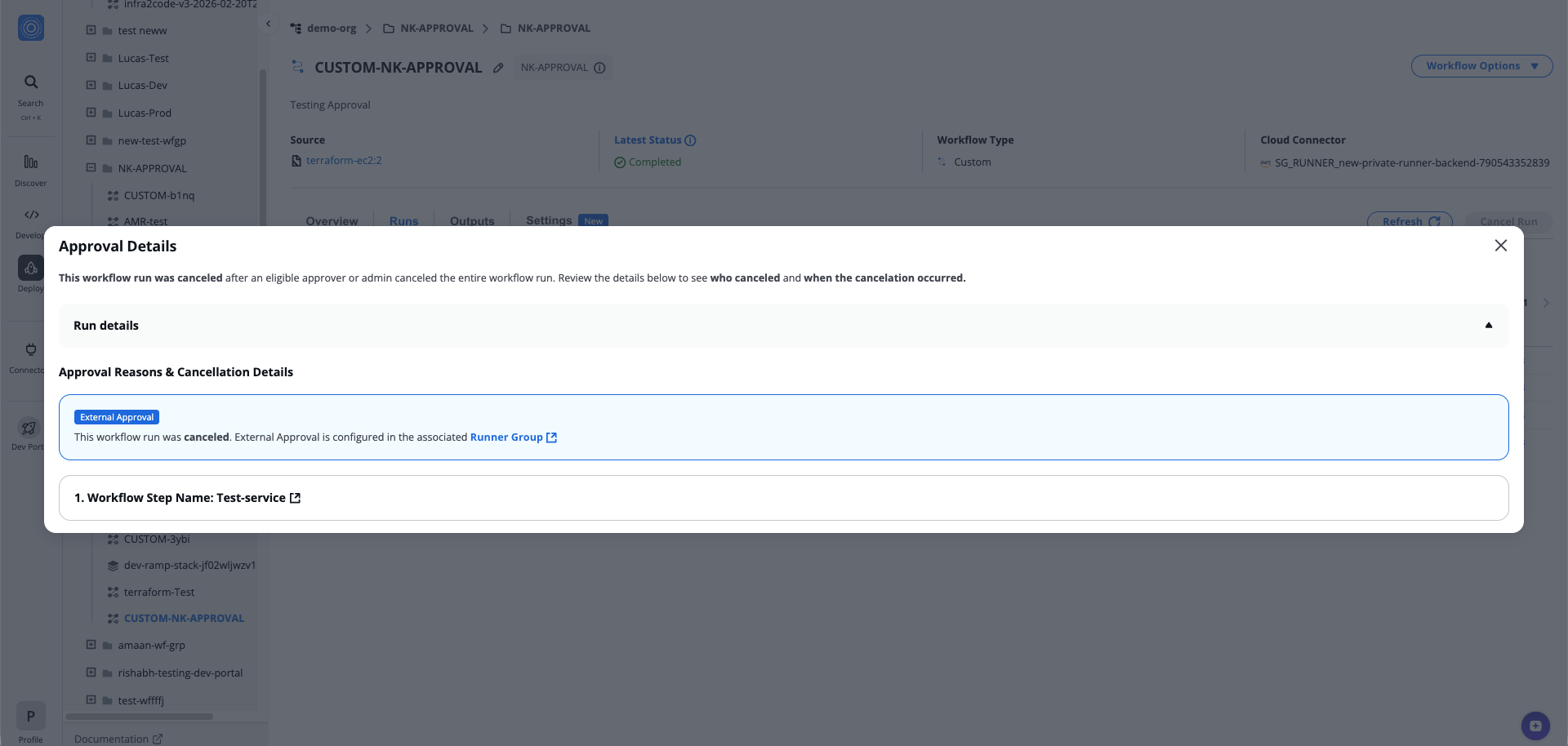
After external approval is rejected or canceled
The amount of detail shown depends on what information your external approval system sends back to StackGuardian. You may see full cancellation details or only the cancellation status.