MCP Server
MCP server v1 has been deprecated and will be turned off on September 15th, 2026. Before then, update your configuration by following the guides below.
Overview
The StackGuardian MCP server connects AI tools directly to the StackGuardian platform. This gives AI agents, assistants, and chatbots the ability to query workflows, retrieve stack information, investigate failures, and analyze your infrastructure state through natural language.
Built for platform engineers and developers who want AI-powered visibility into their StackGuardian operations.
The StackGuardian MCP server works well with all AI models. However, premium models deliver exceptional results with minimal prompting. Free and entry-level models perform reliably for standard queries and may need slightly more detailed instructions for complex tasks.
What you can do
The MCP server gives your AI assistant read access to the following:
| Area | Capabilities |
|---|---|
| Workflows | Query status, check configuration, inspect drift, find approval blockers, audit policy coverage, trace template dependencies, create workflows from templates, and update existing workflows |
| Workflow runs | Fetch execution history, retrieve logs, investigate failures, and retrieve run facts for individual workflows |
| Stacks | Read stack configuration, check deployment status, and retrieve IaC outputs |
| Templates | Inspect template revisions, find workflows by template, and identify version gaps |
| Connectors | List connector groups and individual connectors across the organization |
| Policies | Read policy definitions and check which workflows have policies attached |
| Organization | Access org settings, users, roles, API credentials, secrets, and audit logs |
Prerequisites
Before you begin:
- A StackGuardian account with API access
- A compatible MCP host application
- The following configuration parameters:
- API token: your StackGuardian API key
- Organization name: your StackGuardian organization identifier
The API key inherits permissions from your user role. Ensure you have the necessary access rights for the operations you want to perform.
Installation
All installation methods require the same configuration parameters. Replace the placeholder values with your actual credentials:
<YOUR_ORG>: your StackGuardian organization name<YOUR_TOKEN>: your StackGuardian API token- MCP server URL:
- EU region:
https://api.app.stackguardian.io/api/v1/orgs/<YOUR_ORG>/mcp/ - US region:
https://api.us.stackguardian.io/api/v1/orgs/<YOUR_ORG>/mcp/
- EU region:
Quick install
The quickest way to connect StackGuardian to your AI tools is with a single command. Run the following in your terminal and follow the interactive prompts to select which clients to install to:
npx add-mcp "https://api.app.stackguardian.io/api/v1/orgs/<YOUR_ORG>/mcp/" \
  --transport http \
  --header "Authorization: apikey <YOUR_TOKEN>"
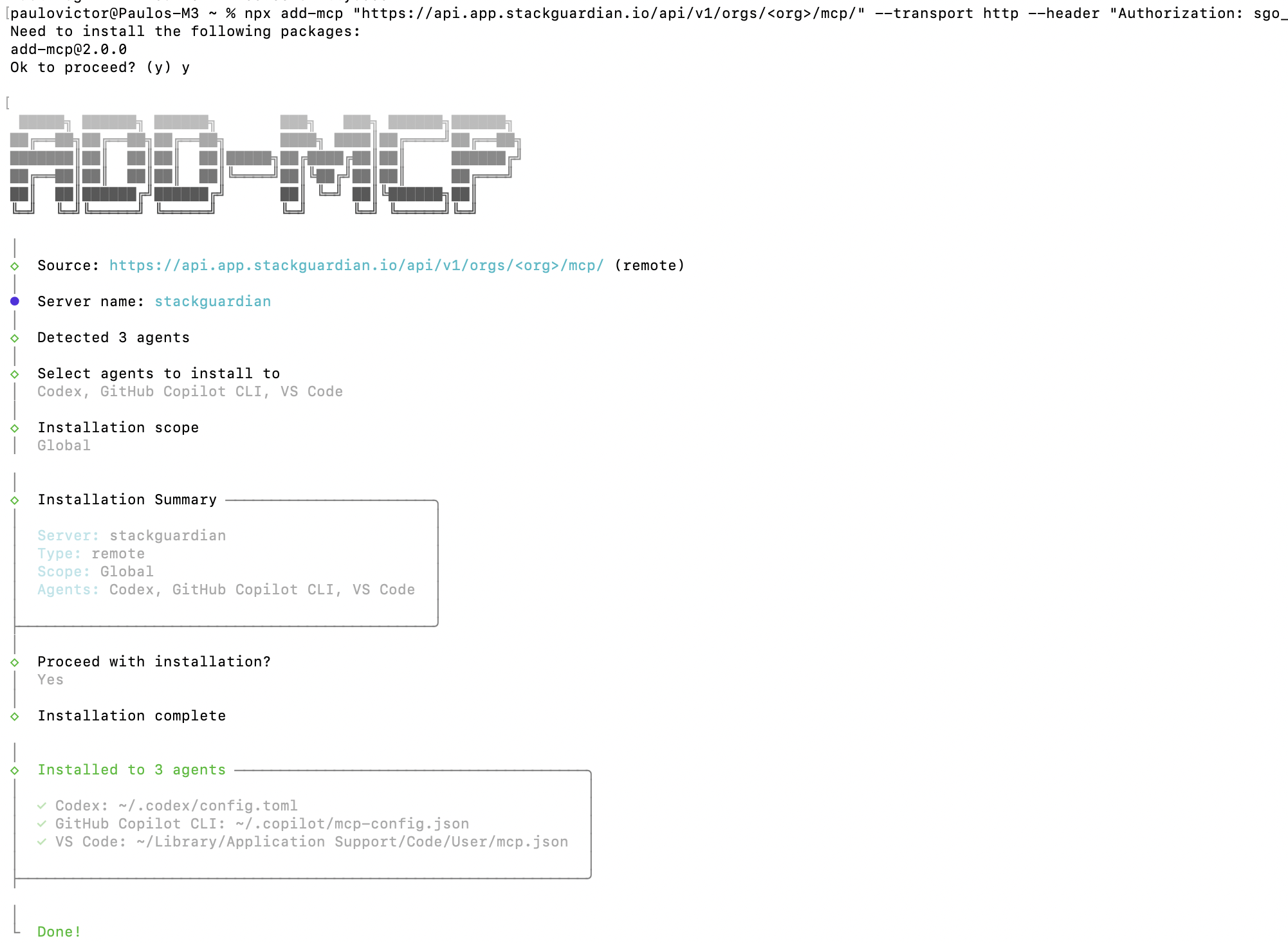
MCP quick install
The installer detects all compatible clients on your system, including Codex, GitHub Copilot CLI, VS Code, Cursor, and Gemini CLI, and installs the MCP server to each one you select.
Requires Node.js and npm. If you'd rather configure a specific client manually, follow the guides below.
Additional client setup
Claude Code
After installing Claude Code, run this command in your terminal:
  claude mcp add --transport http StackGuardian \
      "https://api.app.stackguardian.io/api/v1/orgs/<YOUR_ORG>/mcp/" \
      -H "Authorization: apikey <YOUR_TOKEN>"
Claude Desktop
Edit your claude_desktop_config.json file and add the following. See the Claude Desktop MCP docs for the file location on your system.
  {
    "mcpServers": {
      "stackguardian": {
        "command": "npx",
        "args": [
          "-y",
          "mcp-remote",
          "https://api.app.stackguardian.io/api/v1/orgs/<YOUR_ORG>/mcp/",
          "--header",
          "Authorization: apikey <YOUR_TOKEN>"
        ]
      }
    }
  }
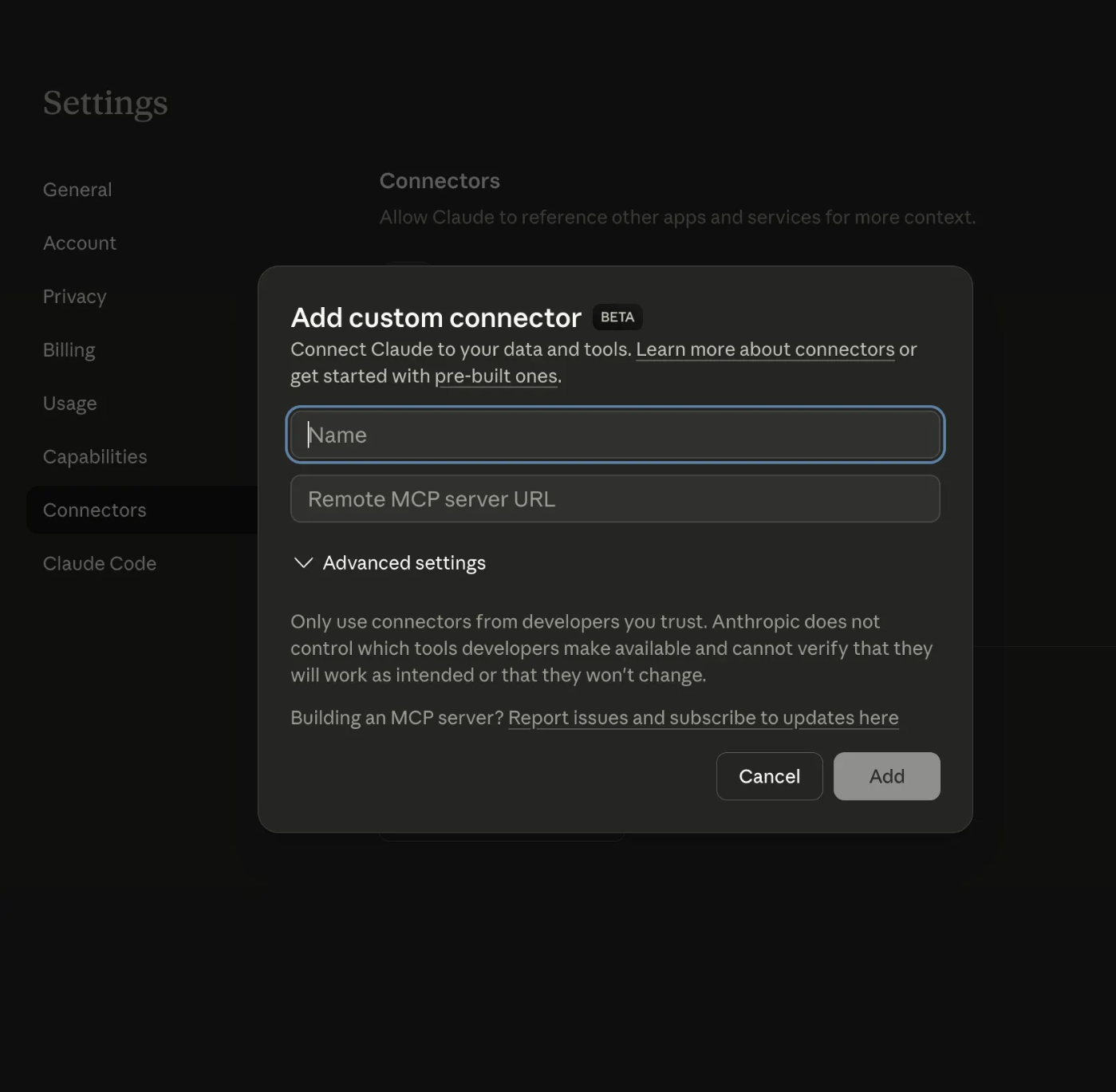
Integration with Claude Desktop
VS Code Copilot
Prerequisites
- VS Code 1.99 or later
- GitHub Copilot extension (any plan, including free)
- Your StackGuardian API token
- Your StackGuardian organization name
Installation
Step 1: Configure the MCP server
Create .vscode/mcp.json in your project root, or run MCP: Open User Configuration from the Command Palette for a global config:
  {
    "servers": {
      "stackguardian": {
        "command": "npx",
        "args": [
          "-y",
          "mcp-remote",
          "https://api.app.stackguardian.io/api/v1/orgs/<YOUR_ORG>/mcp/",
          "--header",
          "Authorization: apikey <YOUR_TOKEN>"
        ]
      }
    }
  }
Step 2: Start the MCP server
A Start button appears at the top of the mcp.json file after saving. Click it to start the server and discover available tools.
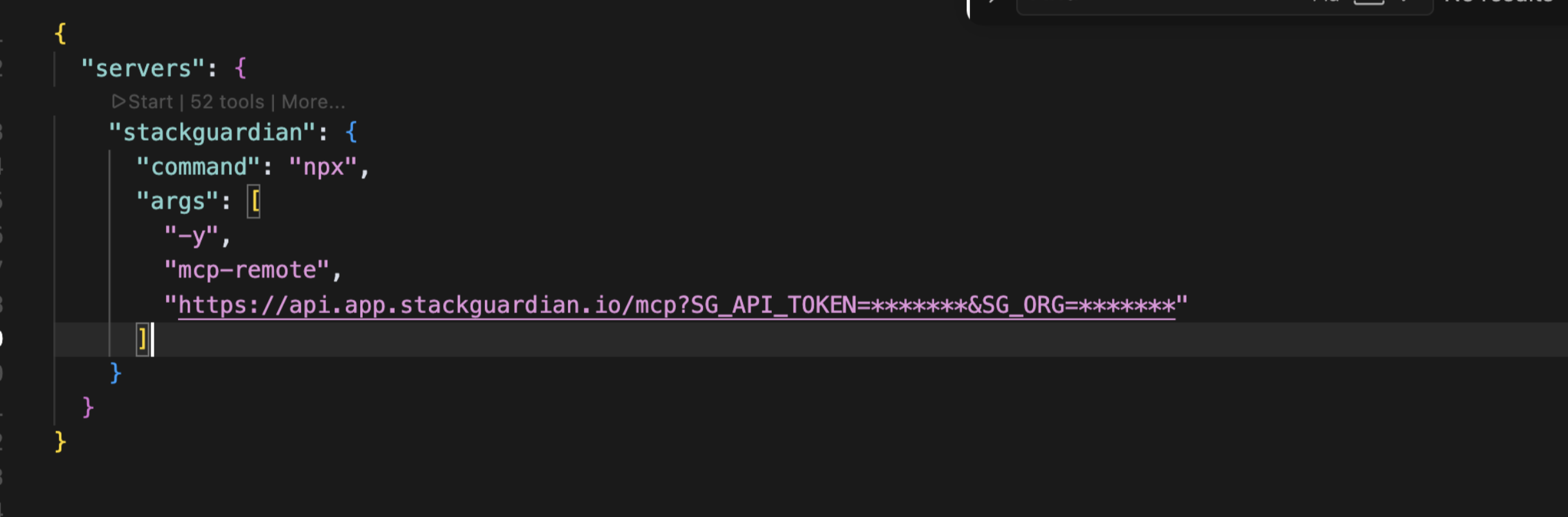
Start the MCP server
Step 3: Access via Copilot Chat
- Open Copilot Chat (
Ctrl+Alt+Ion Windows/Linux orCmd+Ctrl+Ion macOS) - Switch to Agent mode from the mode dropdown
- Click the tools icon (🛠) to verify StackGuardian tools are listed
MCP tools are only available in Agent mode. They will not appear in Ask or Edit mode.
Use cases
The MCP server is most powerful when you give your assistant specific context. Include workflow group names, stack names, or resource identifiers in your prompts for faster and more accurate results.
Workflow governance
Create a workflow from a template
"Create a workflow called payment-service in the production workflow group using the empty-tf-resource template in StackGuardian."
Spins up a new workflow in an existing workflow group without leaving your AI assistant. The workflow is created in an inactive state, ready to be reviewed and activated.
Update an existing workflow
"Update the payment-service workflow in the production workflow group to use revision 3 of the empty-tf-resource template in StackGuardian."
Applies configuration changes to an existing workflow directly through your AI assistant, without navigating the platform manually.
Find workflows with no policy attached
"Which workflows in the production workflow group don't have any policy attached in StackGuardian?"
Surfaces workflows that were deployed without governance coverage — a common blind spot in fast-moving teams.
Find workflows blocked on approval
"Which workflows in the staging workflow group have been waiting for approval for more than 48 hours in StackGuardian? Who are the approvers?"
Identifies stuck deployments and the people who need to action them, so you can unblock your team without manually checking the platform.
Find workflows with drift detected
"How many workflows in the infrastructure workflow group currently have drift detected in StackGuardian?"
Gives you an instant count of drifted workflows so you can prioritize remediation before the gap between desired and actual state grows.
Template management
Find workflows using a specific template revision
"Which workflows in my organization are still using template empty-tf-resource revision 2 in StackGuardian?"
Essential before deprecating or updating a template revision — shows the full scope of what will be affected.
Workflow run investigation
Investigate a failed workflow run
"Why did workflow run #1247 in the production workflow group fail in StackGuardian? Help me figure out what happened."
Retrieves logs, facts, and execution details for a specific run so you can diagnose failures without switching between tabs.
Check workflow health
"How healthy are the workflows in the mcp-testing workflow group in StackGuardian?"
Returns a summary of workflow statuses across a group — a quick way to assess the overall health of a set of deployments.
Retrieve run facts for a workflow
"Show me the run facts for the latest run of the payment-service workflow in the production workflow group in StackGuardian."
Returns detailed execution data for a specific workflow run, including resource changes, outputs, and deployment details.
Run facts are available for individual workflows only. Querying run facts across multiple workflows at once will consume significant context window and may produce incomplete results.
Organization-wide visibility
Get a full stack status overview
"What's the current status of all stacks in the engineering workflow group?"
Aggregates stack health across a workflow group in one query instead of checking each stack individually.
Security and permissions
The MCP server respects the permissions associated with your API key. If your key doesn't have access to certain resources, those operations will fail with a permission error. For read-only use cases, a key with viewer-level access is sufficient.
Skills
Skills are guided flows that ship alongside the StackGuardian MCP server. Once installed, your agent loads the relevant one automatically when you ask for a matching task. There's nothing to invoke by name.
Safer changes. Infrastructure APIs carry semantics that a parameter list can't show: some fields merge with what's already stored, others replace it outright, and some settings only mean something in combination with another. A skill tells the agent which is which, so an ordinary request like "add a tag" doesn't quietly drop the existing ones and report success.
Review before write. Choices are fetched live and presented to you rather than recalled from memory: groups, connectors, templates and their default values. The agent summarizes the intended change in plain language and waits for your confirmation, and previews template upgrades with a dry run before anything is applied.
The right operation for the intent. Creating a resource, editing its settings, and moving it to a new template revision are separate flows with different risks. Skills route the request to the correct one instead of overloading a single call.
Consistent results. The same sequence runs every time and for everyone, so outcomes don't depend on who is asking or how often they've done it before.
Fewer failed attempts. Names, options and defaults are resolved up front, so fewer calls are spent discovering that a value was wrong.
Skills guide the agent; they don't grant access. Every call is still made with your own credentials and enforced by the platform's permissions, and write operations are available only where your environment enables them.
Run this command in your terminal to install the StackGuardian agent skills:
npx skills add StackGuardian/sg-agent-skills
Follow the interactive prompts to select which skills and agents to install to. Skills are installed globally and available automatically in your AI assistant once the process completes.
You can also browse the available skills directly in the sg-agent-skills repository.