Billing tab
The Billing section in Global Settings lets you manage your plan, monitor credit usage, and maintain payment and billing details for your organization.
To access Billing, go to Organization Settings and select the Billing tab.
Billing has three sub-tabs: Getting Started, Overview, and Invoices.
Getting started
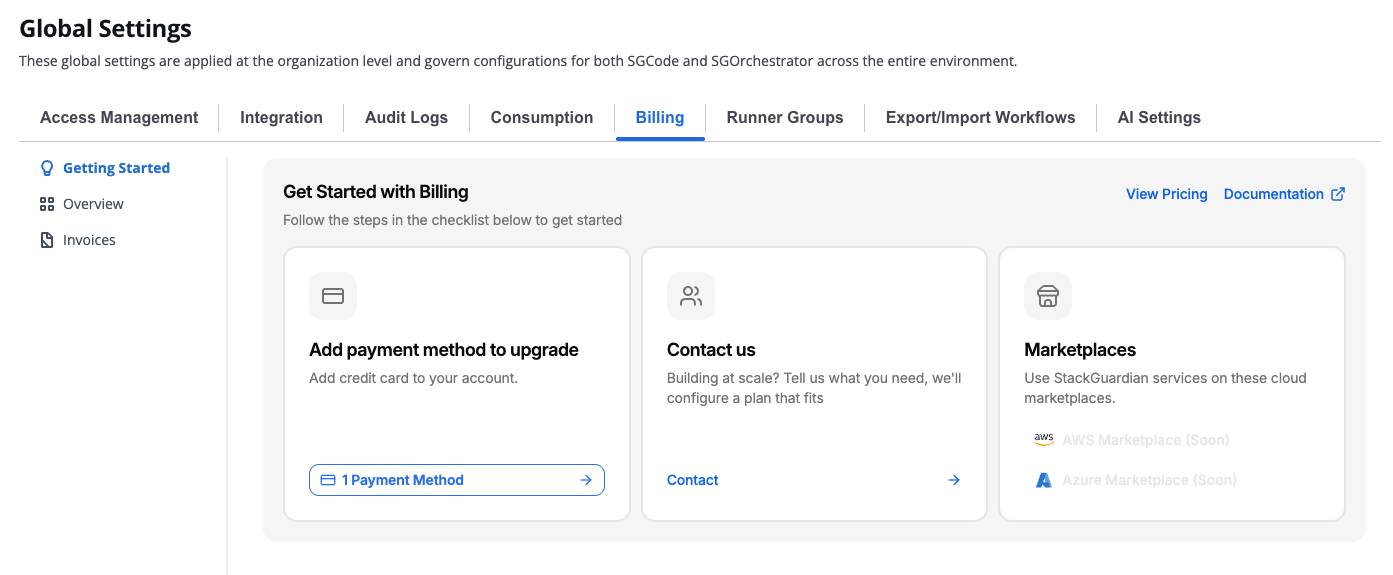
Getting Started tab
The Getting Started tab guides you through the steps required to activate billing for your organization.
Add payment method to upgrade
To activate billing, complete the following steps in order:
- Add billing email — Add a billing email address. This can differ from your StackGuardian login email.
- Add billing address — Add a billing address.
- Add payment method — Add a payment method. StackGuardian charges this at the end of each billing period based on your usage.
Each step becomes available after the previous one is complete.
Contact us
If you're building at scale, contact the StackGuardian team to discuss a custom plan.
Marketplaces
You can subscribe to StackGuardian through the following cloud marketplaces:
- AWS Marketplace (coming soon)
- Azure Marketplace (coming soon)
Overview
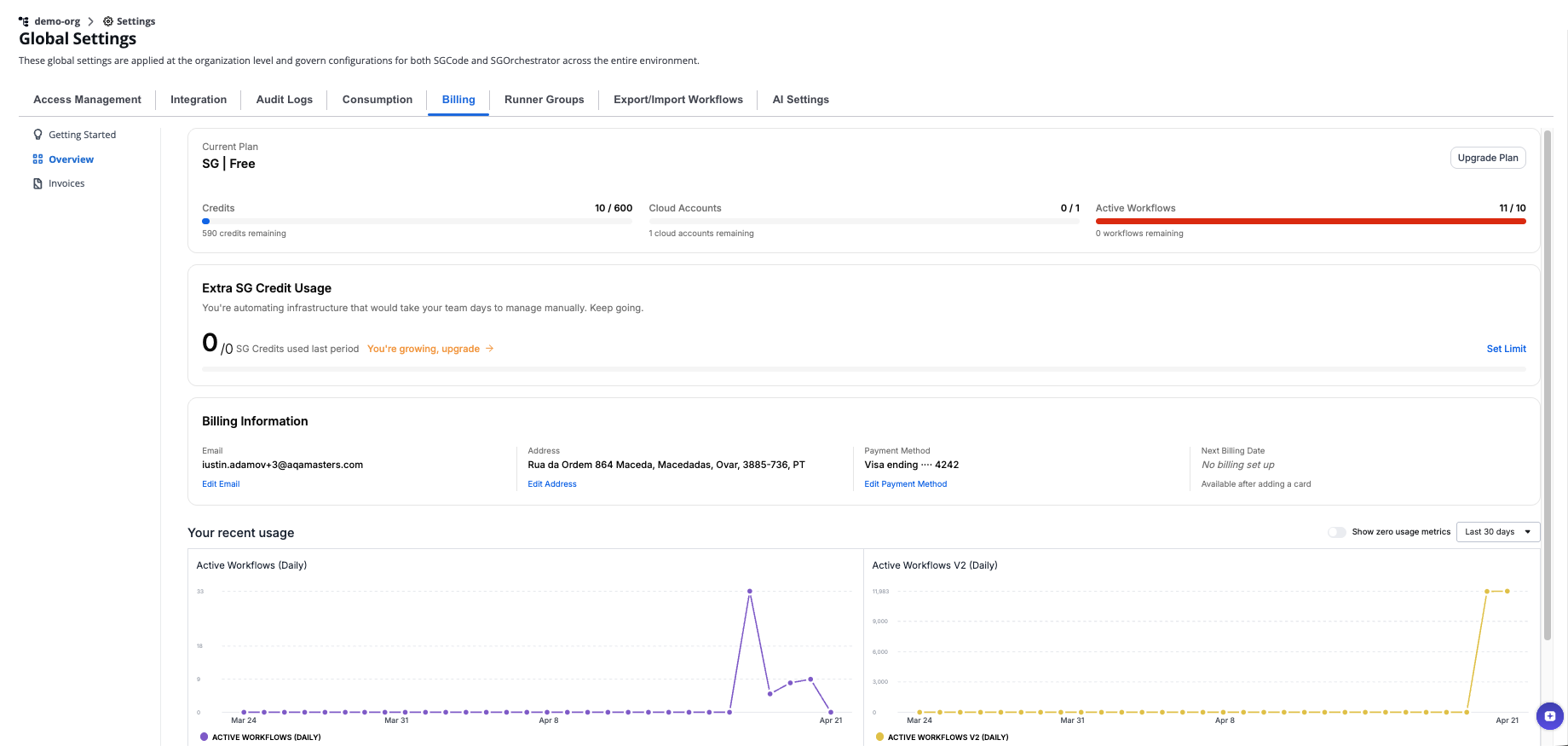
Overview tab showing the current plan
The Overview tab displays your current plan, credit consumption, billing information, and recent usage data.
Current plan
The Current Plan section shows your active plan and key usage metrics:
| Metric | Description |
|---|---|
| Credits | SGCredits consumed against your plan allowance this period |
| Cloud Accounts | Number of Cloud Accounts connected |
| Active Workflows | Number of active Workflows |
Select Upgrade Plan to move to a higher plan.
Extra SGCredit Usage
The Extra SGCredit Usage section shows credits consumed beyond your plan allowance. You can set a spending cap to control costs.
Select Set Limit to open the limit control.
Enter the maximum number of SGCredits you want to allow per month. Set the value to 0 to remove the limit.
Billing information
The Billing Information section shows the details used to generate your invoices.
| Field | Description |
|---|---|
| Billing email address | |
| Address | Billing address |
| Payment Method | Default payment method |
| Next Billing Date | Date of your next charge |
Select Add billing email, Add billing address, or Add payment method to complete or update each field.
Payment methods
You can add multiple payment methods. One must be set as the default. The default payment method cannot be removed — set another method as default first, then remove it.
Supported payment methods:
- Card
- Naver Pay
- Kakao Pay
- Bancontact
- Klarna
- Amazon Pay
To add a payment method:
- Select Add payment method.
- In the Add a new payment method modal, select a payment method type.
- Enter your Cardholder name.
- Select Add Payment Method to save.
Your recent usage
The Your recent usage section displays a usage chart. Use the time range selector to view data for the last 30 days or a custom period. Toggle Show zero usage metrics to include metrics with no recorded usage.
Invoices
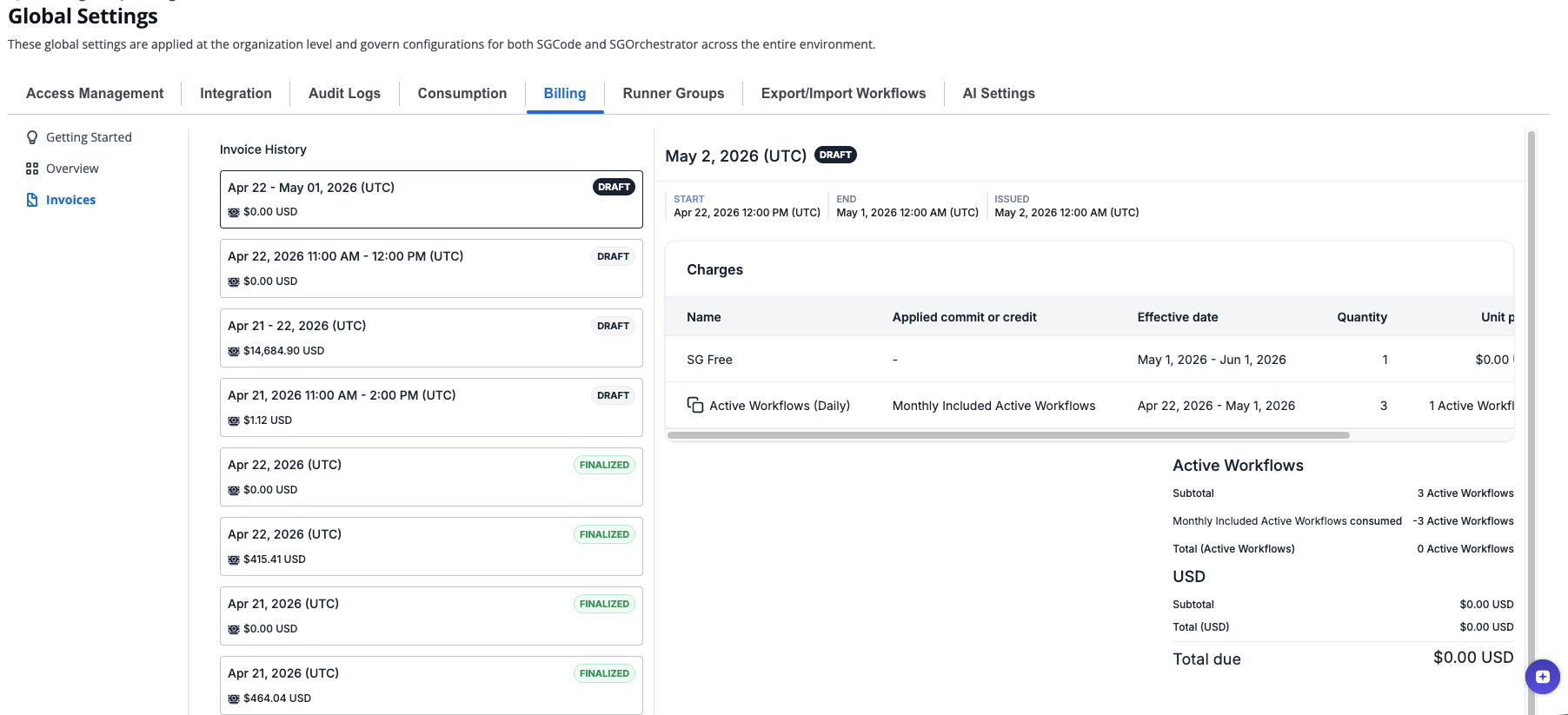
Invoices tab
The Invoices tab shows your billing history. Select an invoice in the Invoice History list to view its details.
Each invoice includes:
- Start, end, and issued dates (UTC)
- A breakdown of charges by product and quantity
- Subtotal and total due in USD
The invoice statuses are:
| Status | Meaning |
|---|---|
| Draft | Invoice is being calculated and has not been finalized |
| Finalized | Invoice is confirmed and ready for payment |