Settings
Overview
The Stack Settings tab provides configuration and management options related to the workflows contained in the stack.
It lists all workflows included in the stack and provides insight into their status and metadata.
This section will evolve to include additional configuration categories such as Actions, Permissions, or Execution Rules.
1. Workflows
The Workflows section displays all workflows associated with the stack. These workflows are the building blocks of the stack's execution logic.
Each row shows:
| Column | Description |
|---|---|
| Workflow | Name of the workflow included in the stack |
| Latest Status | Latest run status for that workflow (e.g., Untracked, Running, Failed, Succeeded) |
| Tags | Workflow-level tags, if defined |
| Added at | When the workflow was added to the stack |
| Last modified at | Timestamp for the workflow's last update |
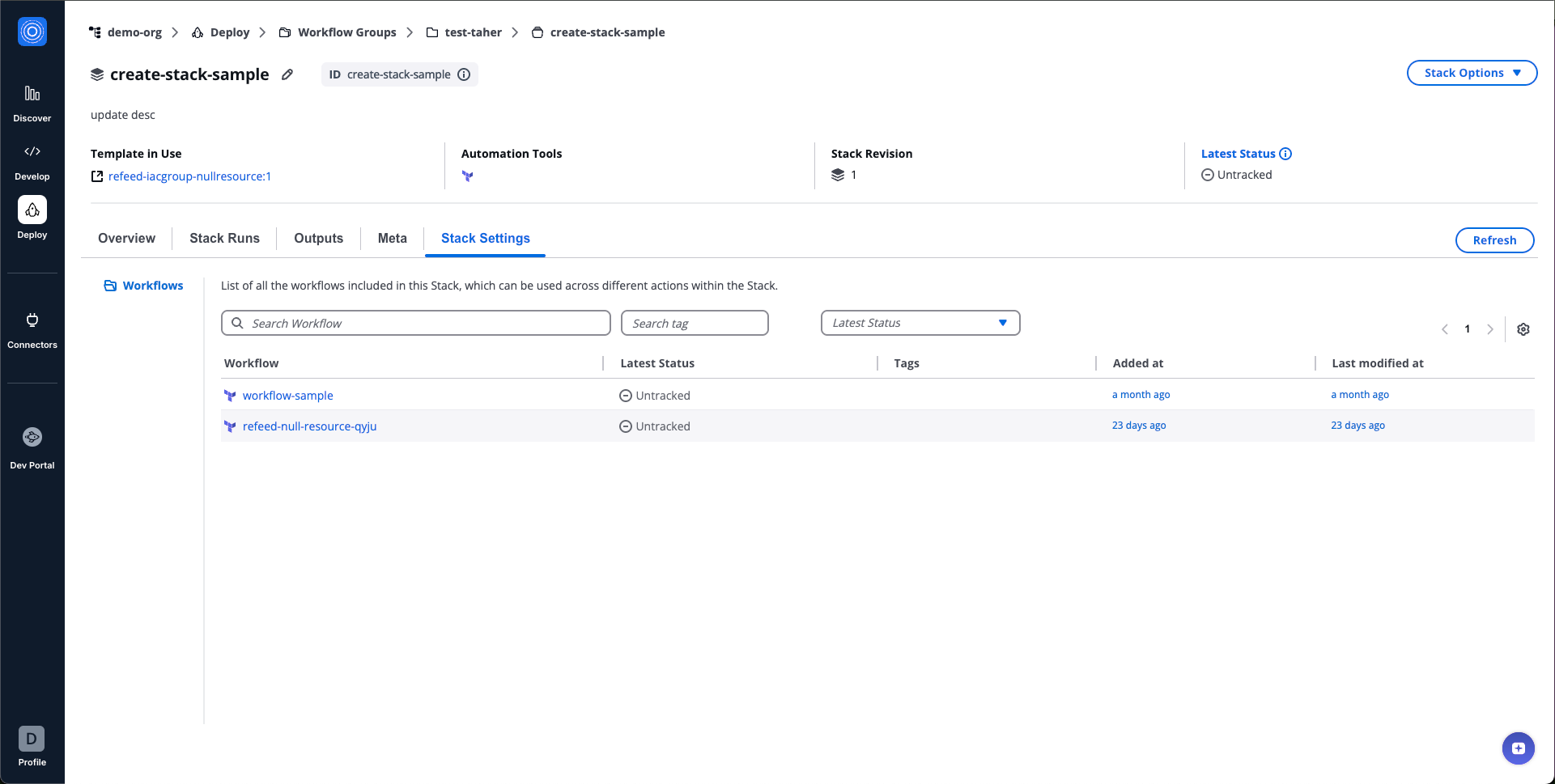
Stack Settings Workflows
2. Actions
Actions define how StackGuardian executes operations on your Stack. Each action represents a specific task, such as planning changes, creating resources, or running maintenance operations, and determines which Workflows run and in what order.
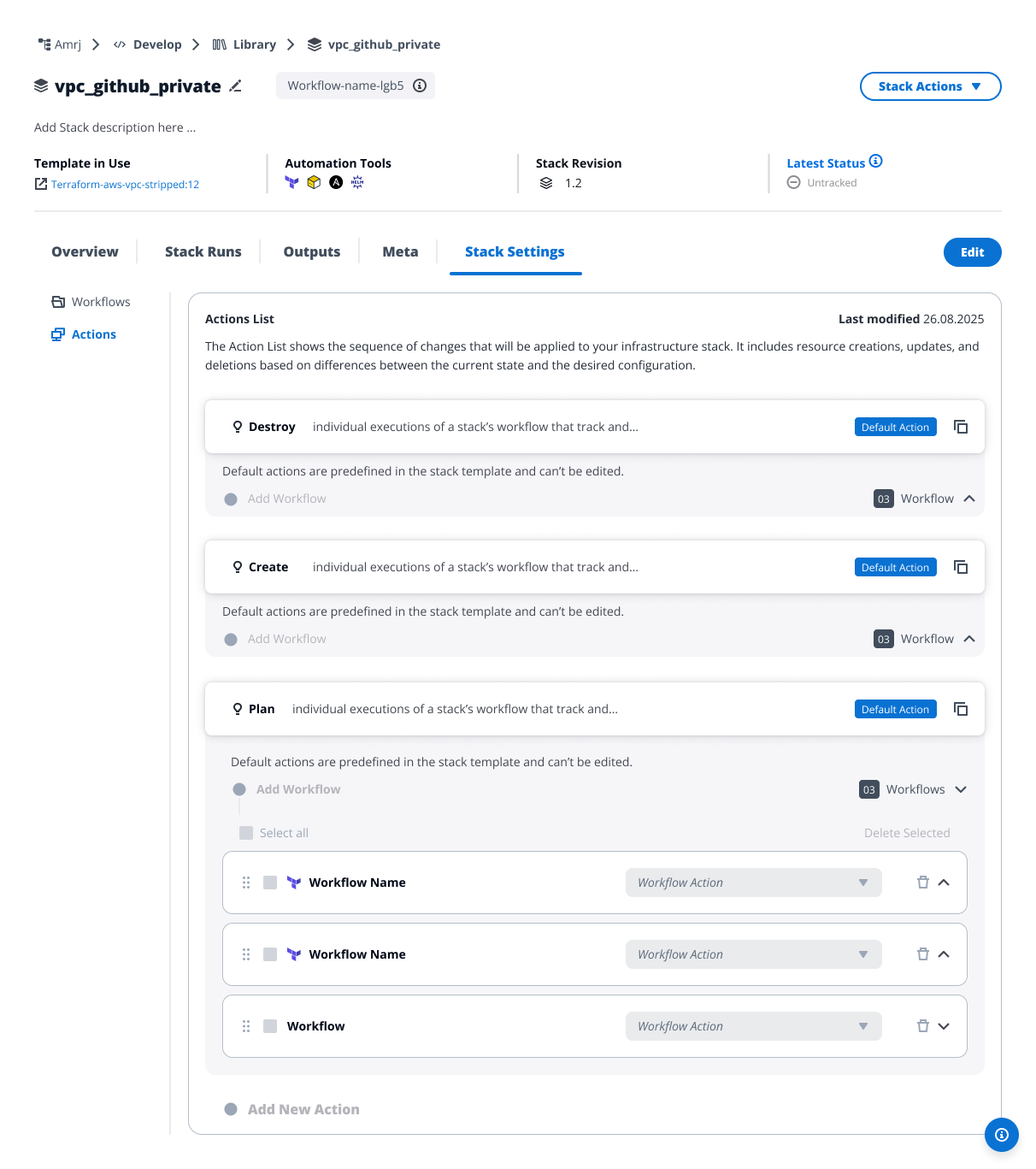
Stack Actions
How Actions work
When you run an action, StackGuardian executes the associated Workflows in the order you've defined. Each Workflow in the action can run with specific configuration overrides, allowing you to use the same Workflow for different purposes (like planning vs. deploying infrastructure).
Actions exist at two levels:
Template level
Platform engineers define actions in Stack templates. This is where you:
- Select and configure all available Workflows
- Define default actions (Plan, Create, Destroy) for Terraform/OpenTofu workflows
- Add custom actions for Custom workflows
- Set baseline configurations for all Stacks created from this template
Stack level
End users work with Stacks created from templates. At this level you can:
- Run actions defined in the template
- Add custom actions using existing Workflows
- Override deployment environment settings for Workflows
- Copy default actions to create customized versions
The template establishes what's possible; the Stack implements it for specific infrastructure instances.
Default and Custom Actions
Stacks include two types of actions:
Default Actions
Default Actions appear with a "Default Action" badge and come from your Stack template configuration.
For Terraform and OpenTofu templates:
- Plan - Preview infrastructure changes before applying them
- Create - Deploy or update your infrastructure
- Destroy - Remove infrastructure resources
These three actions are standard for Terraform/OpenTofu and match their conventions.
For custom workflow types: The platform provides Plan, Create, and Destroy actions by default, but at the template level you can remove any or all of them and create actions that match your infrastructure needs. For example, you might replace "Destroy" with "Delete" or "Uninstall."
Default actions at the Stack level:
- Cannot be edited directly
- Cannot be removed
- Can be copied to create editable versions
- Automatically reflect the template configuration
To modify default actions permanently, update the Stack template and publish a new revision.
Custom Actions
Custom Actions are actions you create to handle specialized tasks. At the template level, platform engineers can create any custom action. At the Stack level, you can create custom actions but only using Workflows already defined in the template.
Working with actions in templates
At the template level, platform engineers have full control over action configuration.
Create actions in templates
To create actions at the template level:
-
Navigate to Settings > Actions in your stack template
-
For Terraform/OpenTofu templates, three default actions (Plan, Create, Destroy) appear automatically
-
For custom workflow types, remove unnecessary default actions and define your own
-
Select Add New Action to create custom actions
-
Configure the Action Name and Description
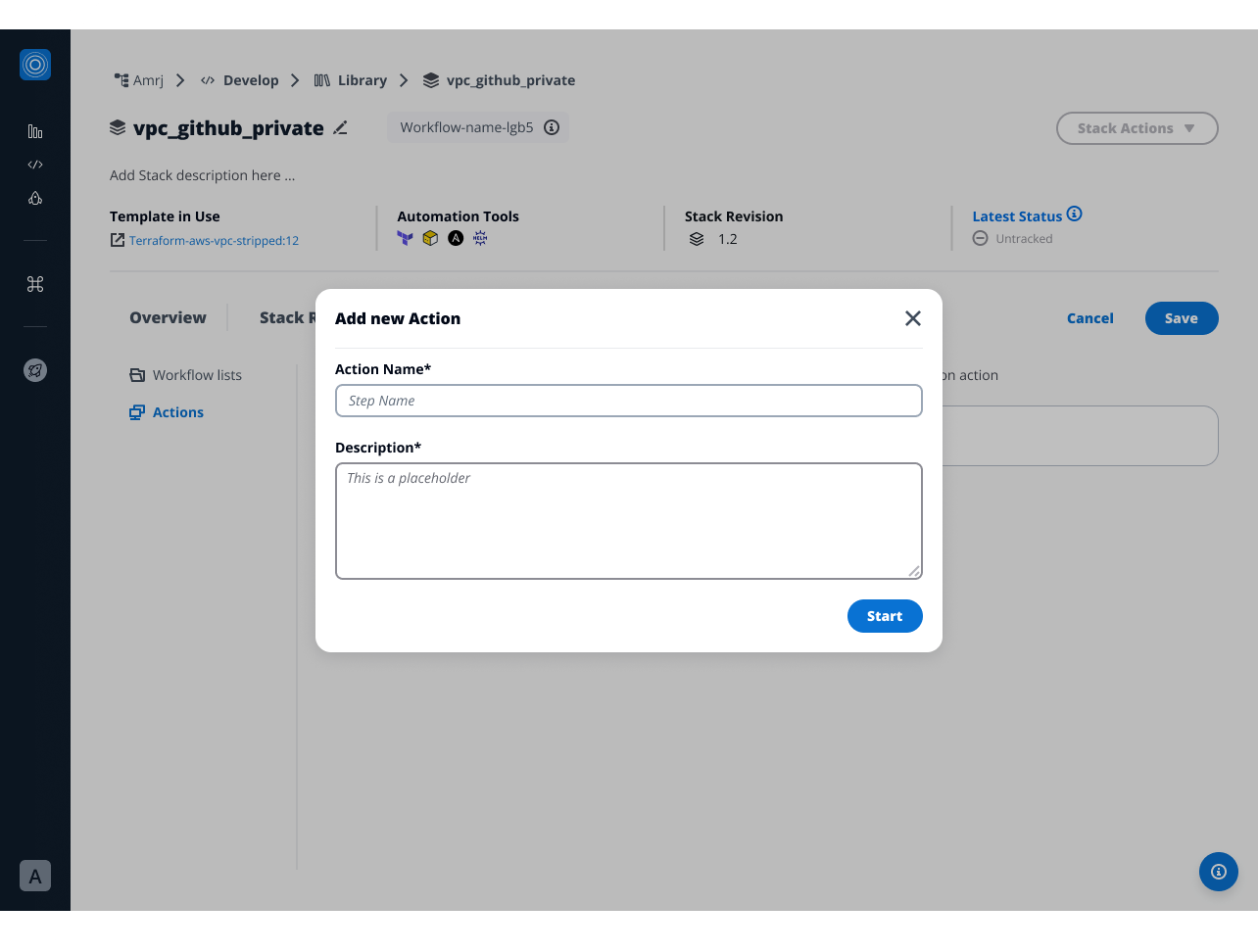
Add new Stack Action
-
Click Add Workflow to add workflows to the action
-
Set the execution order by dragging and dropping the workflows
-
For each Workflow in an action, you can configure:
-
Connector - Select which cloud platform connector to use for this Workflow execution
-
Environment Variables - Add or override environment variables exposed to the Workflow runtime. These variables:
- Supplement or replace the default environment variables
- Appear as key-value pairs
- Apply only when running this Workflow through this action
To configure deployment environment:
- Expand the Workflow within your action
- Under Deployment Environment, select a connector from the dropdown
- To add environment variables:
- Select Add Environment Variable
- Enter the variable name and value
- Repeat for additional variables
-
-
Save your changes
Template-level actions become the foundation for all Stacks created from this template revision.
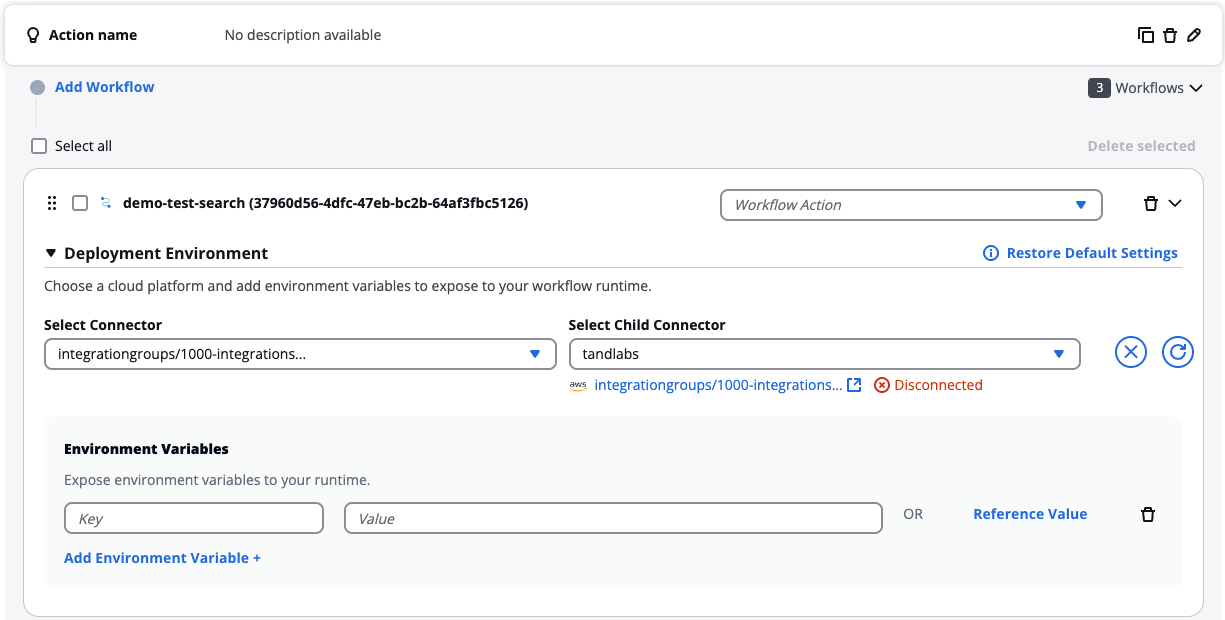
Add Environment Variables
Add new action at Stack level
You can create custom actions at the Stack level to extend capabilities beyond template-defined actions. However, you can only use Workflows that already exist in your Stack template.
After creating the action, add Workflows to define the specific operations to perform. Each action can include multiple Workflows that run sequentially. Use the drag handles to reorder them.
You cannot add new Workflows at the Stack level. If you need a Workflow that doesn't exist in your template, request that your platform team add it to the template and publish a new revision.
Custom actions appear in the Actions List alongside default actions. You can configure, edit, or remove custom actions at any time from the Stack Settings page.
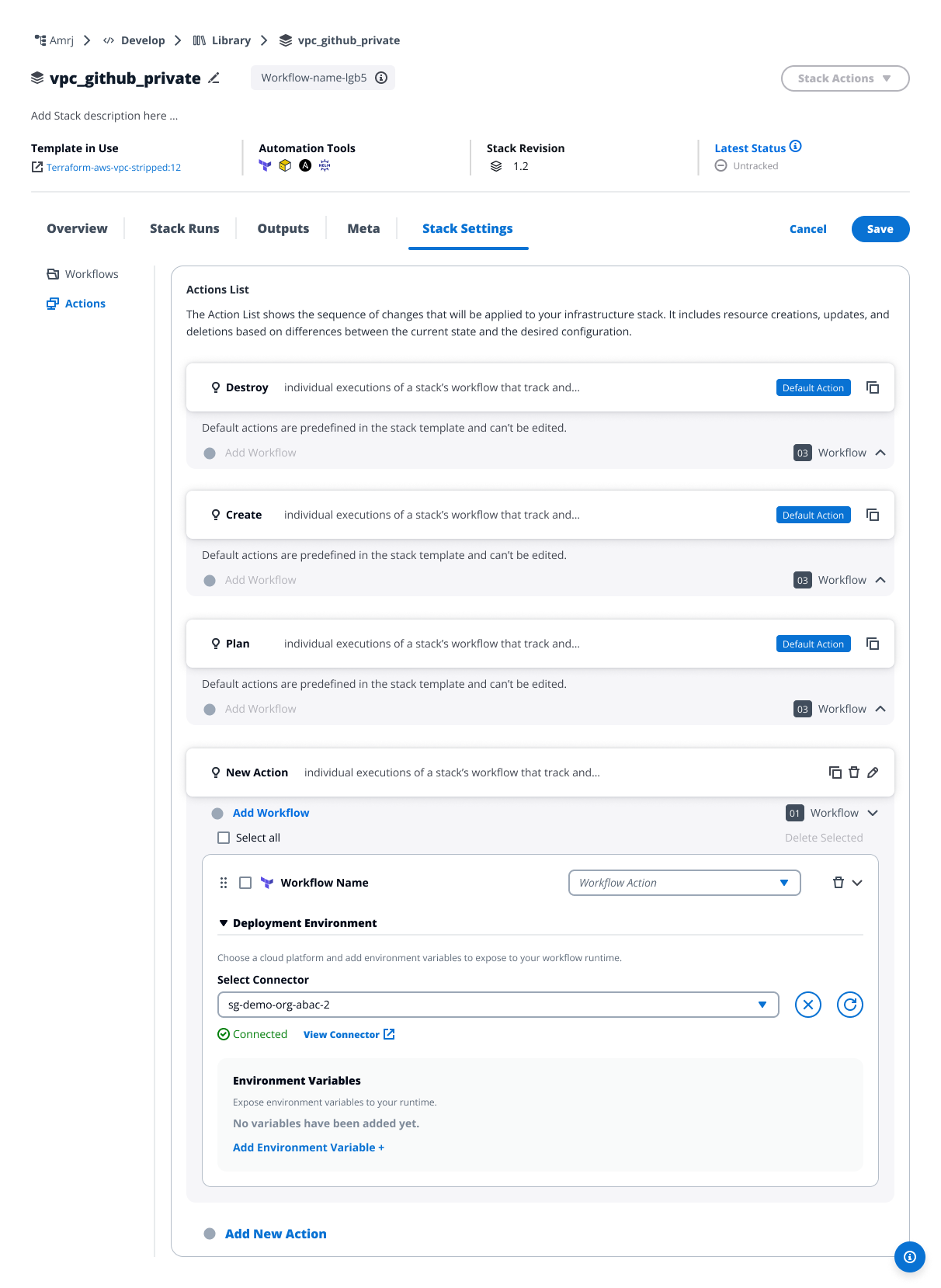
New Stack Action with workflow
You cannot add new Workflows at the Stack level. If you need a Workflow that doesn't exist in your template, request that your platform team add it to the template and publish a new revision.
Configure Deployment Environment
At the Stack level, you can override Deployment Environment settings for Workflows within actions. This is the primary way to customize how Workflows run without editing the template.
Overridden settings show Restore to default settings option. Select this to revert to template-defined configurations.
Custom workflow step settings
For custom workflow types, you can also configure individual step settings beyond deployment environment variables.
These settings include:
- Command overrides for specific steps
- Step-specific parameters
- Execution options
Step settings appear when you expand a custom workflow that includes multiple steps.
Changes to deployment environment settings affect only this Stack and only this specific action. The Workflow's default configuration in the template remains unchanged.
Work with default actions
Default actions appear with a "Default Action" badge and have special restrictions at the Stack level.
View default action configuration
To view a default action:
- Navigate to Stack Settings > Actions
- Locate the action marked "Default Action"
- Expand the action to see included Workflows
At the Stack level, you cannot expand individual Workflows within default actions. To view detailed Workflow configuration, check the Stack template.
You can browse all settings but cannot modify default actions directly.
Copy default actions
To create a customizable version of a default action:
- Locate the default action you want to copy
- Select the copy icon
- A new action appears named "[Original Name] (Copy)"
- This copied action is fully editable
- Modify the name, Workflows, and settings as needed
The copy is a custom action with no connection to the original default action. Changes to the template won't affect your copied version.
Template revision changes
When you update a Stack to a new template revision:
- Default actions reflect the new template configuration
- Custom actions remain unchanged
- Workflow configurations may change if the template changed them
When working with draft template revisions, you'll see a warning: "Stack using draft revision - for testing only." Draft revisions can change at any time, so avoid using them for production Stacks.
Modify or remove actions
You can fully manage custom actions at the Stack level.
Edit custom actions
To edit a custom action:
- Navigate to Stack Settings > Actions
- Locate your custom action (actions without "Default Action" badge)
- Select the edit icon to modify the action name or description
- Or expand the action to:
- Add new Workflows
- Remove existing Workflows
- Reorder Workflows
- Configure deployment environment settings
- Select Save to apply changes
Delete custom actions
To remove a custom action:
- Select the delete icon next to the custom action
- Confirm the deletion in the dialog
You cannot delete default actions. To remove a default action, update the Stack template.
You can only modify or remove custom actions created at the Stack level. Default actions from the template cannot be edited or removed.
Changes to custom actions affect only this Stack. To change default actions, update the Stack template and publish a new revision.
Common questions
Why can't I edit this action?
If you see a "Default Action" badge, the action comes from your Stack template and cannot be edited at the Stack level. You have two options:
- Copy the action to create an editable version for this Stack
- Ask your platform team to update the template and publish a new revision
Why can't I add the Workflow I need?
Workflows must be defined in the Stack template first. You can only use Workflows that already exist in your template. Contact your platform team to add the Workflow to the template and publish a new revision.
I updated my template action. Why didn't my Stack change?
Stacks don't automatically update when templates change. To see the changes:
- Navigate to your Stack
- Update the Stack to use the new template revision
- Default actions will reflect the new template configuration
Can I delete a custom action I created?
Yes, you can delete any custom action you created at the Stack level. Default actions from the template cannot be deleted.