Update Stacks
Overview
When a new template revision is available, you can update your stack to use it. A notification appears in the Stack Settings tab when newer revisions are available.
Check for available revisions
StackGuardian notifies you when a new revision of your stack is available:
- Navigate to your stack's Stack Settings tab
- Look for the Stack Revision indicator in the top-right corner
- If a newer revision exists, you'll see "New Revision Available"
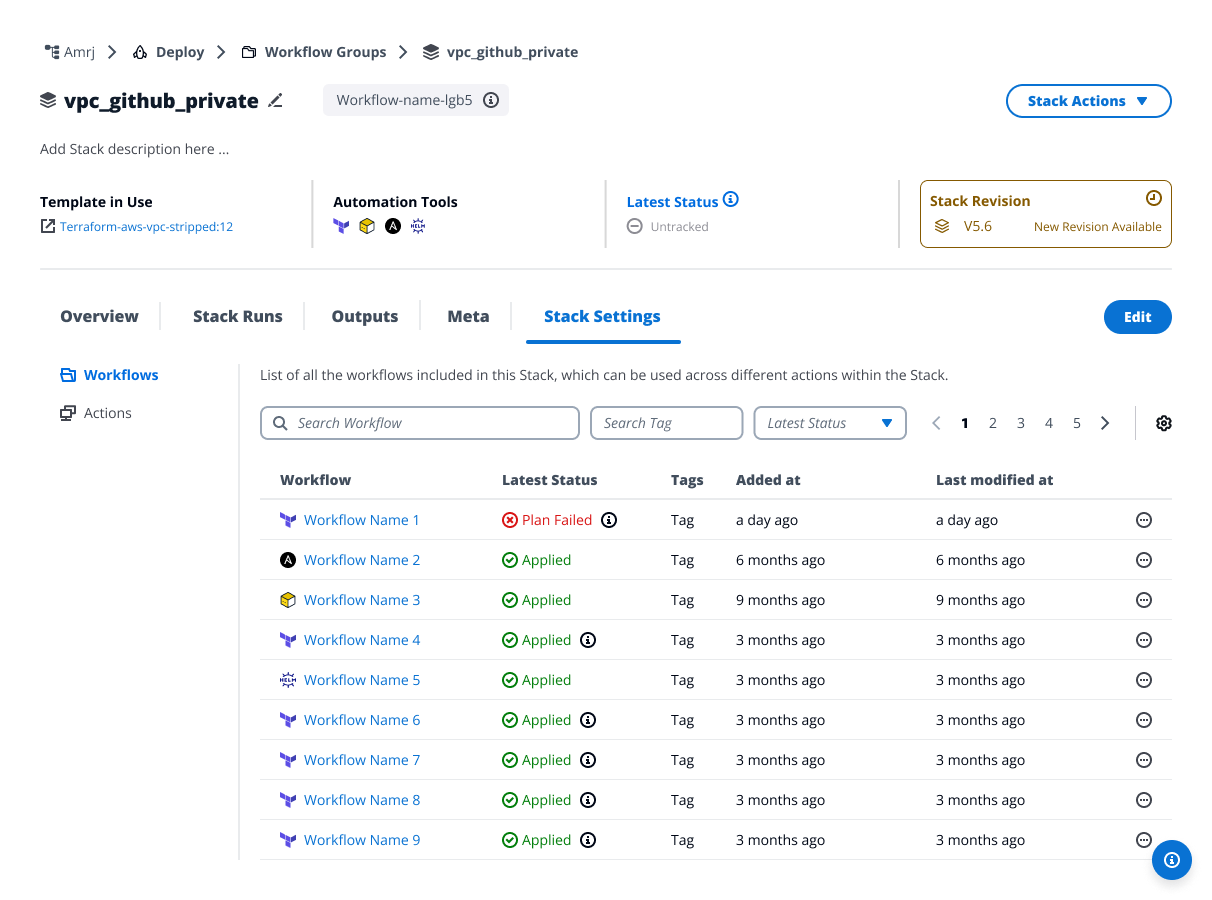
Check for available revisions
Update a stack revision
Step 1: Revision
-
Click New Revision Available in the Stack Revision indicator
-
Review the available revisions:
- Alias Name - The revision identifier
- Revision Notes - Changes included in this revision
- Published Revision - Status badge
- Current Revision - Your current version
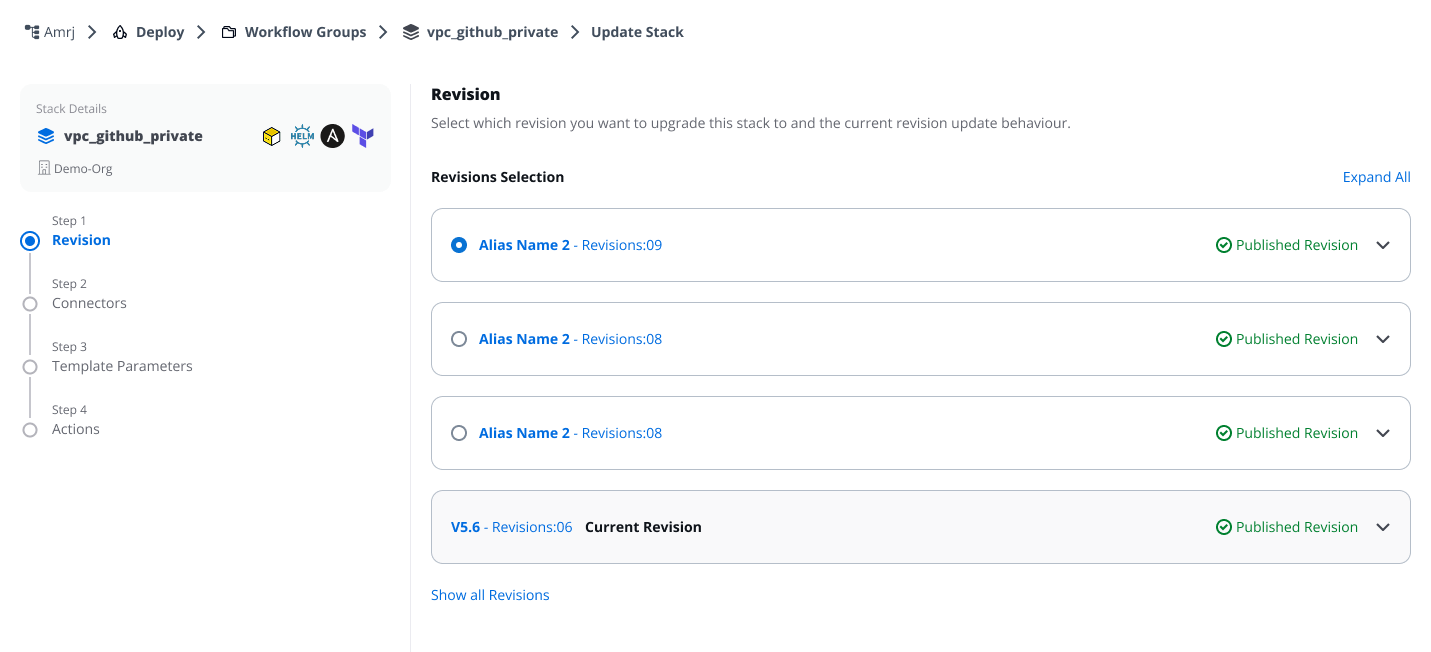
New Revision Available
-
To view all available revisions including previous versions, click Show all Revisions
-
Select the revision you want to use
-
Expand the revision to view details:
- Configuration changes
- Dependency updates
- Breaking changes
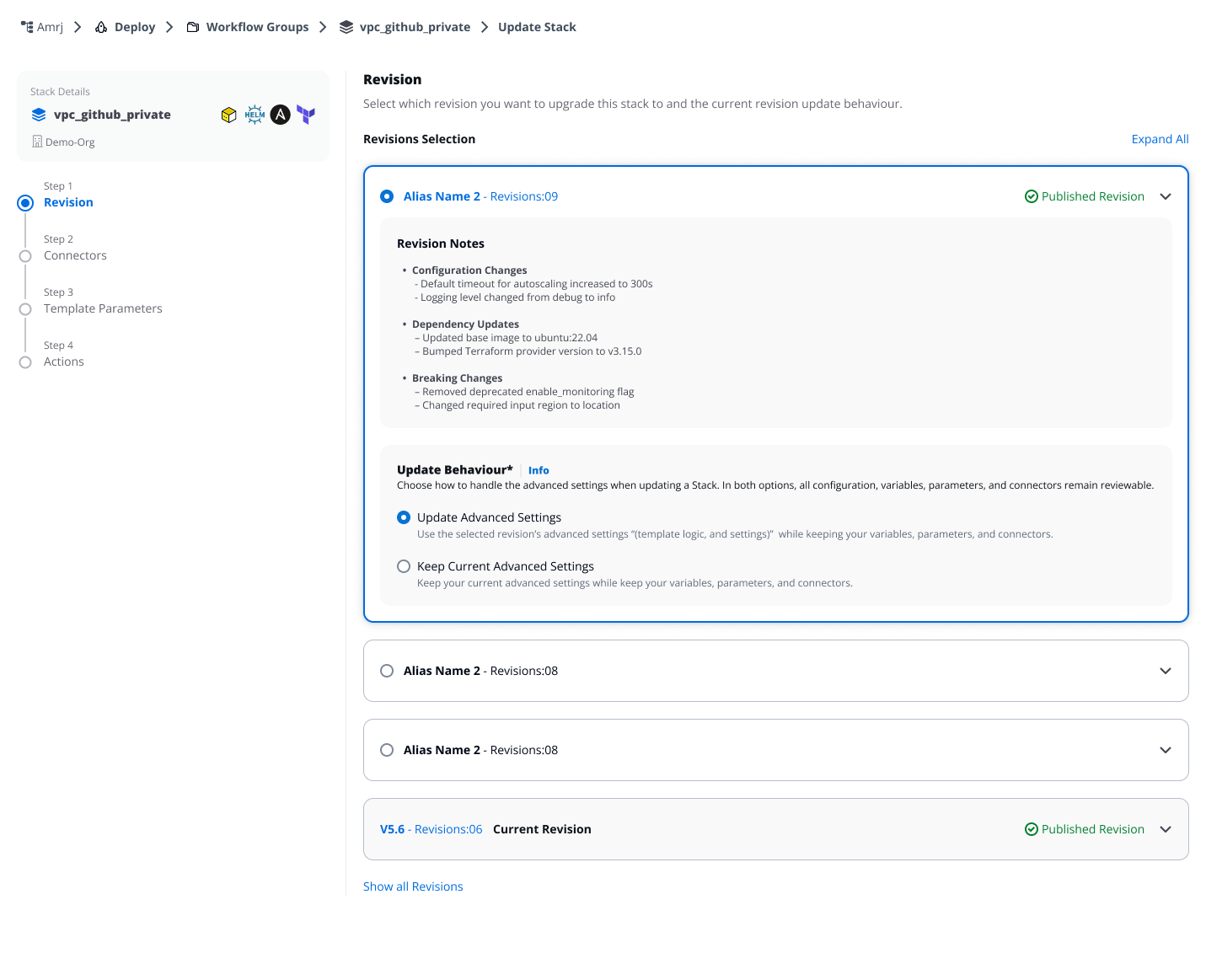
Revision details
Choose update behavior
Select how to handle advanced settings when updating. Advanced settings include template logic and workflow configuration but do not include variables, parameters, connectors, or environment variables (which you'll configure in the following steps).
Update Advanced Settings
- Uses the selected revision's advanced settings (template logic and workflow configuration)
- Your current variables, parameters, connectors, and environment variables remain reviewable in the following steps
Keep Current Advanced Settings
- Keeps your current advanced settings from your existing stack
- Variables, parameters, connectors, and environment variables remain reviewable in the following steps
Advanced settings details are not shown during the update process. Navigate to the template revision to review specific advanced settings before making your selection.
Step 2: Connectors
Review and update connectors for each workflow. The system detects changes automatically by comparing your current stack with the selected revision.
- Select a workflow tab to view its deployment environment
- Review detected changes indicated by status badges:
- Unmodified - No changes required
- Updated - Connector configuration modified in selected revision
- Added - New workflow added in selected revision
- Removed - Workflow removed in selected revision (appears disabled)
- For each workflow:
- Select or update the Connector
- Configure Child Integrations if required
- Add or modify Environment Variables
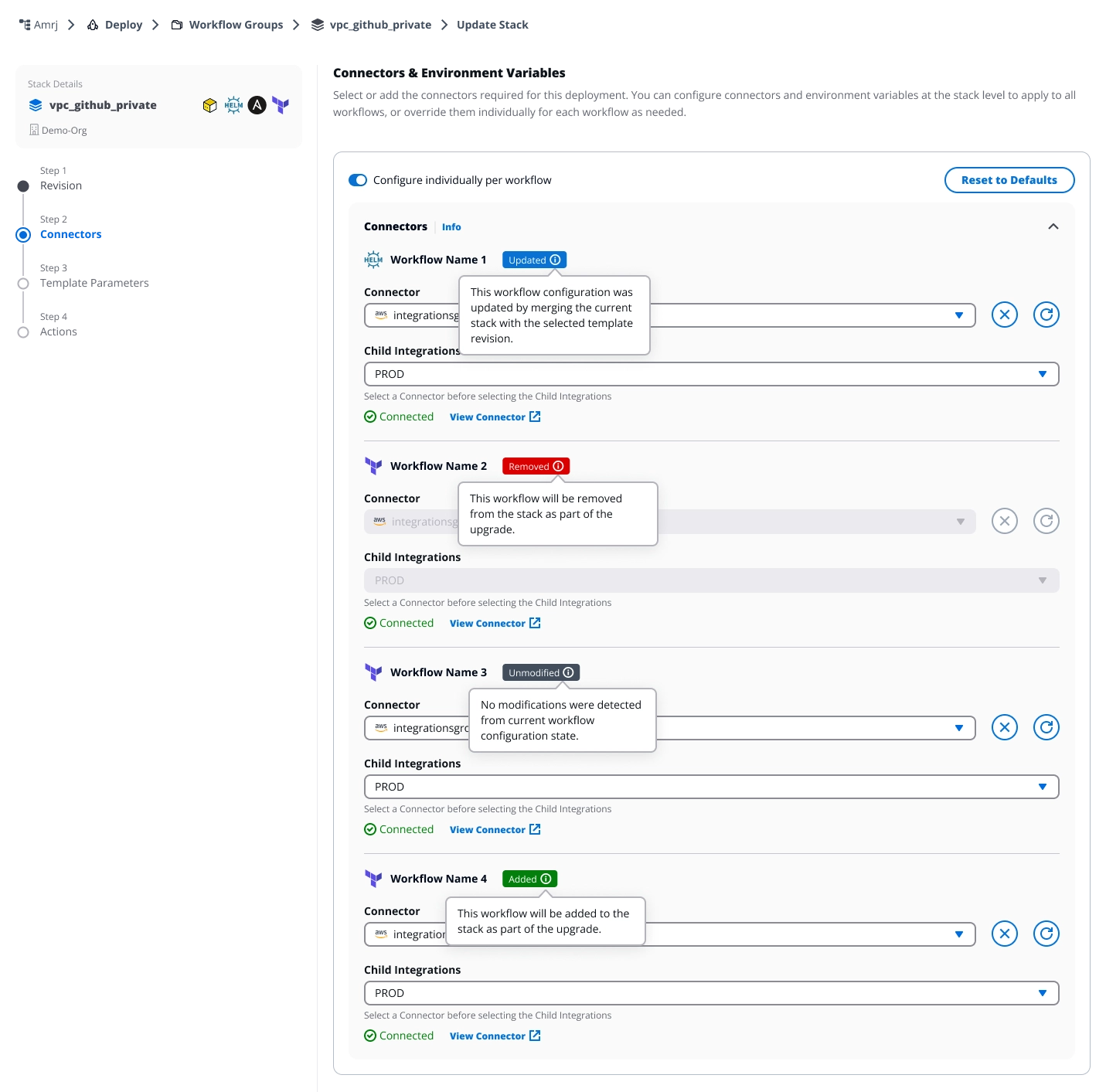
Review and update connectors
How values are updated
When updating connectors and environment variables:
- Existing variables - Your current values are preserved
- New variables - Added with default values from the selected revision
- Deleted variables - Automatically removed from your stack
Step 3: Template Parameters
Configure parameters for workflows with detected changes. The system automatically merges your existing configuration with any new parameters from the selected revision.
- Review workflows marked with status badges
- Fill in required template parameters for each workflow
- Use Reset to Defaults to replace all values with defaults from the selected revision
- Reference existing values using Update Reference when available
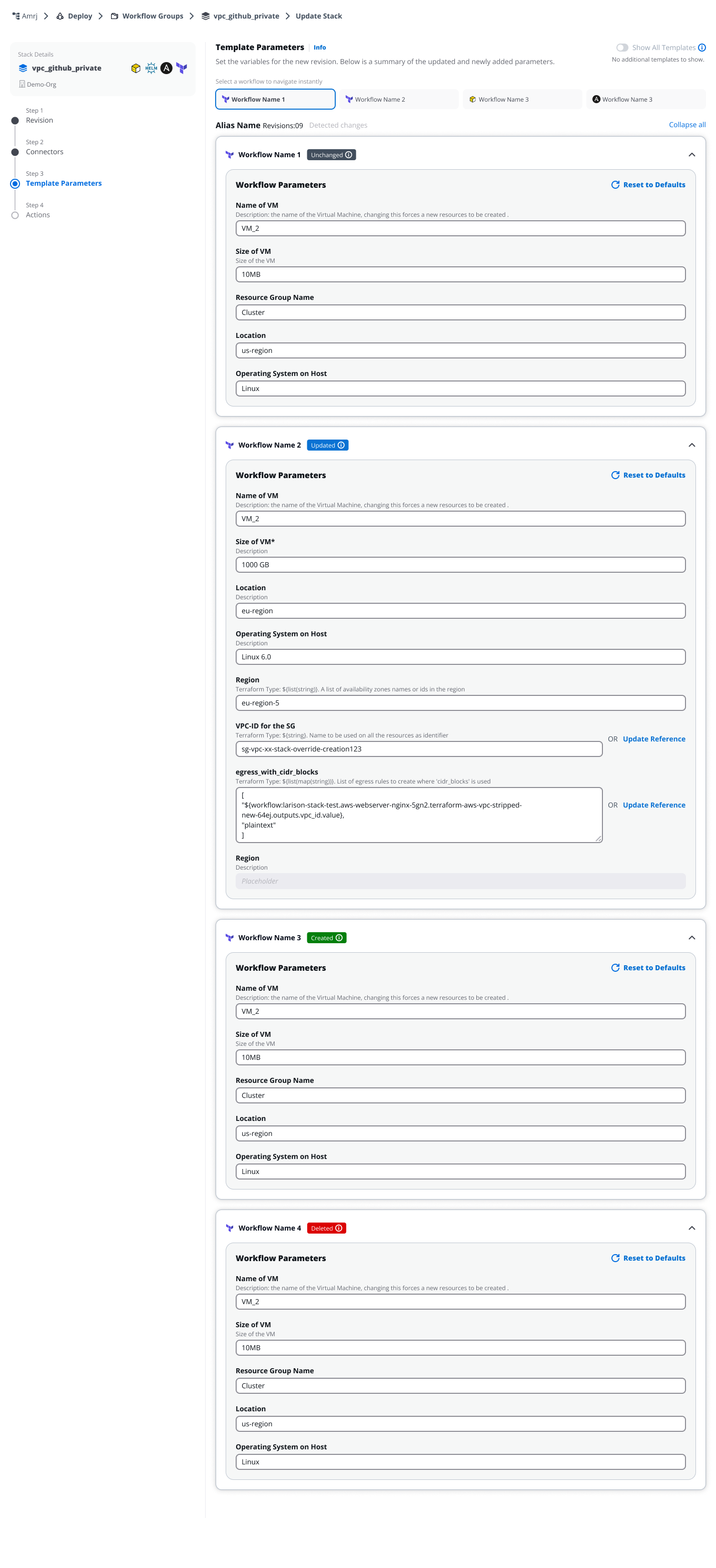
Configure parameters for workflows
How values are updated
When updating template parameters:
- Existing parameters – Your current values are preserved
- New parameters – Added from the selected revision
- Deleted parameters – Retained in your stack even if removed from the selected revision
The Reset to Defaults button replaces all parameter values with the defaults defined in the selected revision's template.
Step 4: Actions
Review and manage the actions that will be applied to your stack. Actions define how workflows are executed.
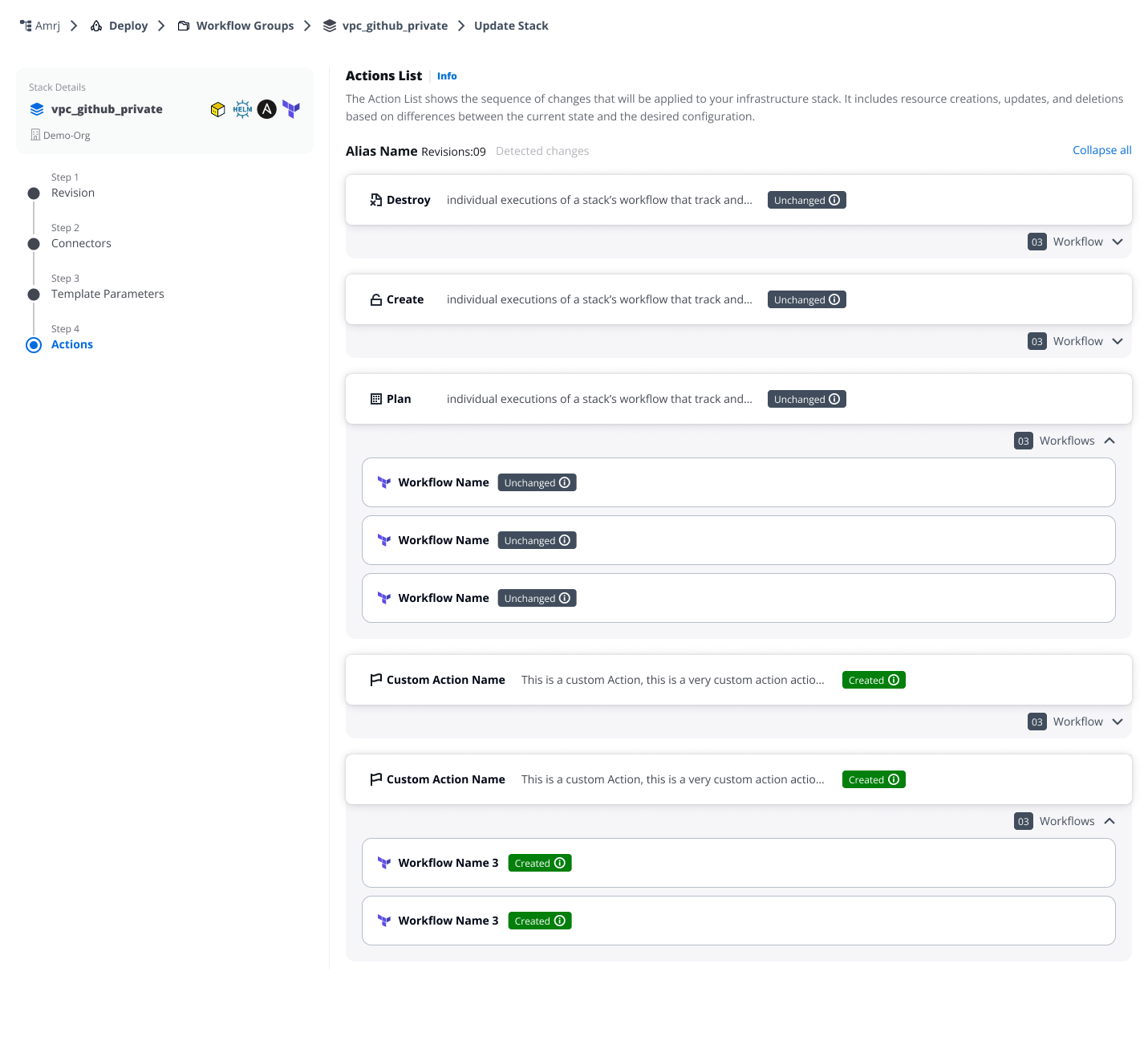
Review and manage the actions
Action types
Default actions (provided by template)
- Destroy - Remove infrastructure resources
- Create - Deploy infrastructure resources
- Plan - Preview infrastructure changes
These actions are defined by the underlying infrastructure tool (Terraform/OpenTofu) and cannot be edited or deleted.
Template-defined custom actions
- Created by the template owner
- Cannot be edited or deleted by the users
- Changes are controlled through template revisions
User-defined custom actions
- Actions you previously created in your stack
- Fully editable during the update process
Review changes
Each action displays:
- Associated workflows
- Status badge indicating changes:
- Unchanged - No modifications to this action
- Updated - Action configuration modified
- Created - New action added in selected revision
- Expandable workflow details
Edit user-defined custom actions
For custom actions you created, you can:
- Reorder workflows within the action
- Add workflows to the action
- Remove workflows from the action
- Clone the action to create variations
- Delete the action entirely
Default actions and template-defined actions are read-only and cannot be modified.
Automatic workflow cleanup
If a workflow is deleted in the selected revision:
- The system automatically removes it from all your custom actions
- Custom actions that become empty after workflow removal are automatically deleted
- This cleanup ensures your actions remain valid after the update and cannot be undone
What happens after updating
After completing the update:
- Your stack updates to the selected revision
- Advanced settings update based on your chosen behavior
- Configuration values are merged:
- Existing values are preserved
- New parameters use defaults from the selected revision
- Deleted parameters are removed
- Workflows deleted in the selected revision are removed from your stack and custom actions
- A success notification confirms the update
- You can run the stack to apply changes
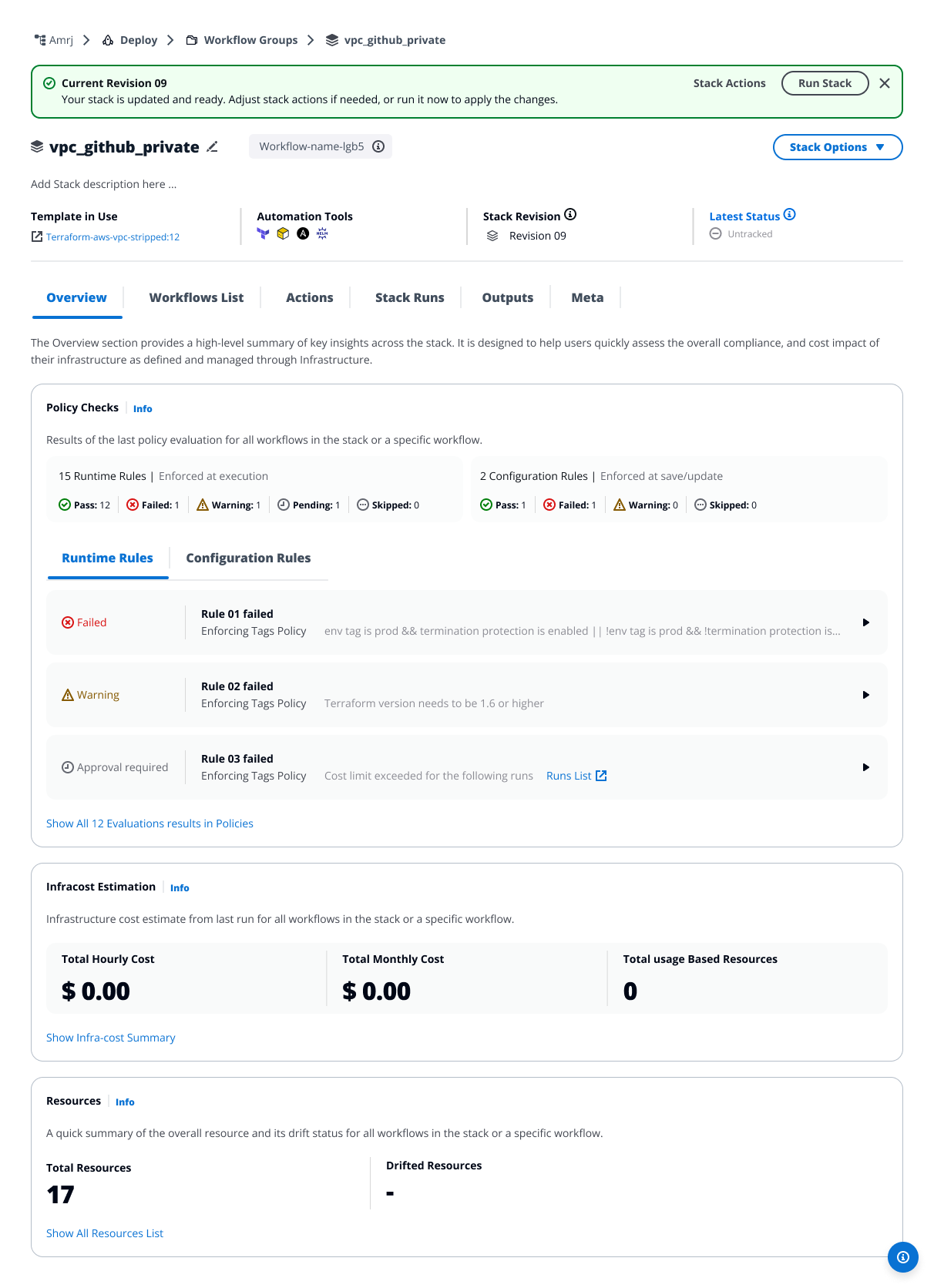
After completing the update