Access management
Overview
The Access management page controls who can access your organization and what they can do, for both SGCode and SGOrchestrator. To open it, go to SGOrchestrator > Organization settings > Access management. The page has three tabs:
- Assign roles: Add users and groups to your organization and assign them roles.
- Define roles: Create custom roles and set their permissions.
- API access: Create and manage API keys for programmatic access.
Role-based access control (RBAC)
RBAC is a method of regulating access to resources based on the roles of individual users within an enterprise. In StackGuardian, RBAC allows for granular control over the actions that users and groups can perform, which is crucial for large organizations with complex access control requirements.
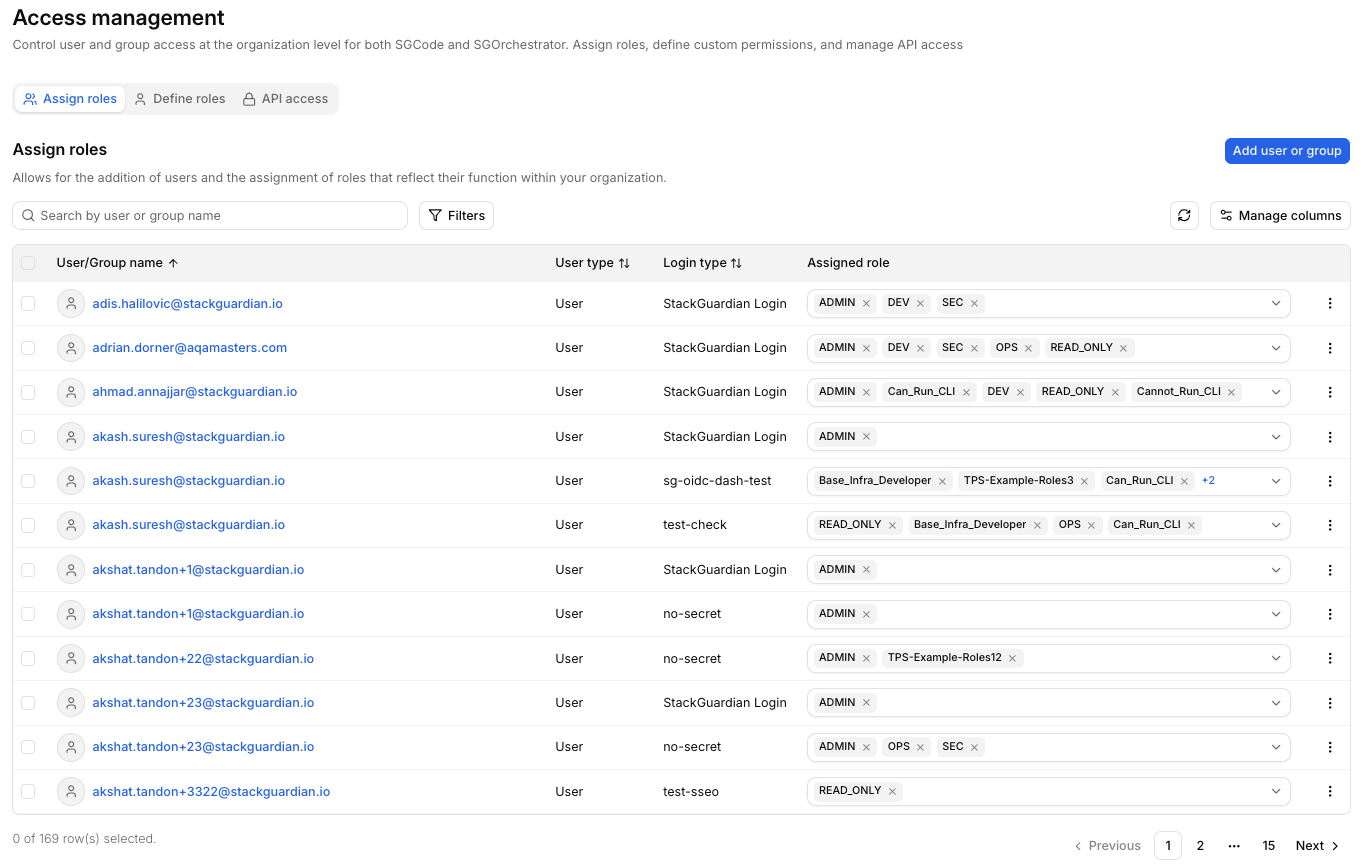
Access management page
Use case
Consider a scenario in a large organization where different teams need different levels of access to workflows, Connectors, and policies. With StackGuardian RBAC, you can create a role named DevOps that has permissions to Create, Update, and Delete workflows, but only Read access to secrets.
Assign roles
To open the tab, go to SGOrchestrator > Organization settings > Access management and select Assign roles.
The table lists every user and group in your organization:
- User/Group name: The email address or group name.
- User type: Whether the row is a user or a group.
- Login type: How the user signs in, for example StackGuardian Login or an SSO connection.
- Assigned role: The roles assigned to the user or group. A user can have more than one role.
Use the search box to find a user or group by name, and Manage columns to choose which columns appear.
Add a user or group
- Select Add user or group.
- In Email or AD group, enter an email address or an AD group name. For example,
newuser@example.com. - In Assign role, select the roles that reflect the user's function within the organization. By default, you can assign a maximum of 5 roles per user. To increase this limit, open a support ticket.
- In Login method, select StackGuardian Login or Single Sign-On (SSO), depending on your setup.
- Select Add user.
After you add the user, they appear in the table.
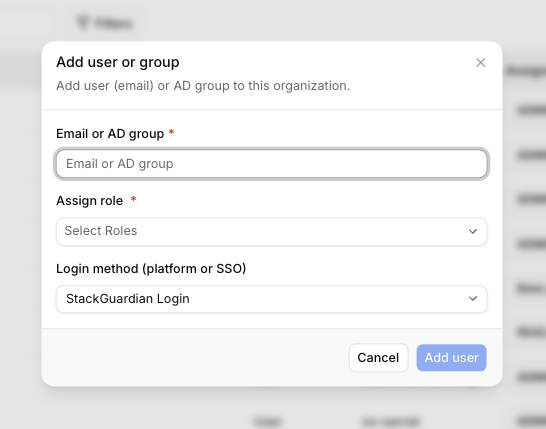
Add user or group
Change the roles of a user or group
- In the Assigned role column, open the dropdown on the row.
- Search for a role, or scroll the list. Roles that are already assigned have a checkmark.
- Select a role to add it, or select a checked role to remove it.
StackGuardian saves your change automatically. The list includes both predefined roles and your custom roles. The limit of 5 roles per user still applies.
Resend an invitation or remove access
Open the ⋮ menu on a row to manage it:
- Resend invitation: Send the invitation again. This option appears on user rows.
- Remove user: Remove the user from your organization.
- Remove group: Remove the group from your organization. This option appears on group rows.
Predefined roles
| Role | Description | Permissions & Descriptions |
|---|---|---|
| ADMIN (Administrator) | Full access to all settings and features across the platform. | All permissions including management and configuration of all aspects. |
| READ_ONLY (Read Only) | View access to all organizational settings and configurations, without the ability to modify anything. | Only view access to settings, no modifications allowed. |
| DEV (Developer) | Focused on development activities. | - Create, view, and manage organization settings. - Generate and view reports. - Manage secrets and policies. - View and manage workflows within workflow groups. - Manage Connector groups and Connectors. - Execute, view, and manage workflows and their runs. - Handle stack configurations and operations. |
| SEC (Security Specialist) | Specialized in security with access tailored to manage security settings and sensitive data. | - Create and manage organization reports. - Manage secrets and policies. - View workflows and their outputs. - Authenticate and manage Connector settings. - Limited management of workflow configurations. - Oversee security aspects of stack operations. |
| OPS (Operations Specialist) | Geared towards operations management. | - Manage organization settings and secrets. - Create, update, and delete policies. - Full management of workflow groups, workflows, and their runs. - Manage Connector groups and Connectors. - Handle operational aspects of workflow configurations. - Supervise and operate stacks and stack runs. |
| Custom Roles | Customizable roles to fit specific organizational needs, with permissions assigned as needed. | Custom permissions based on organizational requirements. |
You can create custom roles to fit the unique requirements of your organization in the Define roles tab.
Custom roles
The Define roles tab lists the roles in your organization and lets you create new ones. To open it, go to SGOrchestrator > Organization settings > Access management and select Define roles.
The table shows the Role name, Role ID, Description, and Created columns. You can search by name, description, or tag, and use Manage columns to choose which columns appear.
Create a role
- Select Create new role.
- Enter a Role name. StackGuardian generates the Role ID from the name.
- Optional: Enter a Description, and add Tags by typing each tag and pressing Enter.
- Select Create.
Select the role name to open it and configure its permissions.
Open the ⋮ menu on a role's row to:
- Assign & edit permissions: Open the role and configure its permissions.
- Remove role: Delete the role.
Permissions overview
A role page groups permissions into five sections. Each section has its own Add Permission button, a search box, a filter, and a table with these columns:
- Permission group: The group the permission belongs to.
- Permissions: The name of the permission.
- Allowed prefixes: The resources the permission applies to. Select N Paths Selected to see the list of prefixes, and select Edit Prefixes to change them.
- Description: What the permission allows.
Tailor permissions to meet the specific needs of roles, team members, and access levels for efficient access control. The sections are:
-
Workflows & Stacks permissions: Manage user interactions with Workflow Groups, Workflows, and Stacks. This could range from viewing lists to creating, updating, or deleting workflows and stacks.
Workflow Permissions
Permission Description Get Workflow View the list of workflows within workflow groups. Create Workflow Create new workflows within any workflow group. Update Workflow Edit existing workflows in any workflow group. Delete Workflow Remove workflows from any workflow group. Get Workflow Outputs View outputs generated by workflows. Get Workflow Run Access details of workflow execution runs. Run Workflow Execute workflows within a group. Cancel Workflow Run Cancel running workflows if needed. Get Workflow Run Logs Retrieve logs for workflow execution runs. Resume Workflow Run Resume paused or stopped workflow executions. Get Workflow Runfact Fetch run-related facts for workflows. Get Workflow Artifact Fetch artifacts of a workflow. Create Update Delete Workflow Artifact Upload, update, or delete artifacts on a Workflow. Get Stack View details of stacks in the organization. Create Stack Add new stacks for managing infrastructure. Delete Stack Remove stacks as required. Run Stack Execute stacks for deployment or configuration. Get Stack Run Access details about stack runs. Get Stack Outputs View outputs generated by stack runs. Get Stack Workflow Access workflows associated with a stack. Update Stack Workflow Edit workflows tied to specific stacks. Delete Stack Workflow Remove workflows from stacks. Get Stack Workflow Outputs View outputs from stack-related workflows. Get Stack Workflow Artifact Fetch artifacts of a stack workflow. Create Update Delete Stack Workflow Artifact Upload, update, or delete artifacts on a Stack Workflow. Get Stack Workflow Run View details of stack workflow runs. Get Stack Workflow Runfact Fetch facts for stack workflow runs. Resume Stack Workflow Run Resume paused stack workflow executions. Get Stack Workflow Run Logs Retrieve logs for stack workflow execution runs. -
Connectors permissions: Control access to Connectors and Connector Groups.
Connectors Permissions
Permission Description Get Connector View the list of connector within an organization. Create Connector Create new connectors within an organization. Update Connector Edit existing connectors in an organization. Delete Connector Remove connectors from an organization. Get Connector Group View the list of connector groups within organization. Create Connector Group Create new connector groups within an organization. Update Connector Group Edit existing connector groups in an organization. Delete Connector Group Remove connector groups from an organization. Get Connector Group Child View the list of connectors within a connector group. Update Connector Group Child Edit existing connectors within a connector group. Delete Connector Group Child Remove connectors from a connector group. -
Policy & Secrets permissions: Manage permissions related to Policies and Secrets, enabling users to access, update, or create new policies and secrets.
Policy & Secrets Permissions
Permission Description Get Secret View the list of secrets within an organization. Create Secret Create new secrets within an organization. Update Secret Edit secrets workflows in an organization. Delete Secret Remove secrets from an organization. Get Policy View the list of policies within an organization. Create Policy Create new policies within an organization. Update Policy Edit existing policies in an organization. Delete Policy Remove policies from an organization. -
Template Library permissions: Manage permissions related to Templates, enabling users to access, update, or create new templates.
Template Library Permissions
Permission Description Get Templates View the list of templates within an organization. Create Templates Create new templates. Update Templates Edit existing templates in an organization. Delete Templates Remove templates from an organization. Manage Template Revision Create, publish, or deprecate Template revisions. Activate/Deactivate Templates Activate or deactivate templates for use. -
Roles & Others permissions: Provide or restrict access to additional administrative functions like Role management, Templates Subscription, API Token generation, viewing Audit logs, generating Organization Reports, and access to SGCode areas such as the Cloud Inventory, infra projects, and state backends.
Roles & Others Permissions
Permission Description Get Role View the list of roles within an organization. Create Role Create new roles within an organization. Update Role Edit existing roles in an organization. Delete Role Remove roles from an organization. Get API Access View the list of API Access tokens. Create API Access Create new API Access token. Update API Access Edit existing API Access tokens. Delete API Access Remove API Access token from an organization. Get Runner Group View the list of runner groups within an organization. Create Runner Group Create new runner groups within an organization. Update Runner Group Edit existing runner groups in an organization. Create User API Token Create new User API Tokens Delete User API Token Remove existing User API Tokens Get Audit Logs Get Audit logs of an organization Get Benchmarks Get discovery benchmarks Get Inventory View the Cloud Inventory Manage Infra Projects Create, view, edit, and delete infra projects, and codify discovered resources into them Manage State Backends Create, view, update, and delete state backends Org Report Get Org Report Invite User Invite a user into an organization Update User Update user role in an organization Delete User Delete a user from an organization Required Permission for User Management DelegationTo delegate user management tasks (invite/update/delete users), the custom role created must include the
getRolepermission with the specific roles that this custom role will be authorized to assign to users.The
getRolepermission is also required for deleting users. You can only delete users whose roles are a subset of yourgetRolepermission scope. For example, if Alice has roles X, Y, and Z, and Bob's custom role hasgetRolepermission for only X and Y, Bob cannot delete Alice because role Z is outside his permission scope.
For example, an Admin Role can be set up by selecting All permissions under each category. This provides unrestricted access, suitable for administrative users who require full control over the platform.
Assign permissions
To set up permissions for a DevOps team member, follow the steps below.
Step 1: Add permissions
- Open the DevOps role from the Define roles tab.
- Find the section that matches the permissions you want to add, for example Workflows & Stacks permissions.
- Select Add Permission.
- In Select permissions, choose the permissions to add. Start with foundational permissions such as Get Workflow. See Permissions overview for the full list.
- You can select permissions from only one permission group at a time.
- Permissions that are already configured on the role don't appear in the list. To change them, use Edit allowed prefixes on the row.
Step 2: Set allowed prefixes
- After you select permissions, enter the paths and resource prefixes in Allowed prefixes.
- Select Add.
Prefixes use regular expressions (RegEx) and are matched against the resource ID. StackGuardian generates resource IDs automatically from names. For example, a Workflow named My Workflow gets the ID my-workflow-kfjgke. You can find the ID inside the resource.
How Regex Works in Path Assignments
StackGuardian supports full match regex patterns when assigning paths under permissions. This allows flexible control over nested resources like workflow groups, stacks, and individual workflows.
We perform full string matching, which means the pattern must match the entire path, not just a part of it. You don't need to use ^ (start anchor) and $ (end anchor) in your regex patterns as they are automatically applied.
Syntax Guide:
- Use regex to dynamically match multiple path options.
.*matches any character(s), allowing flexibility across different path names.- Avoid using overly generic patterns to prevent unintended access.
Example Pattern:
For workflow group permissions, you can use regex patterns to control access and naming restrictions. The behavior differs between Create Workflow Group and Create Nested Workflow Group permissions.
Important: For Get permissions (like viewing workflows), the regex processing works differently. When you specify a path like a/b/c, it automatically grants access to that path AND all its parent paths (a, a/b, and a/b/c) because you need to traverse through parent groups to access the target.
Pattern 1: Create root workflow groups with name restrictions (Create Workflow Group and other create resources permissions that work on the root level (Policies, Connector, etc))
- Regex pattern:
team-a-.* - What it does: Limits creation of root-level workflow groups to names matching the pattern (no hierarchy involved)
- ✅ Will allow creating:
team-a-frontend(matches the team-a- prefix)team-a-backend-api(matches the team-a- prefix)team-a-123(matches the team-a- prefix)
- ❌ Won't allow creating:
team-b-frontend(doesn't match team-a- prefix)frontend-team-a(team-a not at the start)other-project(completely different pattern)
Pattern 2: Create nested workflow groups in parent group only (Create Nested Workflow Group permission)
- Regex pattern:
parent_wfgrp/name-pattern.* - What it does: Allows creating workflow groups directly under
parent_wfgrpwith names matching the pattern - ✅ Will allow creating:
parent_wfgrp/name-pattern-dev(matches the name pattern)parent_wfgrp/name-pattern123(matches the name pattern)
- ❌ Won't allow creating:
parent_wfgrp/other-name(doesn't match name pattern)parent_wfgrp/child/name-pattern-test(nested too deep)
Pattern 3: Create nested workflow groups in any sub-group (Create Nested Workflow Group permission)
- Regex pattern:
parent_wfgrp/.*/name-pattern.* - What it does: Allows creating workflow groups in any sub-group under
parent_wfgrpwith names matching the pattern - ✅ Will allow creating:
parent_wfgrp/team1/name-pattern-frontend(in sub-group, matches pattern)parent_wfgrp/team2/name-pattern-backend(in different sub-group, matches pattern)
- ❌ Won't allow creating:
parent_wfgrp/team1/other-pattern(doesn't match name pattern)parent_wfgrp/name-pattern-direct(directly under parent, not in sub-group)
Pattern 4: Create in specific nested path with name restrictions (Create Nested Workflow Group permission)
- Regex pattern:
company/team/project/service-.* - What it does: Allows creating workflow groups only under the specific path with service-prefixed names
- ✅ Will allow creating:
company/team/project/service-api(exact path, matches service- prefix)company/team/project/service-database(exact path, matches service- prefix)
- ❌ Won't allow creating:
company/team/project/component-ui(doesn't match service- prefix)company/other-team/project/service-api(wrong path)
Pattern 5: Access to specific nested path (Get Workflow Group permission)
- Regex pattern:
company/team/project - What it does: For Get permissions, grants access to the specified path AND all parent paths
- ✅ Will match:
company(parent path - needed for navigation)company/team(parent path - needed for navigation)company/team/project(the target path)
- ❌ Won't match:
company/team/project/feature(child paths)company/other-team(sibling paths)
Pattern 6: Access to specific user or group (Invite User permission)
- Regex pattern:
.*@example\.io - What it does: For Invite user, grants access to all email-based users whose address ends with @example.io.
- ✅ Will match:
abc@example.iouser@example.io
- ❌ Won't match:
user@gmail.comabc@mail.com
You can test your regex patterns live using regex101.com.
Edit or remove a permission
To change or remove a permission on a role, open the ⋮ menu on its row in the role page and select one of these options:
- Edit allowed prefixes: Change the paths and resource prefixes the permission applies to.
- Remove permission: Remove the permission from the role.
You can also select N Paths Selected in the Allowed prefixes column and then Edit Prefixes to change the prefixes.
Assign a custom role
After you create a custom role, it appears in the role lists on the Assign roles tab. To assign it to an existing user or group:
- Go to the Assign roles tab.
- In the Assigned role column of the user or group, open the dropdown.
- Search for and select the custom role you created.
To assign it when you add a new user or group:
- Select Add user or group.
- Enter the email address or AD group.
- In Assign role, search for and select the custom role.
- Select Add user.
API access
The API access tab manages the API keys that give programmatic access to the platform. Each API access has its own roles, so the key can do only what those roles allow. To open it, go to SGOrchestrator > Organization settings > Access management and select API access.
The table shows the following columns:
- Access name: The name you gave the API access.
- Access ID: The ID StackGuardian generates from the name.
- Type: The type of access. Currently, API Key is the only type.
- Roles: The roles assigned to the key.
- Expires at: The expiration date, or Never if the access doesn't expire.
- Status: Active or Expired.
Use the search box to find an API access by name, description, or tag, and Manage columns to choose which columns appear.
Create an API access
- Select Create API access.
- Enter an Access name. StackGuardian generates the Access ID from the name.
- Optional: Enter a Description. For example,
CI deploy token for staging. - Optional: Add Tags by typing each tag and pressing Enter.
- Select an Expiration date. StackGuardian sends reminder emails 30, 7, and 1 day before the access expires.
- In Roles, select the roles to grant to the key.
- Select Create.
StackGuardian shows the API key only once, right after you create it. Copy the key and store it securely.
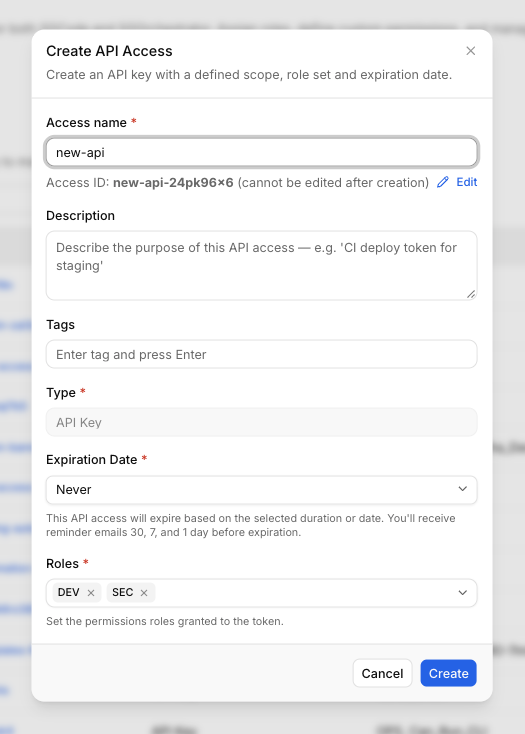
Create API access
Open the ⋮ menu on a row to:
- Regenerate: Generate a new key for the API access. The old key stops working, and StackGuardian shows the new key only once. Copy it and store it securely.
- Edit: Change the name, description, tags, or roles of the API access. You can't change the Access ID, type, or expiration date.
- Delete API access: Permanently remove the API access.
Migration Guide: Update Role Binding → Update User
The Update Role Binding permission is being retired and replaced by Update User. It is no longer offered when creating or editing a role, and any role still using it is migrated to Update User (automatically, if its owners take no action first).
Update User is scoped, where Update Role Binding was not: instead of granting blanket rights
over every role binding, you restrict it by Login Method and an Email/Group Pattern. A
role migrated automatically receives .* for both (the same reach it had before), so review
those roles and narrow the scope to what each one actually needs:
- Open a role that previously used Update Role Binding.
- Find its Update User permission (in the Roles & Others Permissions section), or add the permission there if the role does not have one yet. A role migrated automatically already has it, but one created after your organization's migration ran may not.
- Set Login Method and Email/Group Pattern to the intended scope. Patterns are
matched in full, so use
qa-.*rather thanqa-to match everything starting withqa-. Entity Type must also be selected before the row can be added, but it is a display-only field and does not affect the permission's scope. - Save the updated role configuration.
Any Update Role Binding grant still stored on a role is inert and cannot be edited from here. It is removed for you when your organization is migrated, so there is nothing to do about it.
The set of roles it can then assign or remove remains bounded by its Get Role permission scope.