Manage Template Revisions
Overview
Workflow Templates and Stack Templates are version-controlled in StackGuardian through revisions. Each revision is an immutable snapshot of your template, so you can track changes, roll back to a previous state, and control which version your Workflows and Stacks use.
Template overview
Go to Library > Workflows & Stacks > Select a template. Each template page provides high-level metadata and controls, including:
- Template Name: The name assigned to the template, e.g.,
terraform-aws-key-pair. Can be changed after creation, but the TemplateID will remain the same. - Repository URL: A link to the source code repository (e.g., GitHub).
- Template Type: The type of template, such as Terraform, Opentofu, Ansible, Helm, and more.
- Owner Organization: The organization that owns the template. Most often, this will be your own organization, but templates can also be shared between organizations.
- Activation status: This indicates if template is activated or not. Activated templates will only appear in dev portal.
- Sharing status: This indicates the current sharing status of template. (Public, Private or Shared)
Template options
Template-level actions are available via Template Options:
- Activate/Deactivate the template to control its usage within your organization.
- Share Template with other StackGuardian organizations where you also hold admin access.
- Set visibility (public or private) to control the template's visibility on the community marketplace. Note: To make a template public, its underlying repository must also be public.

Template sections
Each template page contains two main sections:
- Revisions - This contains detailed information about all the revisions of a template.
- Template meta - This contains static metadata information of a template
Template meta
The Template meta tab displays static metadata for the template.
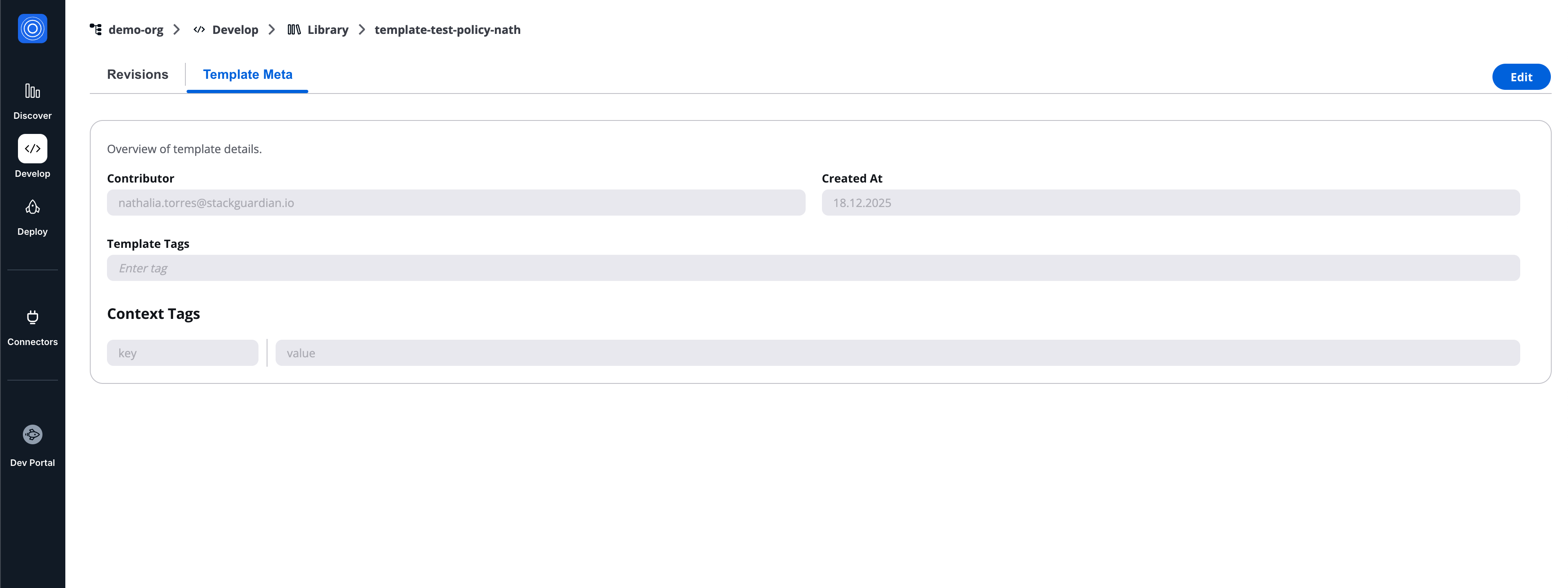
Overview of template details
- Contributor
- Created at
- Template tags
- Context tags
Revisions tab
The Revisions tab lists all revisions of the template and provides revision-level actions.
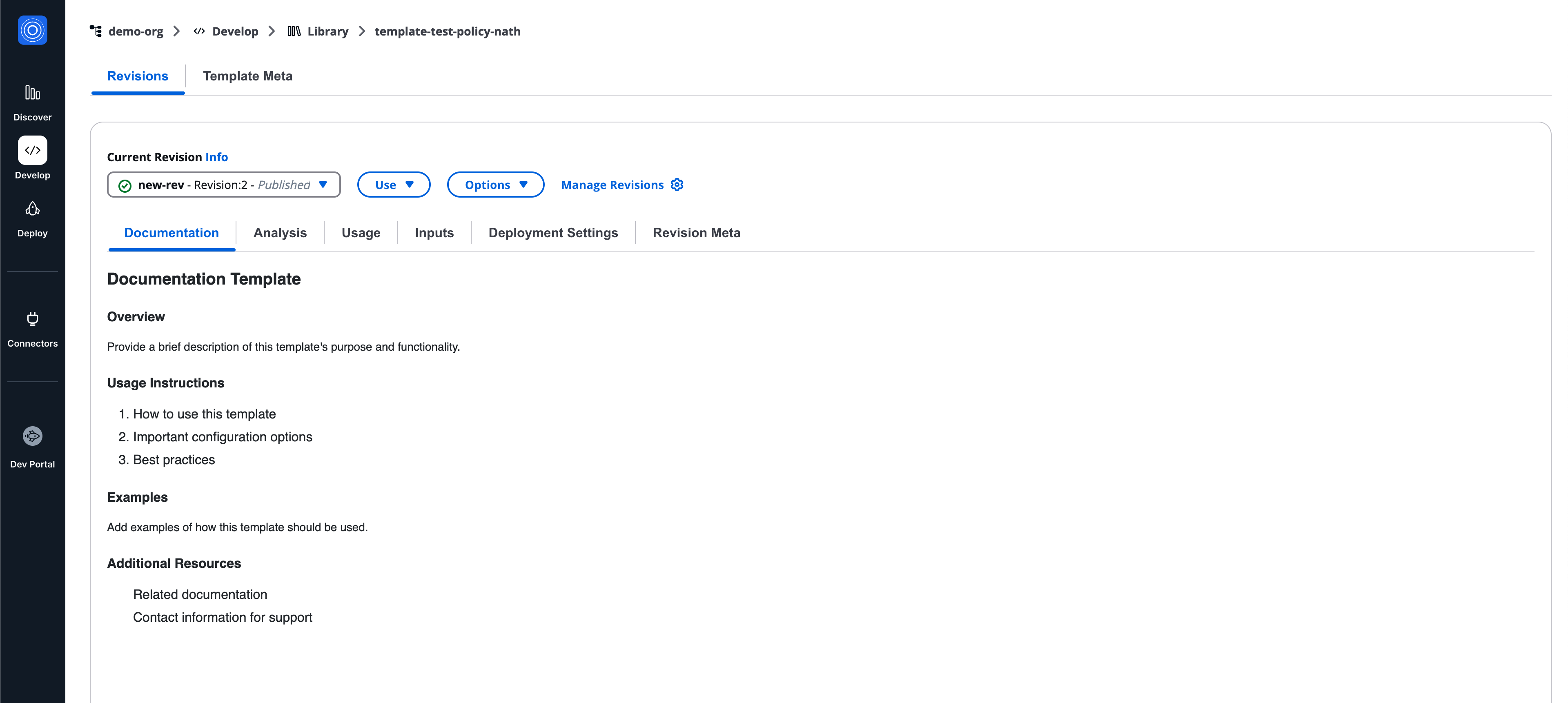
Current revision info
At the top of the Revisions tab, the Current revision info section shows:
- Selected revision (revision number, alias, and status)
- Use button
- Options button
- Manage revisions link
Use menu
The Use menu allows consuming a revision:
- Deploy with DevPortal (published revisions)
- Programmatically (published revisions)
- Test with DevPortal (draft revisions)
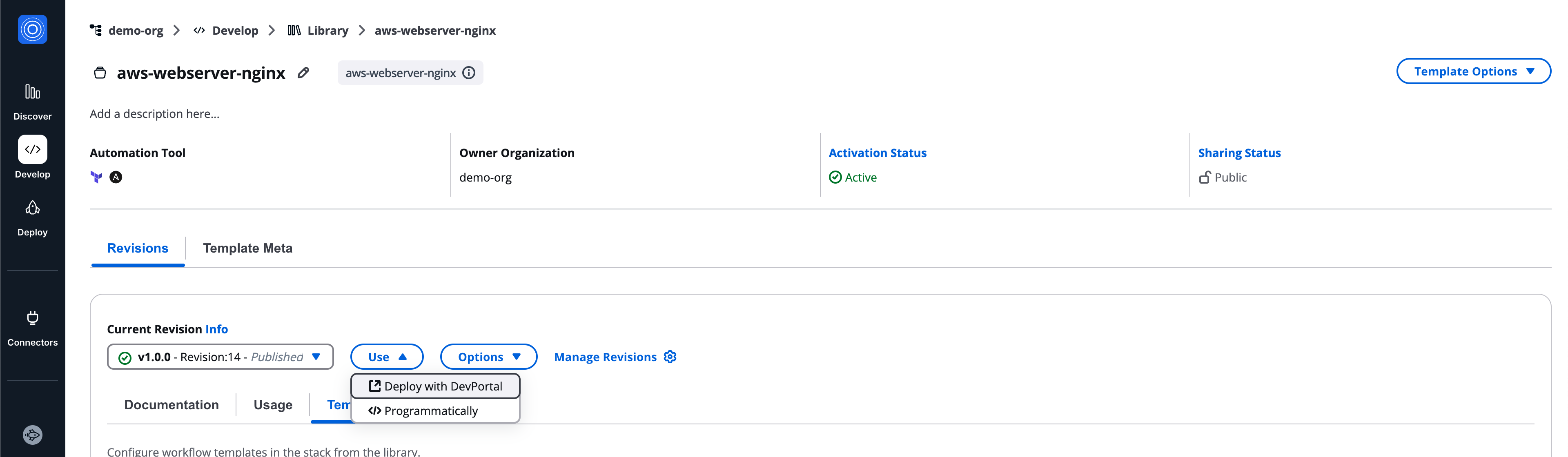
When testing a draft revision: A warning modal is displayed and an explicit confirmation is required beside a warning banner remains visible during the flow.
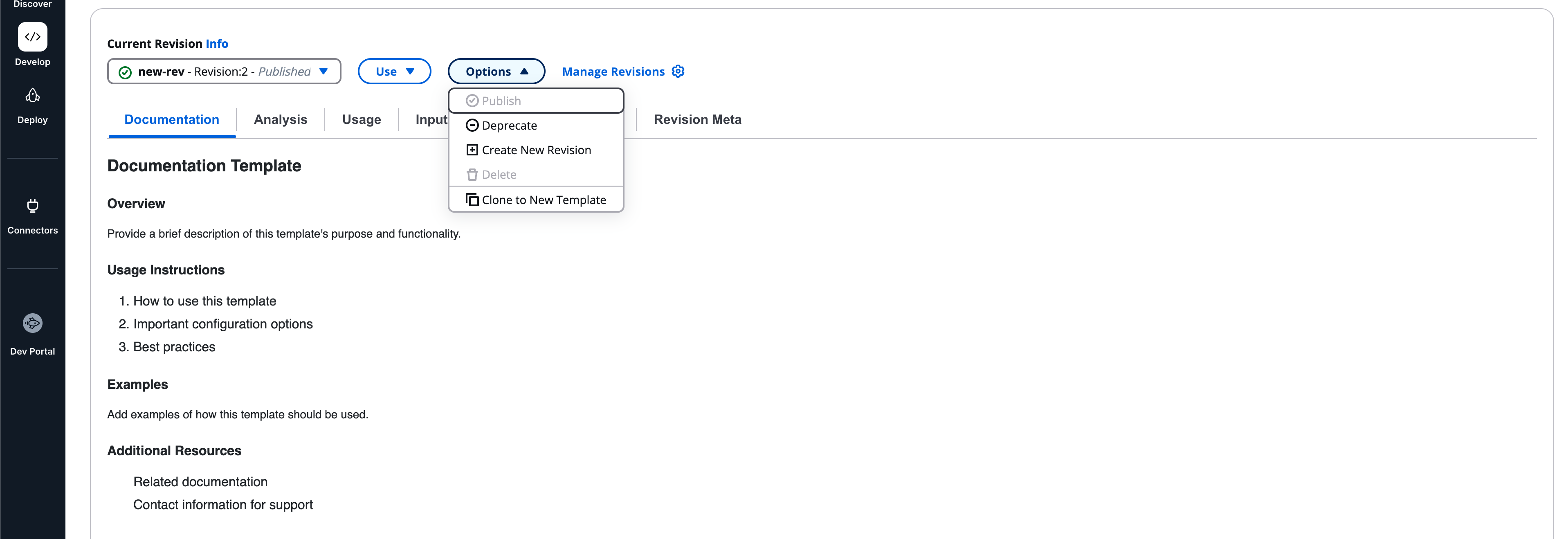
Options menu
The Options menu includes the following actions:
- Publish: By publishing the revision it can not be changed anymore. Making the deployment behaviour predictable.
- Deprecate: Retire outdated versions but still keeping track of usage.
- Create New Revision: Create a complete new template - starting with this revision.
- Clone to new revision: Create a complete new template - starting with this revision.
- Delete: Permanently remove this revision.
Manage revisions
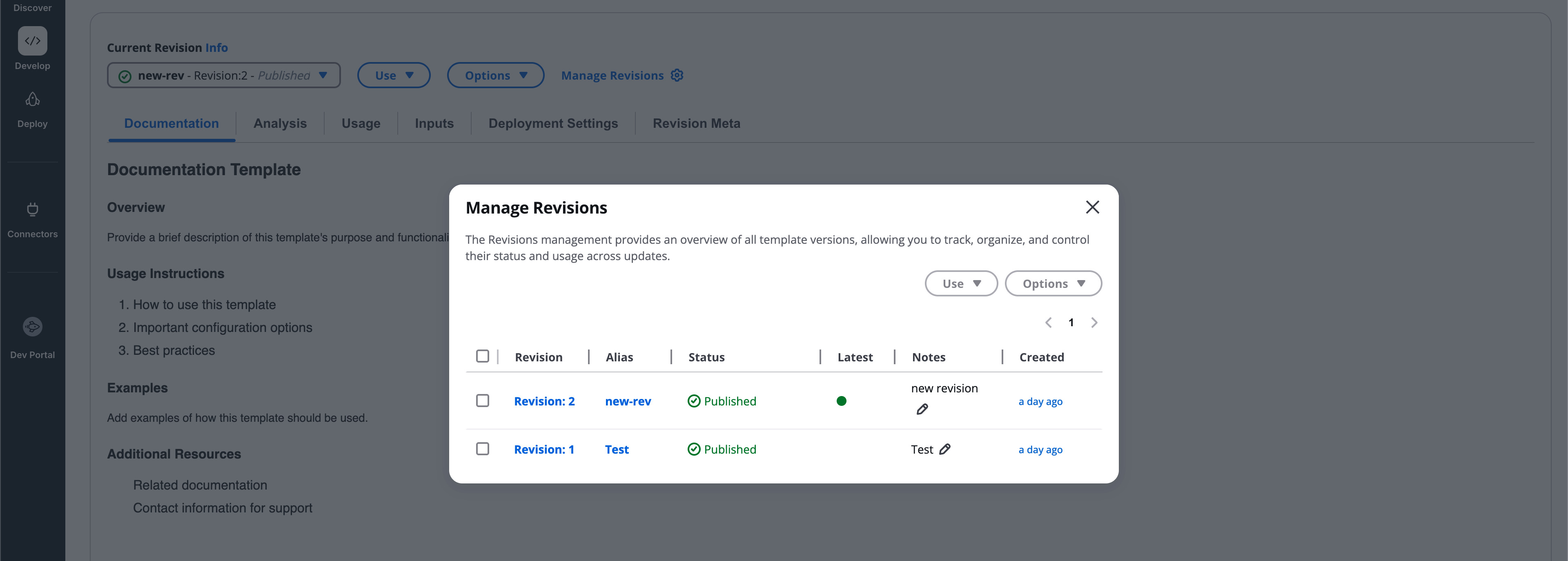
Select Manage revisions to open the revisions panel.
Each revision shows:
- Revision
- Alias
- Status
- Latest
- Notes
- Created
Revision states
- Draft
- Published
- Deprecation scheduled
- Deprecated
Publish revision
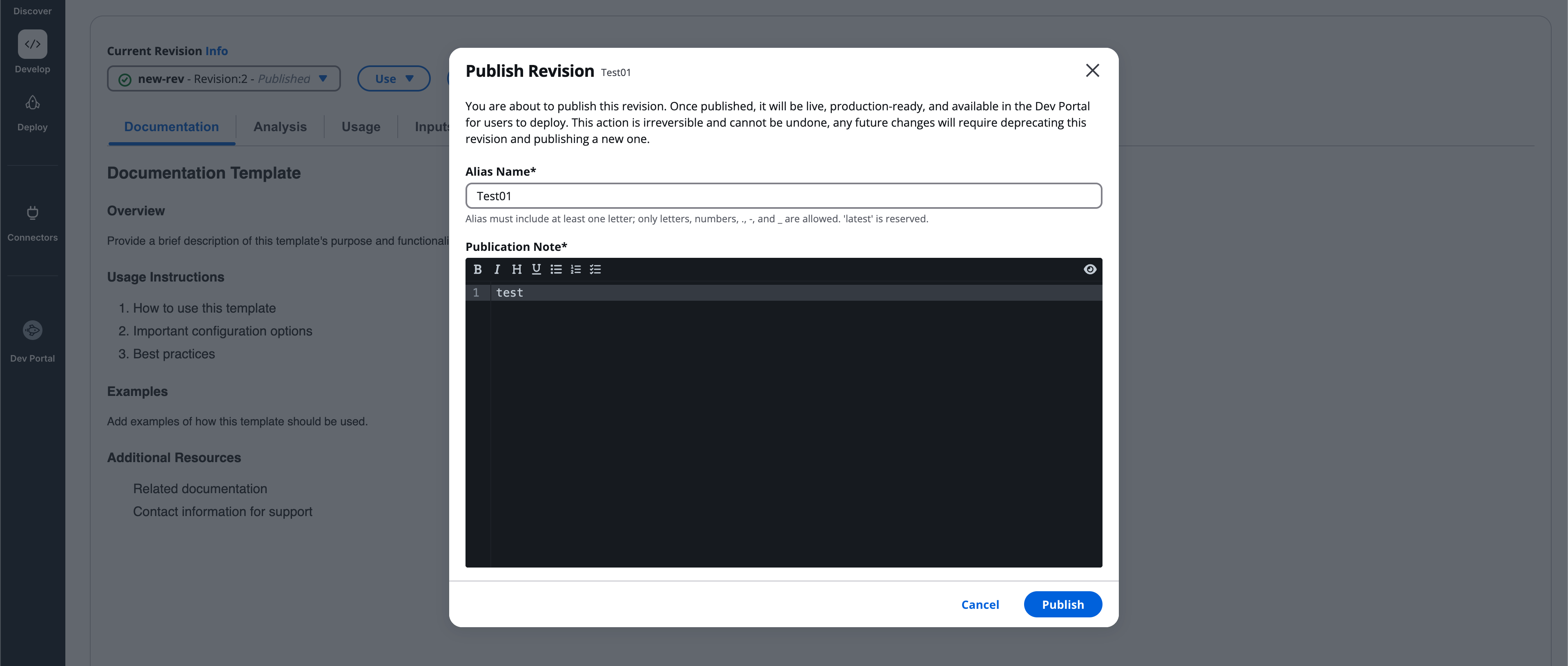
Publishing a revision:
- Requires an alias name
- Allows an optional publication note
- Is irreversible
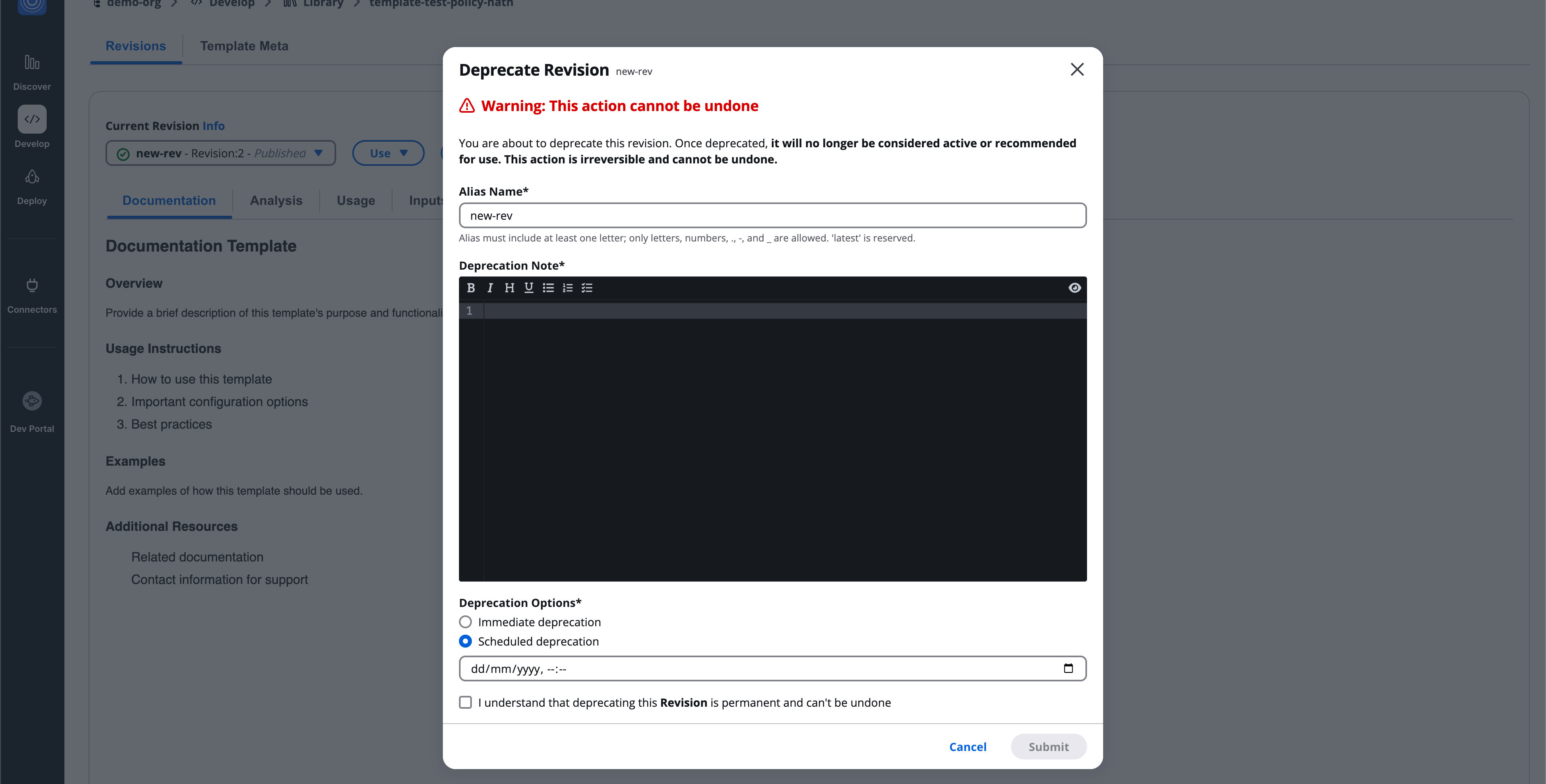
Deprecate revision
Deprecation retires a revision:
- Immediate or scheduled
- Requires confirmation
- Cannot be undone
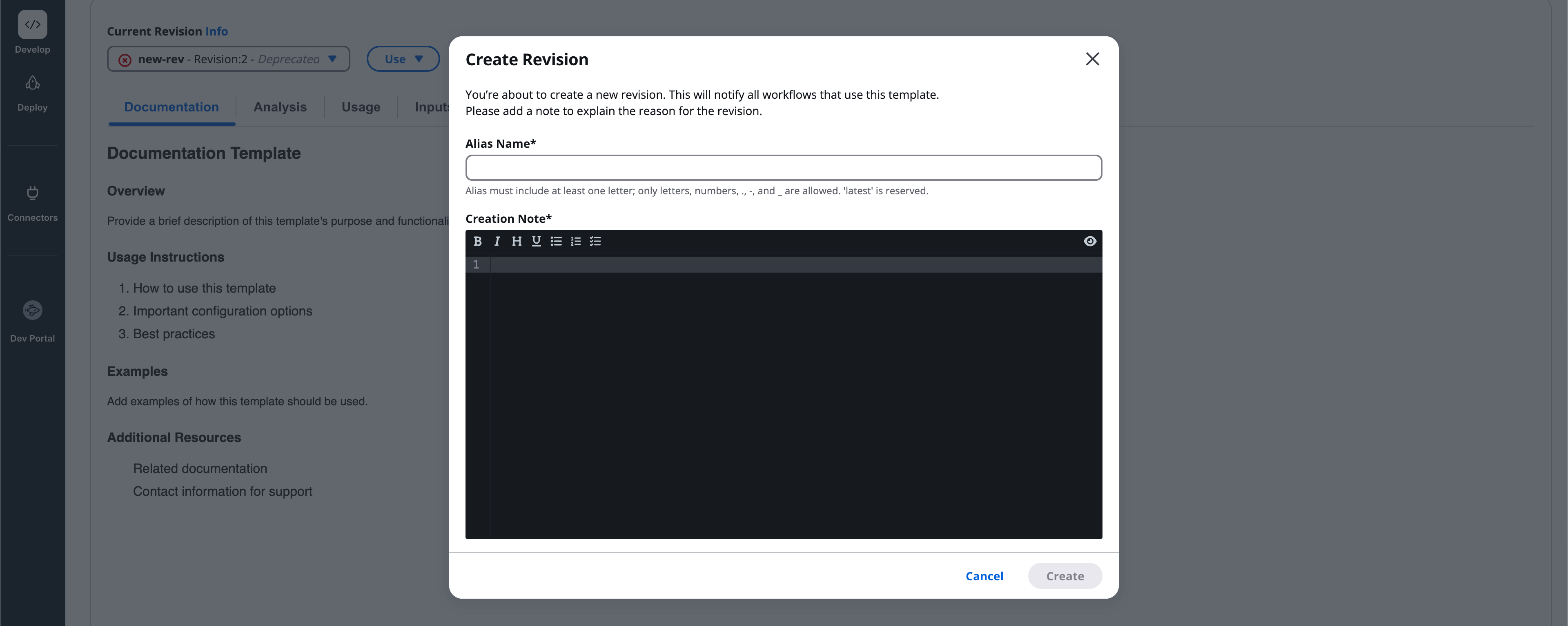
Create new revision
Creates a new draft revision based on the selected revision.
Clone to new template
Creates a new template starting from the selected revision.
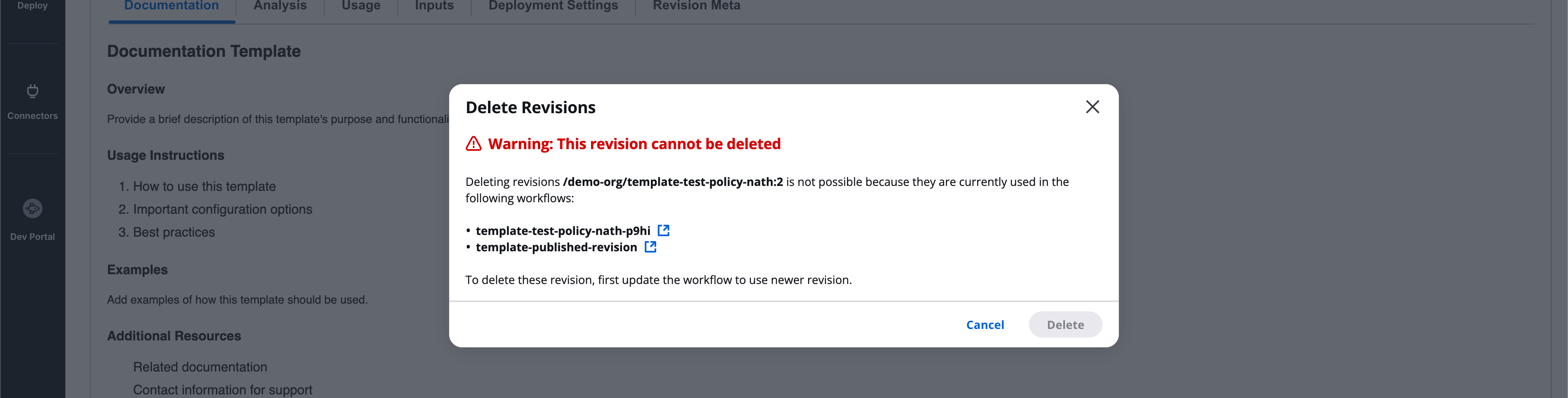
Delete revision
Permanently deletes selected deprecated revisions.
Workflow templates
Workflow templates define executable workflows and use the full revision interface.
Workflow template revision tabs
Each workflow template revision includes the following tabs:
- Documentation
- Analysis
- Usage
- Inputs
- Preset configuration
- Revision meta
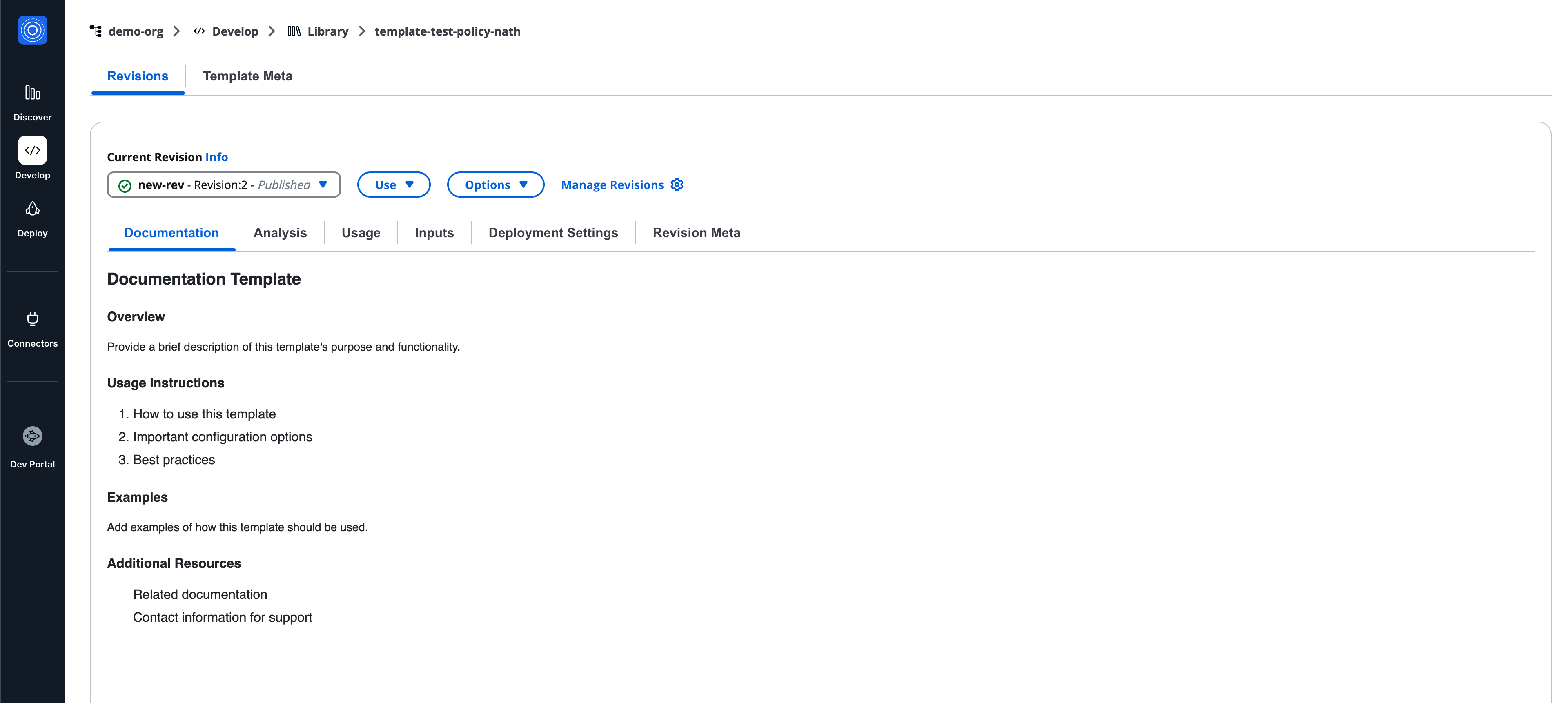
Documentation
The Documentation tab allows authors to write any human-readable information related to the revision.
This content is fully flexible and may include:
- Purpose and overview
- Usage and execution guidance
- Examples and best practices
- Known limitations
- External references and links
There are no enforced sections or structure.
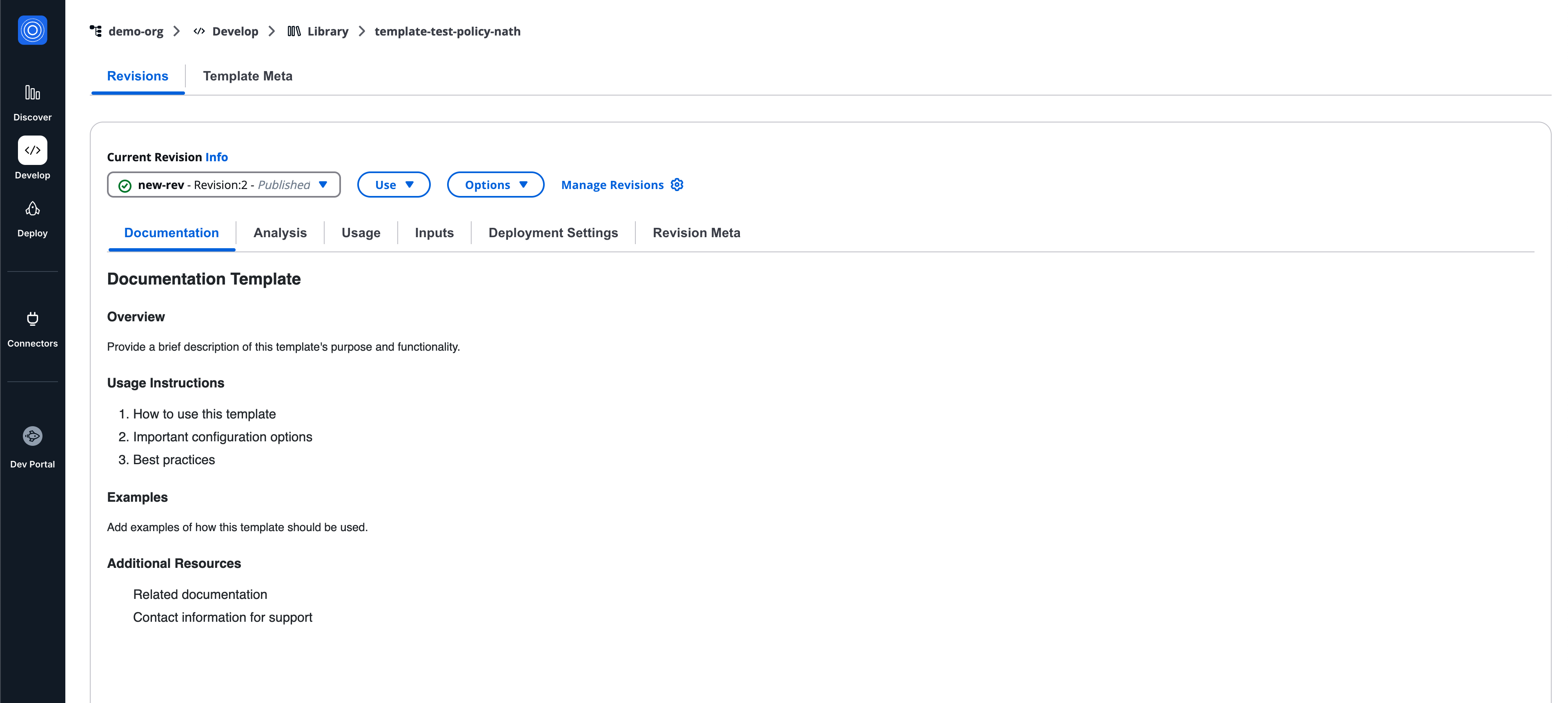
Documentation supports Markdown formatting.
Analysis
The Analysis tab automatically inspects Terraform or OpenTofu code and displays:
- Outputs
- Modules
- Resources
Features:
- Search within each section
- Reanalyze button to refresh results
This tab is read-only and provides visibility into what the workflow defines.
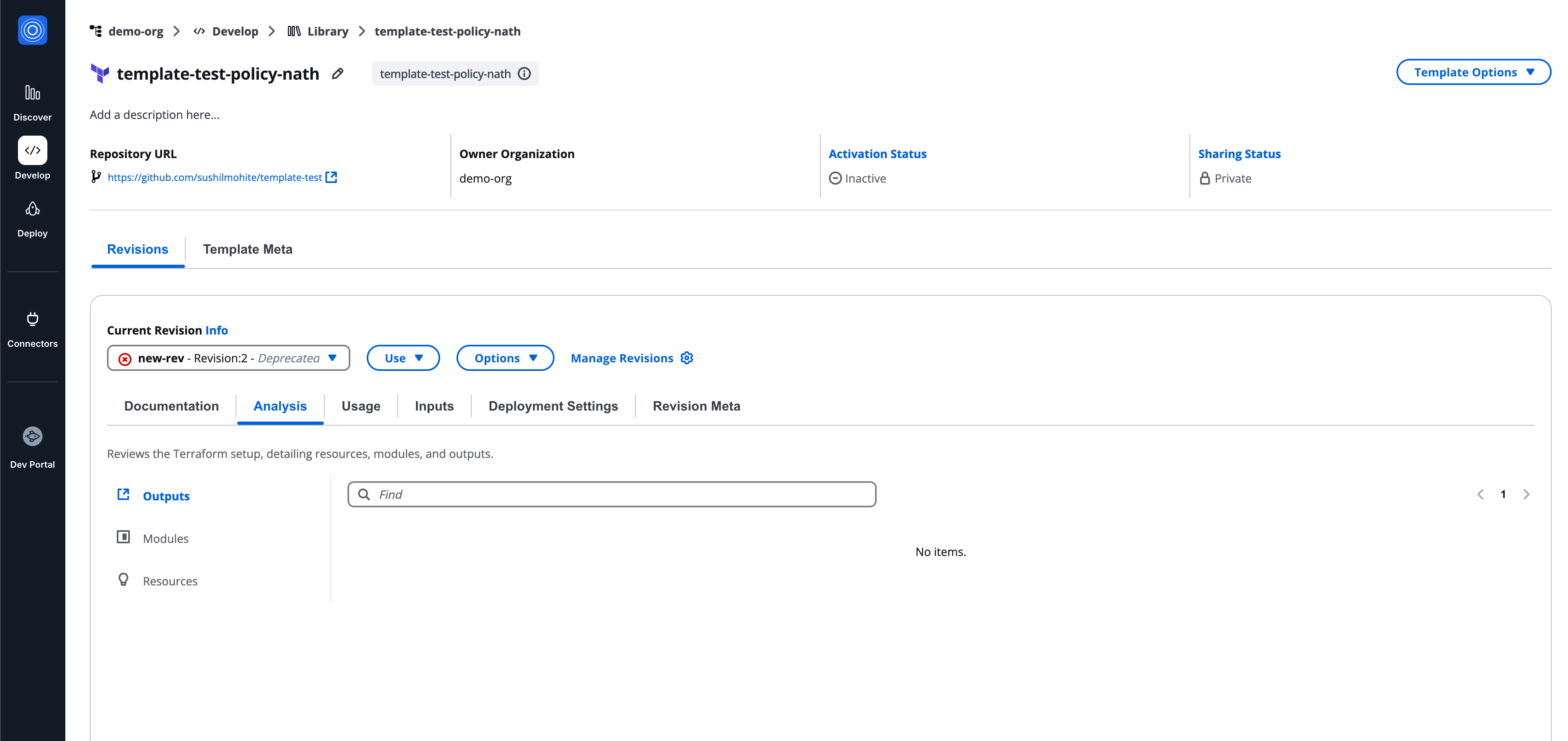
Analysis tab
Usage
The Usage tab shows all workflows and stacks consuming the revision.
Columns include:
- Workflow
- Status
- Modified
Additional features:
- Search
- Pagination
- Refresh
- Actions menu
If unused, the table displays No Workflows.
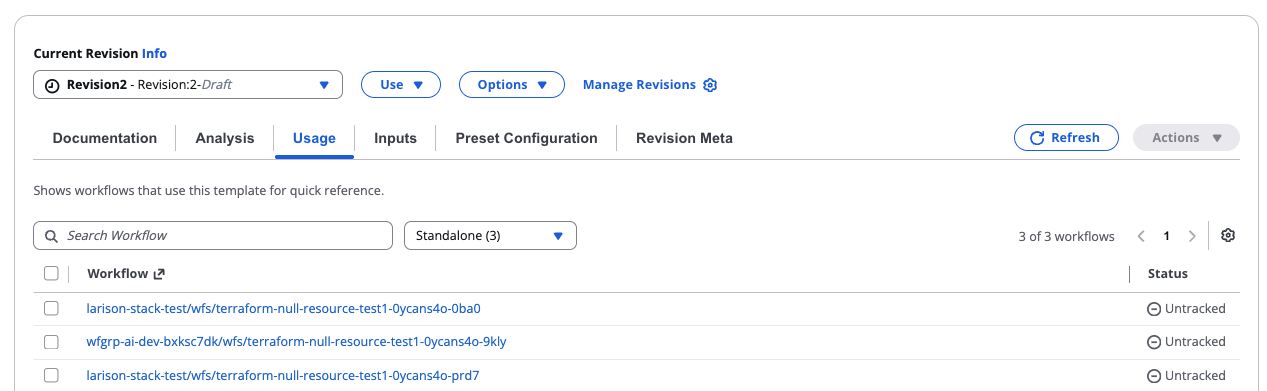
Use the filter above the table to narrow the list:
- Standalone - Workflows not part of a Stack
- In a stack - Workflows that belong to a Stack
- All - Every workflow using this revision
Mass upgrade workflows
You can upgrade multiple standalone workflows to a new revision at once, instead of updating each one individually.
Workflows that are part of a Stack can't be selected for mass upgrade, since Stacks control their revision. Upgrade those through Update Stacks instead.
To start a mass upgrade:
- Select the checkboxes for the workflows you want to upgrade. You can select up to 25 at a time; the action is disabled if you select more.
- Select Actions, then Change Revision.
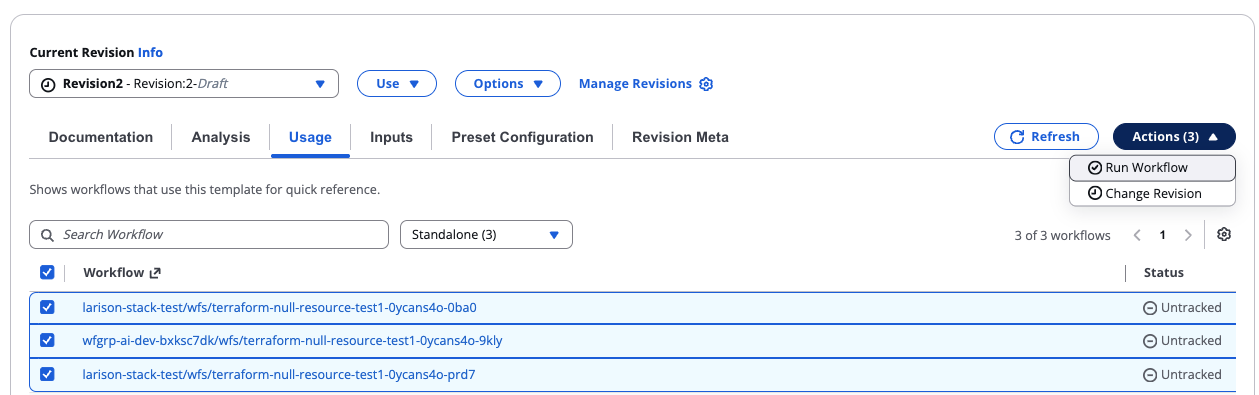
Actions menu
The upgrade wizard has three steps: Revision, Cloud Connection, and Template Parameters. Workflow selection can only be changed in the Revision step.
Step 1: Revision
Choose the target revision. Only published and draft revisions are available.
Select an Update Behaviour for the selected revision:
- Use Advanced Settings from New Revision - Applies the new revision's advanced settings. New values for variables, custom steps, parameters, and connectors are available and can be reviewed or updated in the following steps.
- Keep Current Advanced Settings - Keeps your current advanced settings. New values for variables, custom steps, parameters, and connectors are still available and can be reviewed or updated in the following steps.
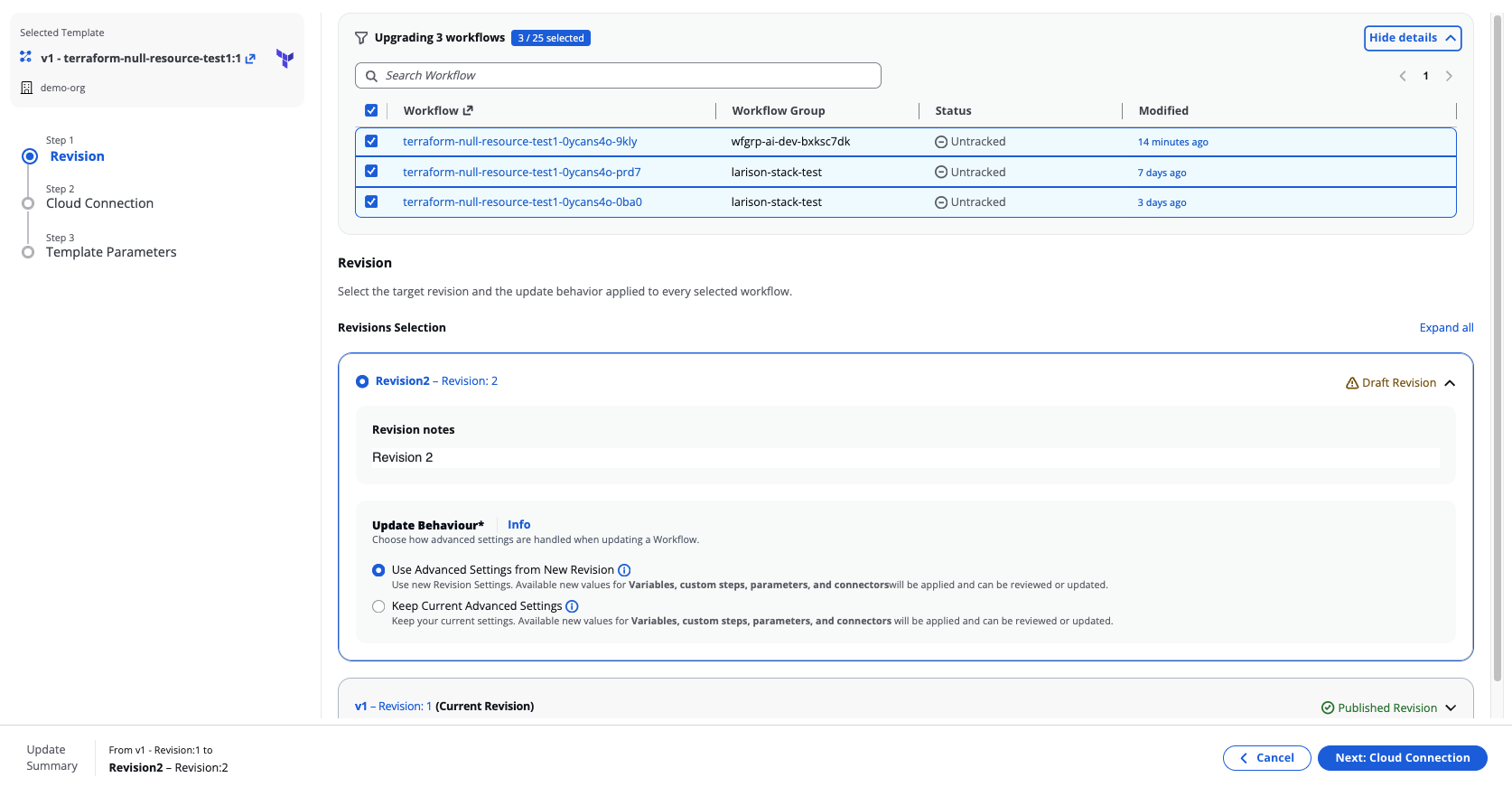
Revision
Step 2: Cloud Connection
Set the connector and environment variables for the selected workflows. Turn on Configure connectors individually or Configure environment variables individually to set different values per workflow, or leave them off to apply one value to all selected workflows. Select Reset to Defaults to revert to the template's defaults.
This step follows the same pattern as Stack updates.
Step 3: Template Parameters
Review and fill in parameters for each selected workflow. Select a workflow to jump to its parameters, or Expand all to review every workflow at once. Each workflow shows a status badge indicating whether it's unmodified or has new or changed parameters.
Select Upgrade [N] Workflows to complete the upgrade. A summary confirms which workflows were upgraded and the target revision.
Upgrade results
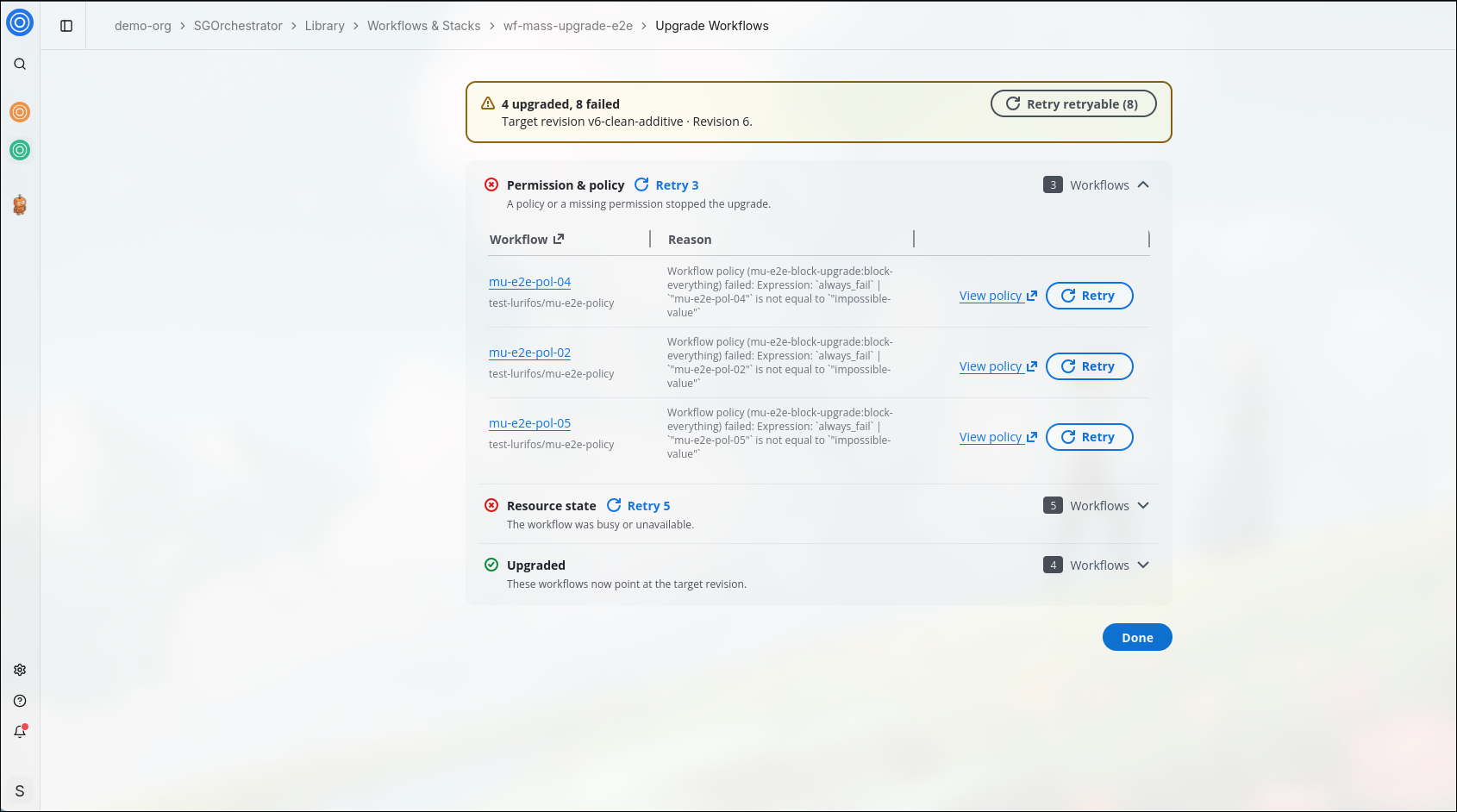
After the upgrade runs, the results page groups workflows by outcome and shows the target revision at the top.
Upgraded - Workflows that now point at the target revision. Permission & policy - Workflows stopped by a missing permission or a failing policy. Select View policy to open the policy that blocked the upgrade, or Retry to try that workflow again. Resource state - Workflows that were busy or unavailable at the time of the upgrade.
Select the count next to a group to expand or collapse its workflow list. Each failed group shows the reason for the failure alongside the workflow.
If any workflows failed, select Retry [N] on a group to retry every workflow in that group, or Retry on an individual workflow to retry just that one. Select Retry retryable [N] at the top of the results page to retry every failed workflow that can be retried at once.
Results
Select Done to close the results page.
Inputs
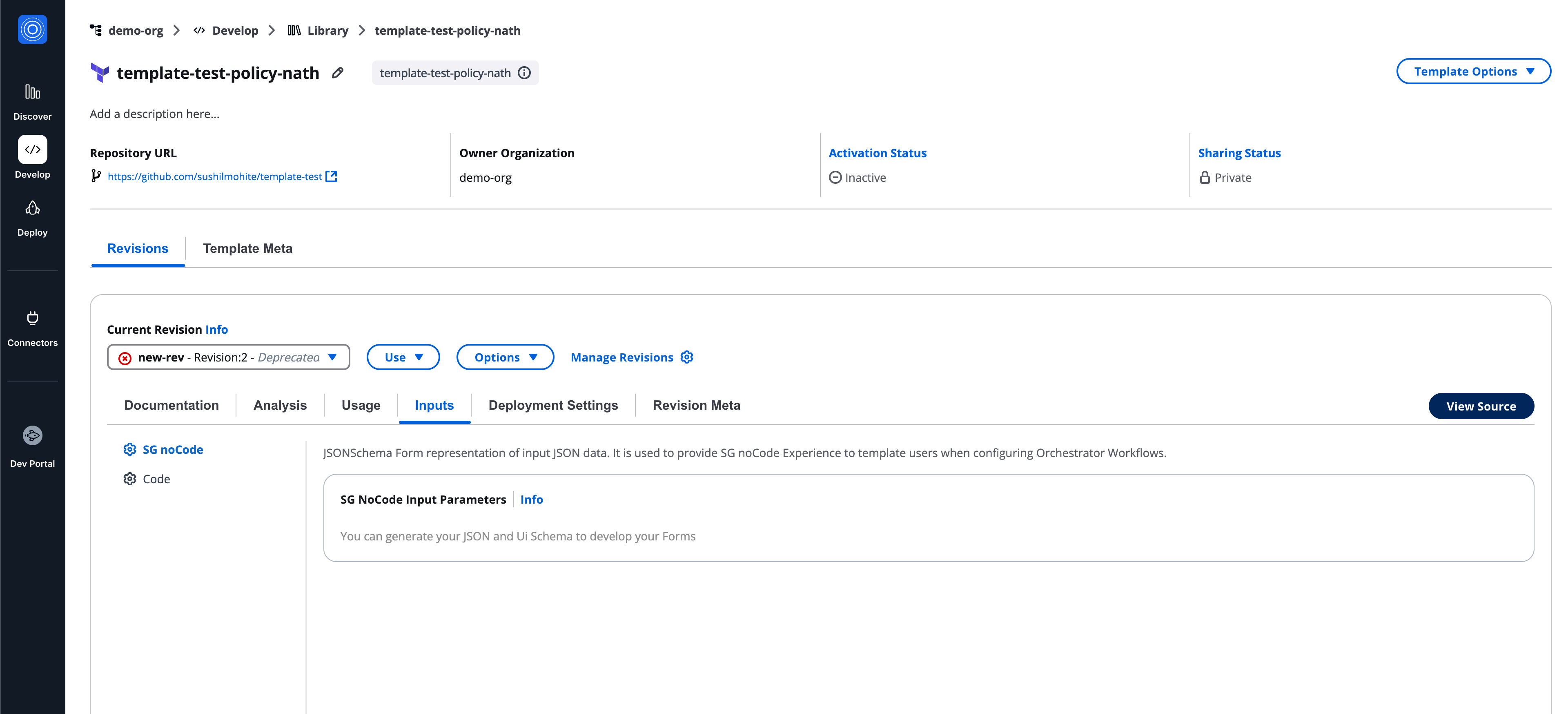
The Inputs tab defines how values are supplied to the workflow template.
Supported methods:
- SG noCode
- Code
This tab follows the same input model as workflows and serves as a reference point.
For detailed input configuration, refer to Workflow Inputs Documentation.
Preset configuration
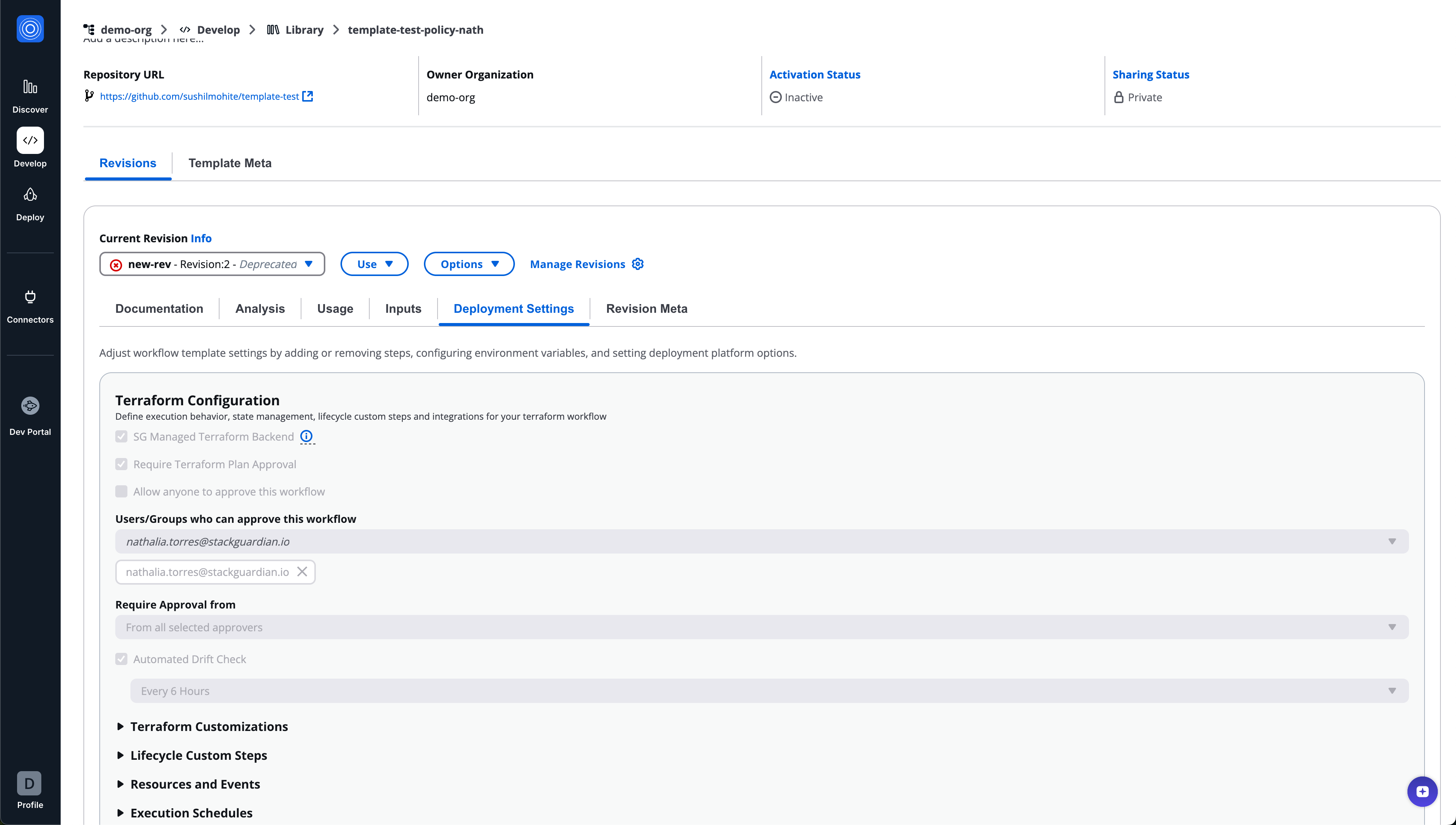
Preset configuration defines default workflow settings for workflows created from this template.
It mirrors Workflow Settings, excluding Resources.
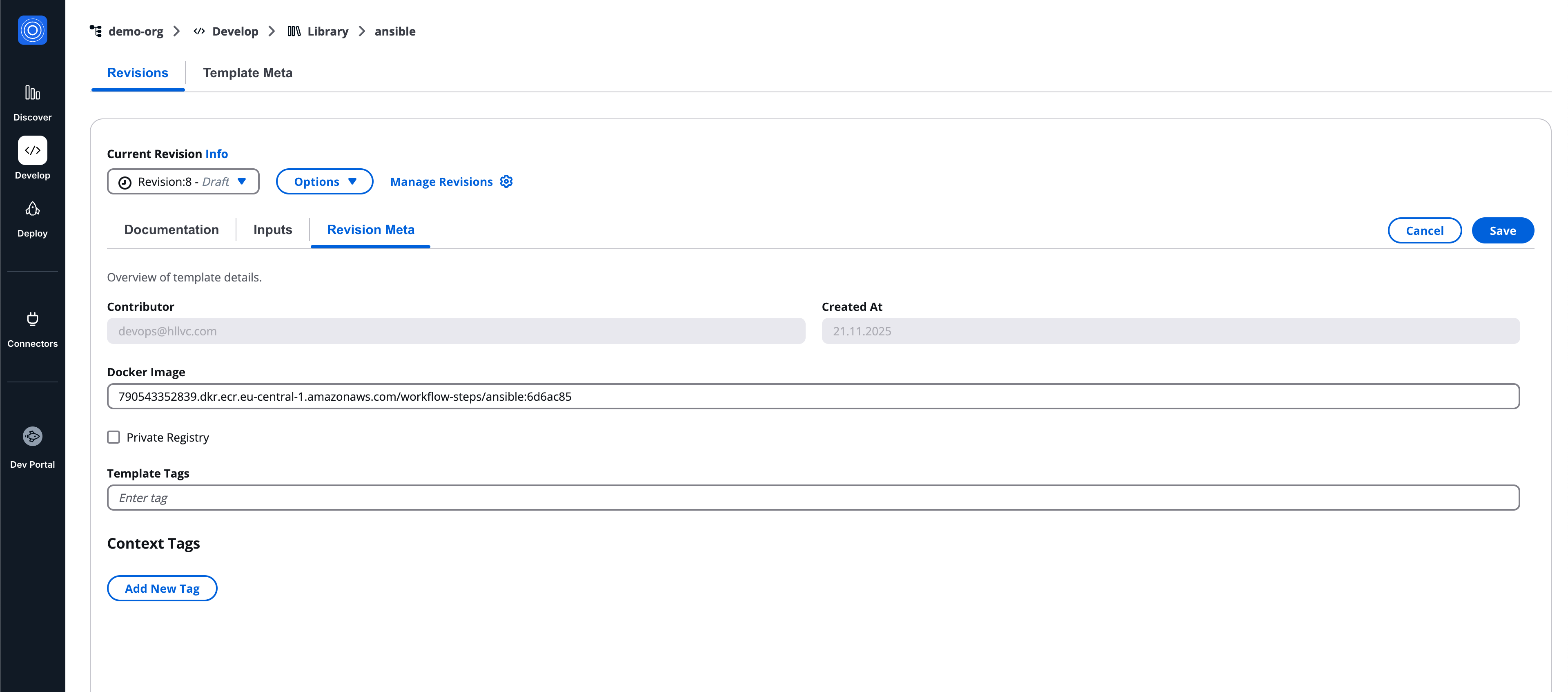
Revision meta
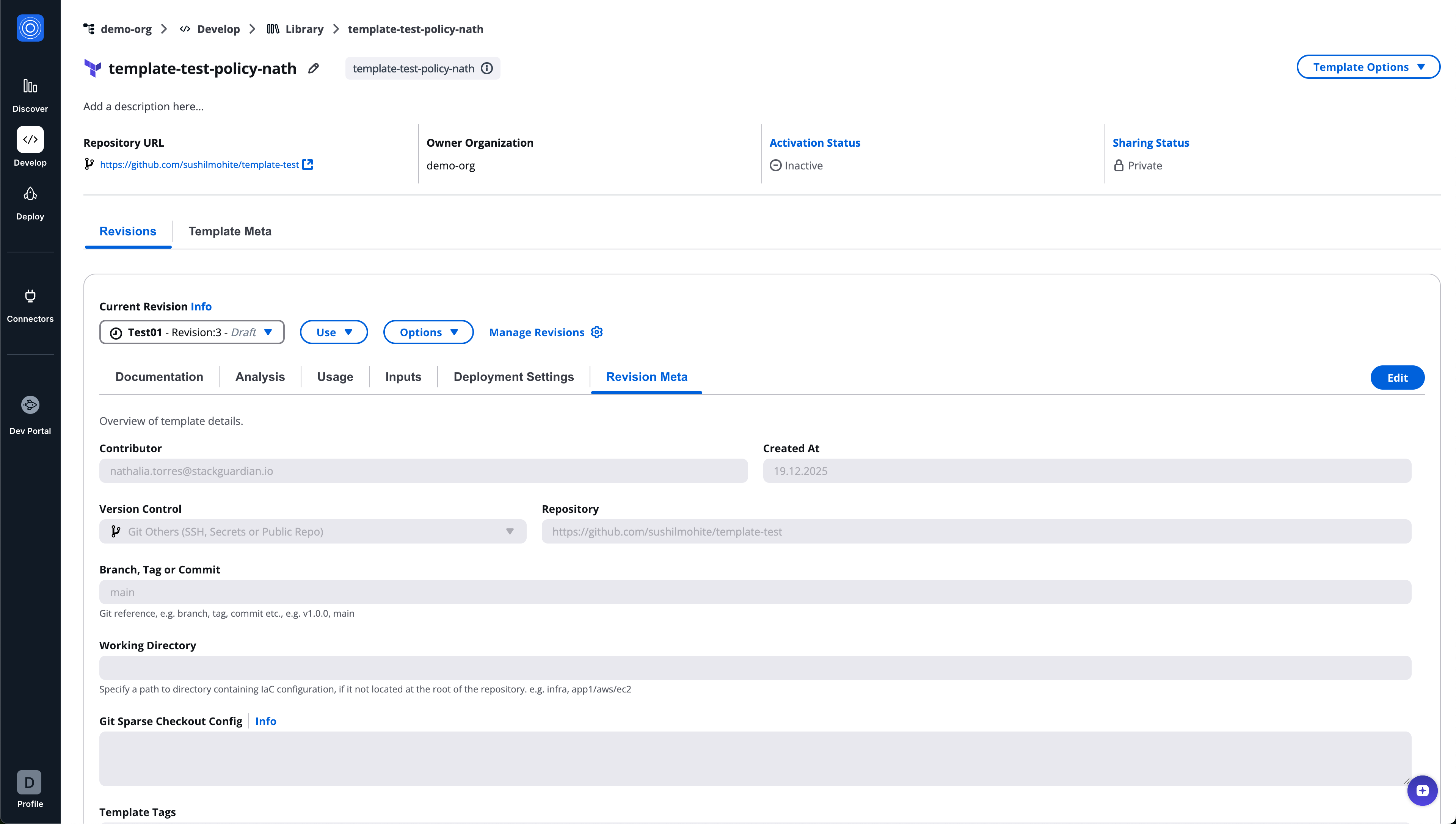
Displays metadata specific to the revision.
Stack template
Stack templates define collections of workflow templates executed together.
Stack template revision tabs
- Documentation
- Usage
- Templates
- Revision meta
Templates tab
The Templates tab allows you to configure workflows inside the stack.
Capabilities:
- Add workflow templates from the library
- Select the revision per workflow
- Reorder workflows
- Remove workflows
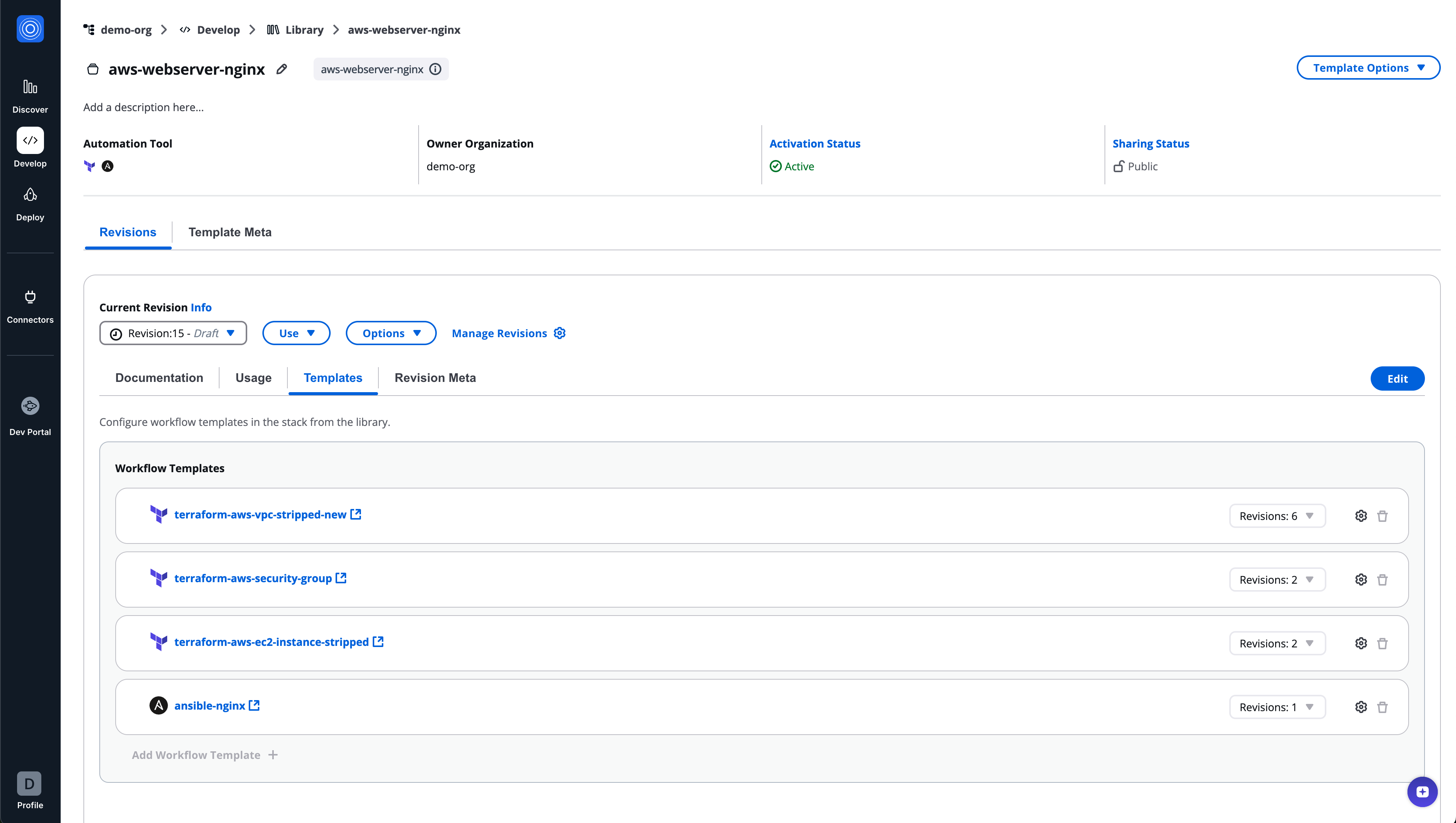
Preset configuration overrides
Each workflow template in a stack includes a settings icon.
This allows:
- Viewing workflow template preset configuration
- Overriding preset values at the stack level
- Customizing behavior without modifying the original workflow template
Overrides apply only within the stack.
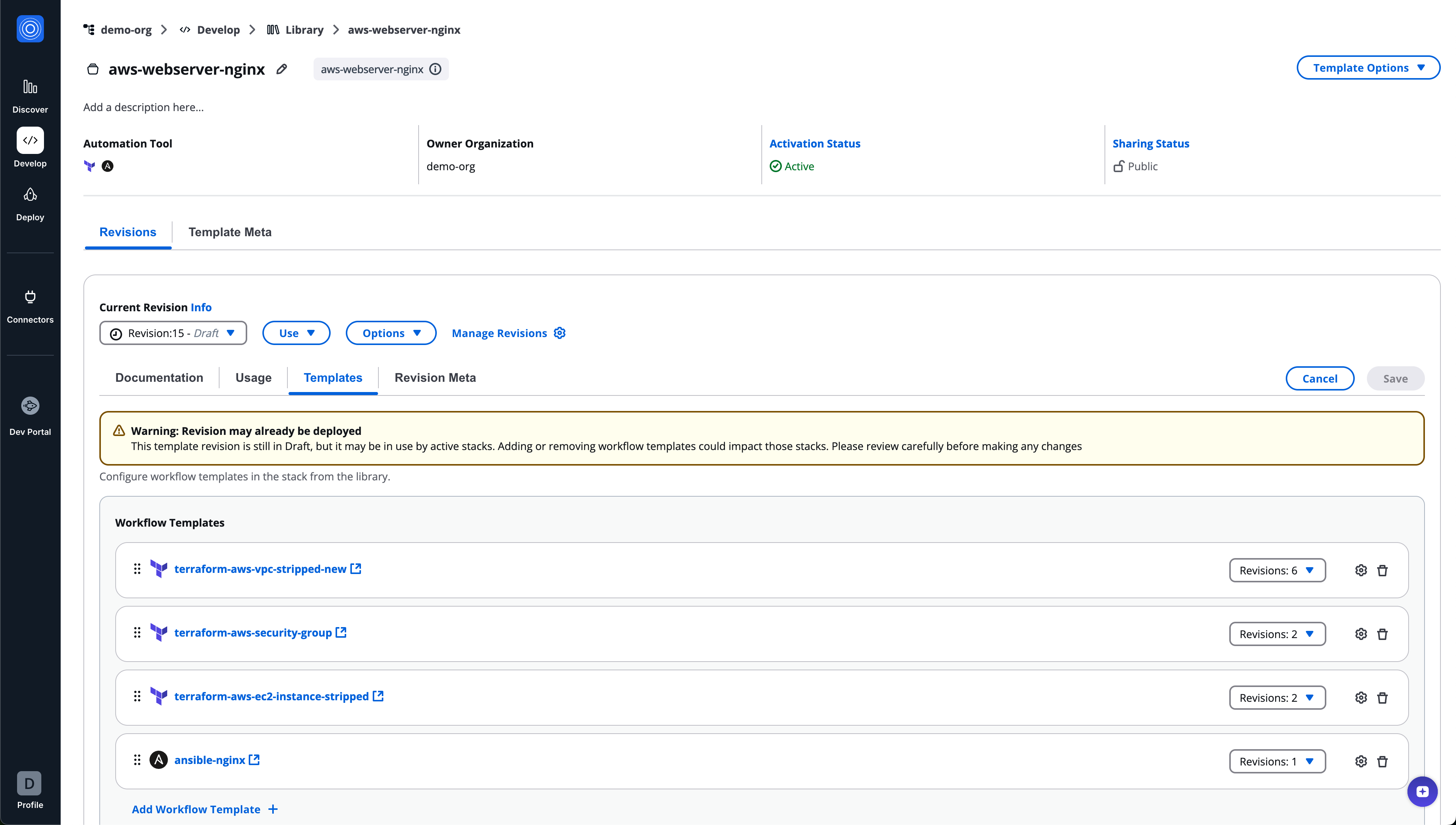
If the stack revision is in draft state and already deployed, a warning banner is shown and users are advised that changes may impact active stacks
Policy template
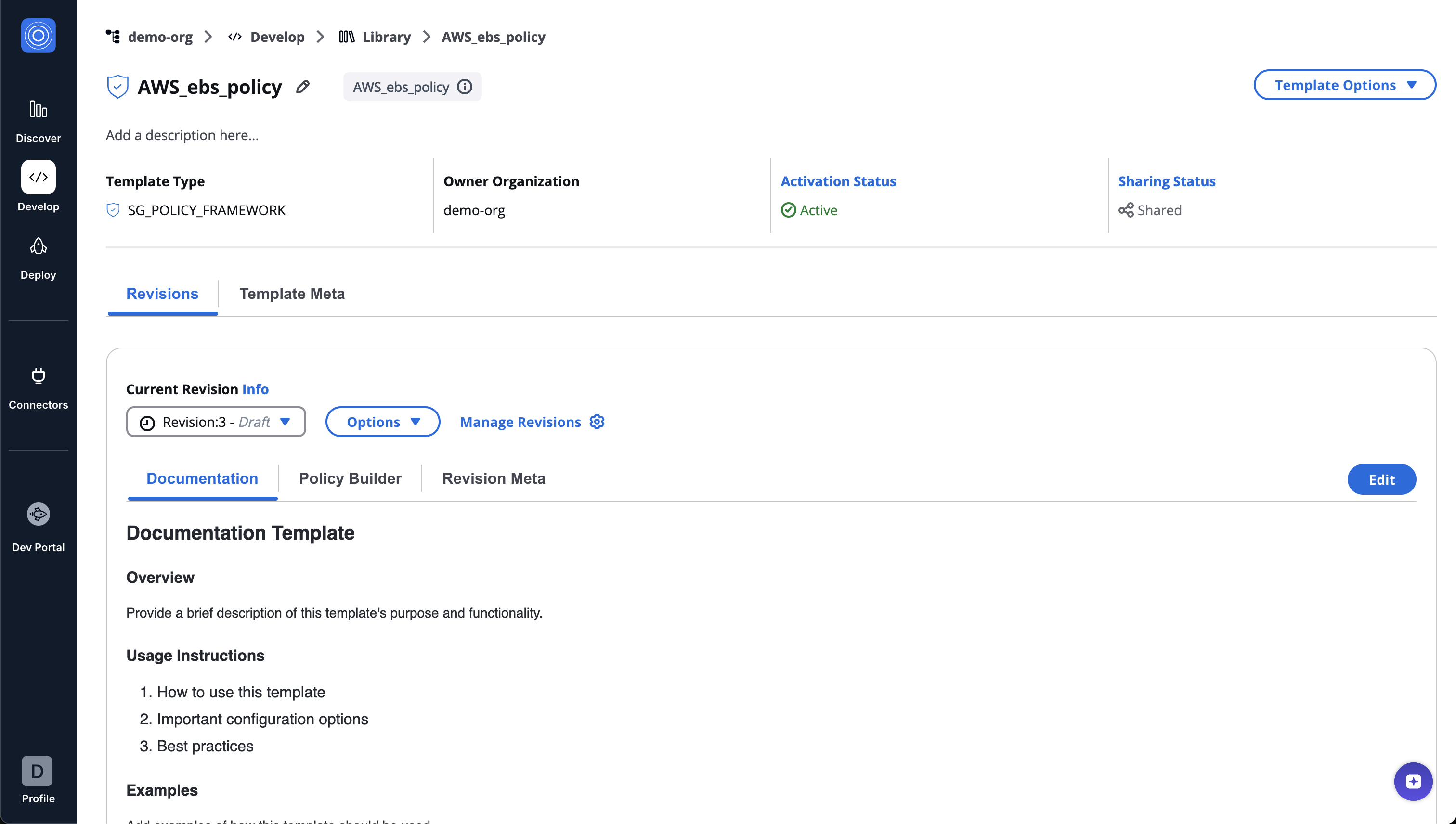
Policy templates define compliance and governance rules using SG noCode.
Policy template revision tabs
- Documentation
- Policy Builder
- Revision meta
Policy Builder
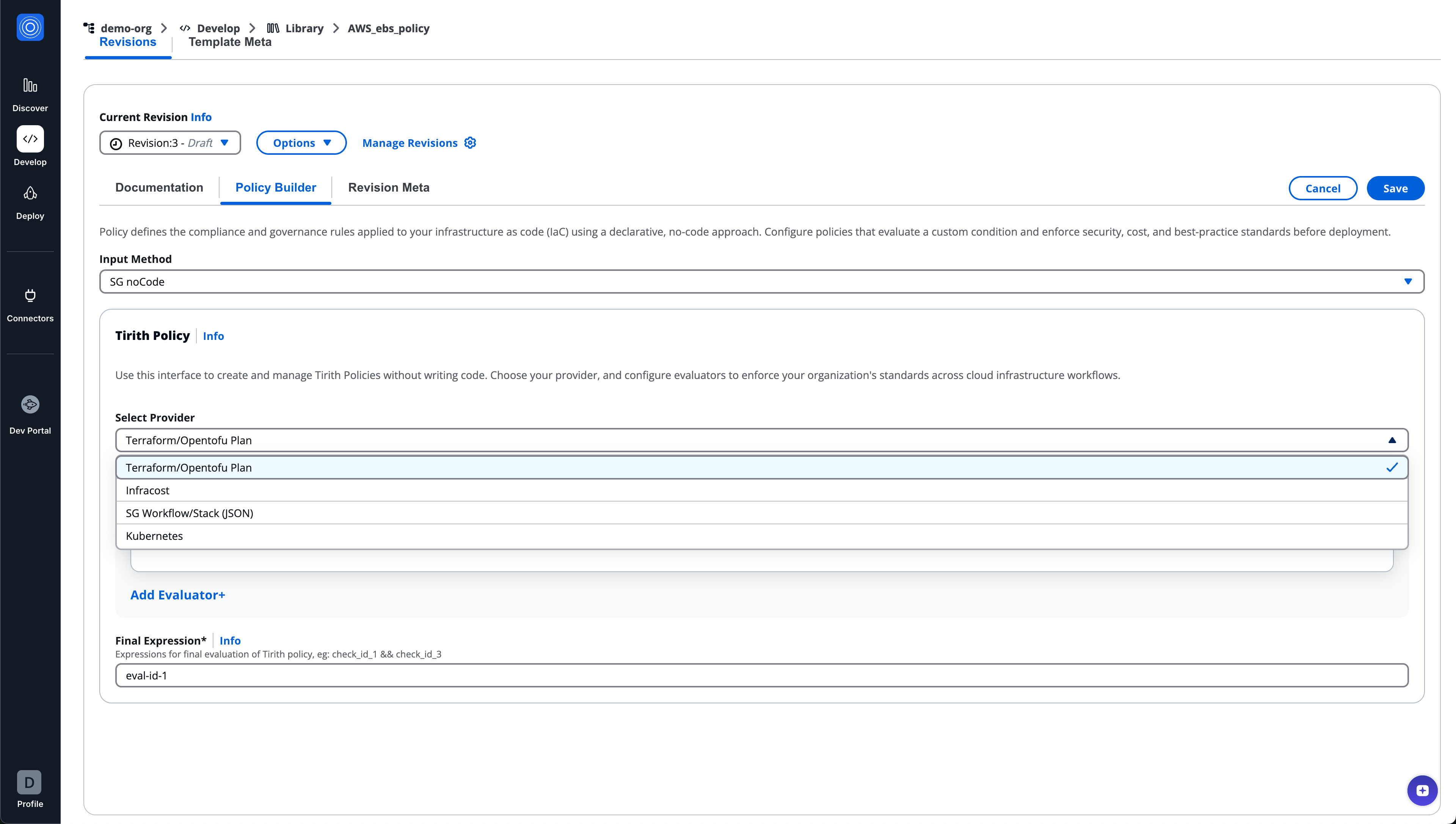
The Policy Builder provides a declarative, no-code interface for defining policies.
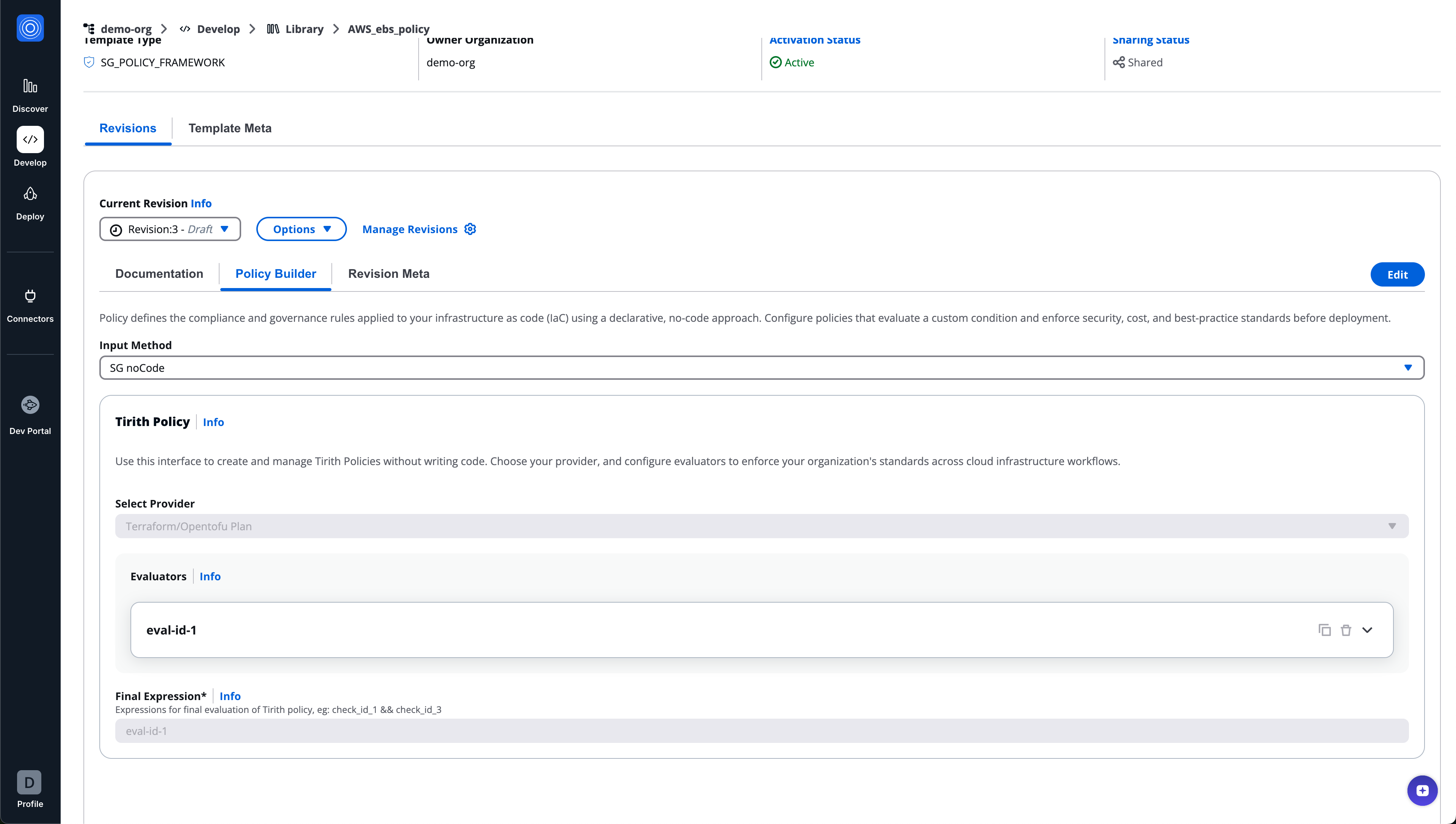
Input methods
- SG noCode
- Code
Provider selection
Select the evaluation provider, for example:
- Terraform / OpenTofu Plan
Evaluators
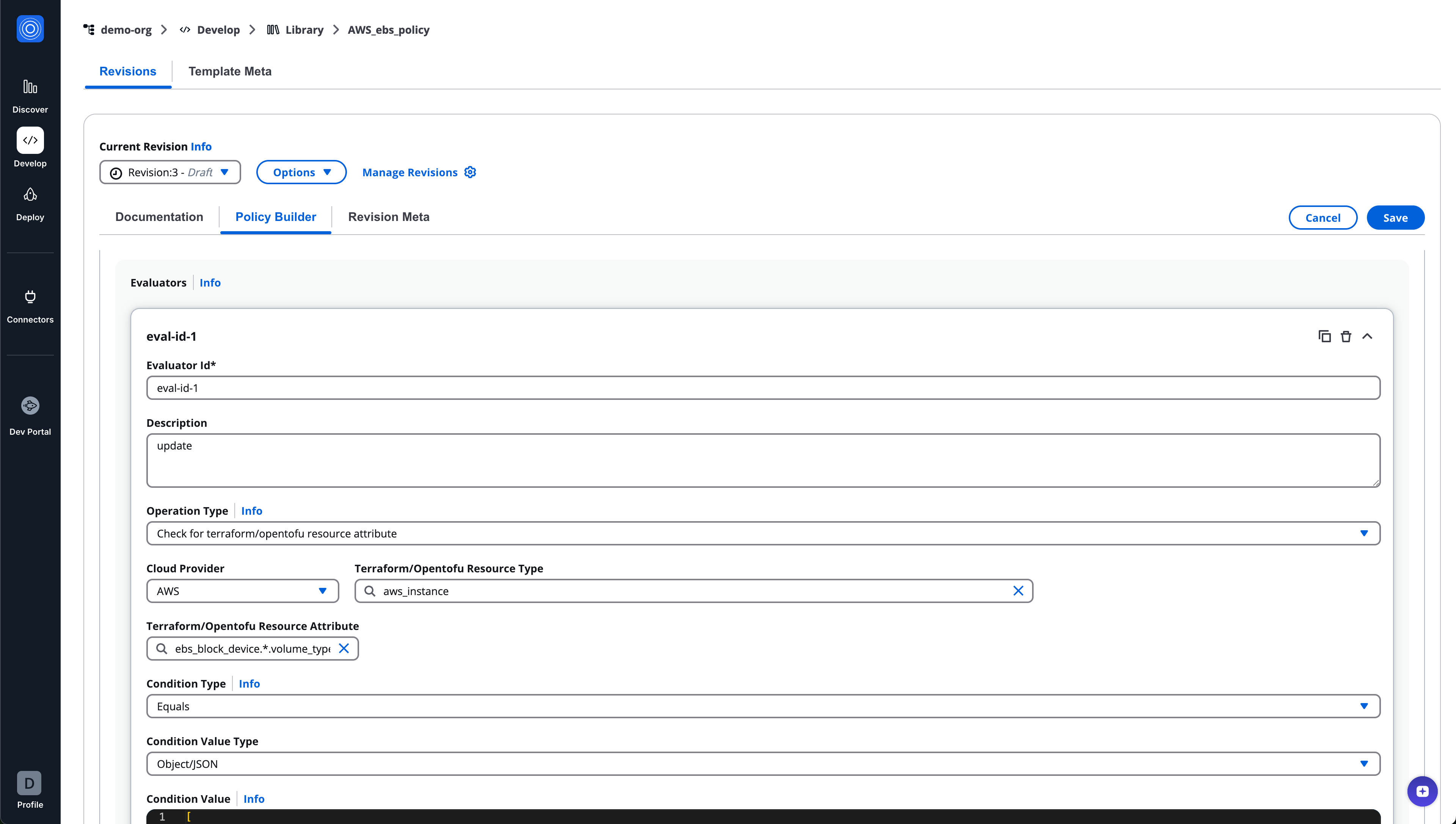
Each policy contains one or more evaluators.
Each evaluator includes:
- Evaluator ID
- Description
- Operation type
- Cloud provider
- Terraform/OpenTofu resource type
- Resource attribute
- Condition type
- Condition value type
- Condition value
- Error tolerance value
Evaluators can be added, expanded, duplicated, or deleted.
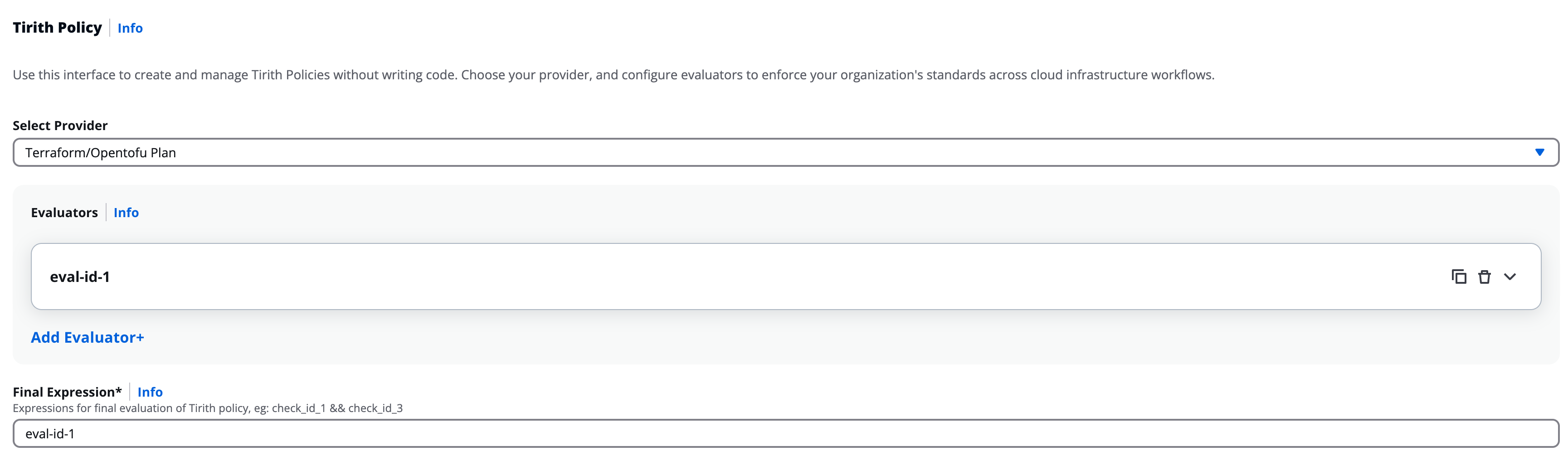
Final expression
Defines how evaluators are combined for final policy evaluation.
Example: eval-id-1 && eval-id-3
Runtime container templates
Runtime container templates define execution environments used by workflows.
Runtime container revision tabs
- Documentation
- Inputs
- Revision meta
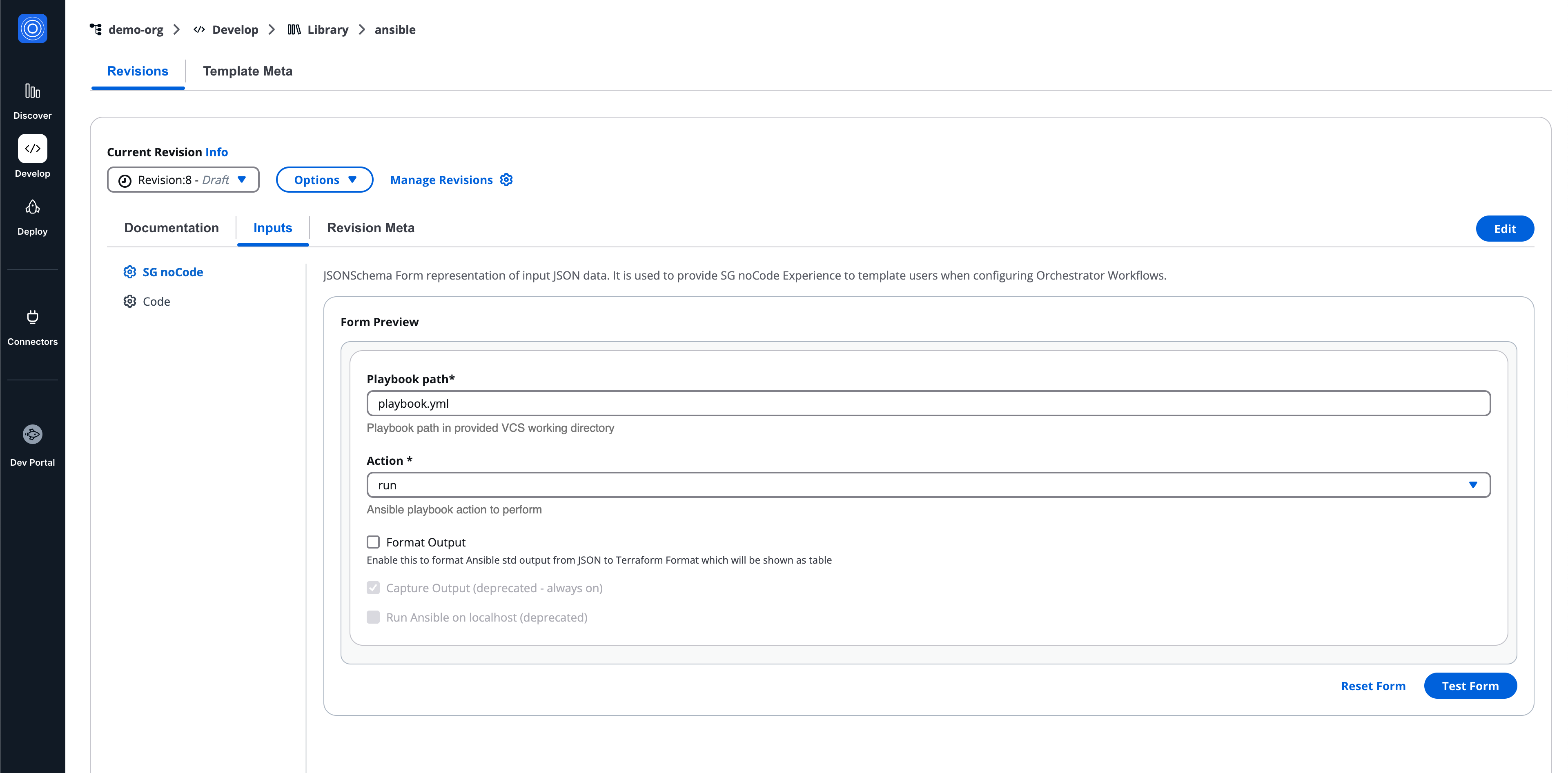
Inputs (Runtime containers)
Inputs define runtime parameters for the container.
Supported methods:
- SG noCode
- Code
SG noCode behavior is shared and documented separately and is not redefined here.
Revision meta (Runtime containers)
Displays metadata specific to the runtime container revision.