Search
Overview
Our Search provides a centralized way to find resources across your StackGuardian organization. Instead of navigating through different sections, you can search for the following resources from anywhere in the platform:
- Workflows
- Stacks
- Workflow Groups
- Cloud Providers
- Templates
- Version Control Providers
- Vaults Secrets
- Policies
- Roles
- Runs
Additionally, you can locate specific Workflow Runs by applying filters to your search results.
To access the Search, select the search icon in the top navigation bar, or use the keyboard shortcut ⌘K (Mac) or Ctrl+K (Windows/Linux).
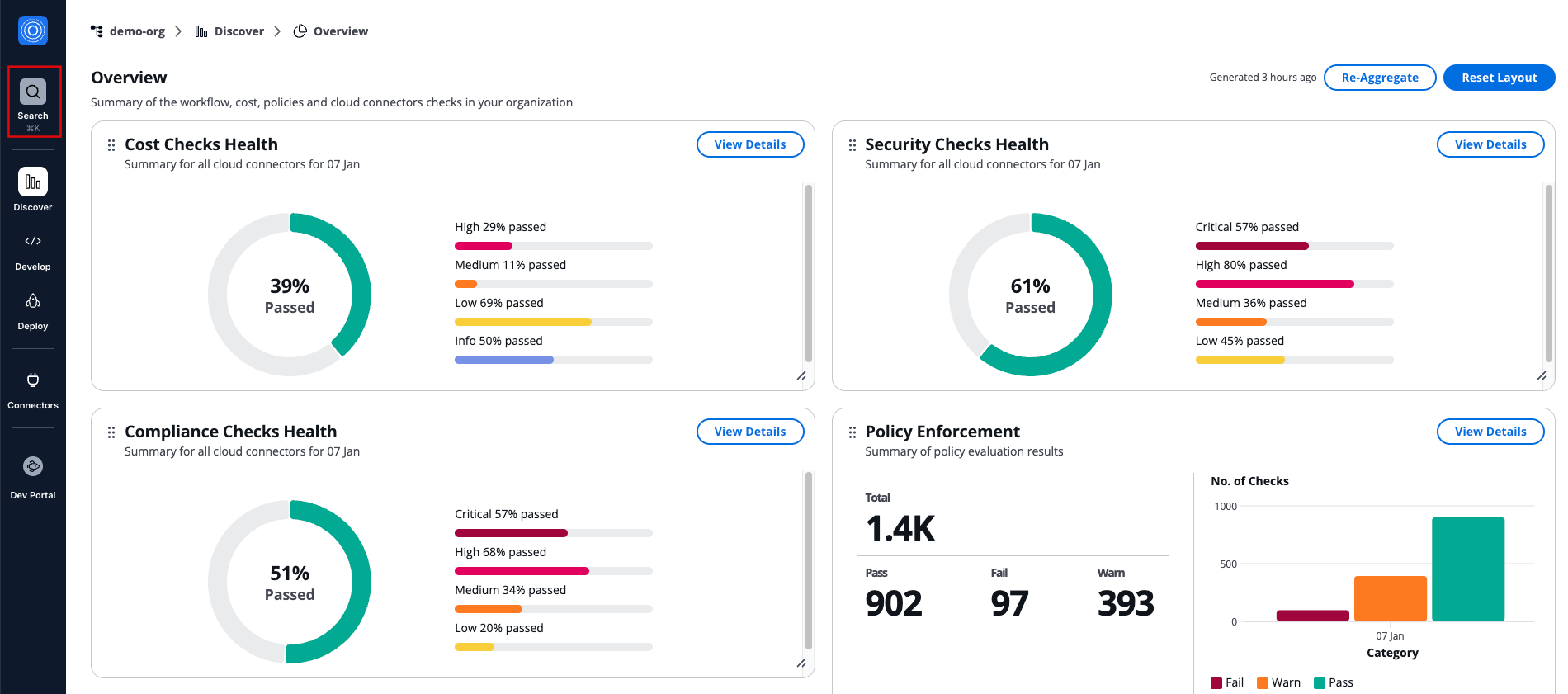
How to open the Search
Search for resources
The search field accepts keywords related to your resources. Search is case insensitive, so you can enter terms in any letter casing.
You can search by the resource name or ID of the following resources: Workflows, Stacks, Workflow Groups, Cloud Providers, Version Control Providers, Vaults Secrets, and Policies.
Enter your search term in the search field. Results appear automatically as you type.
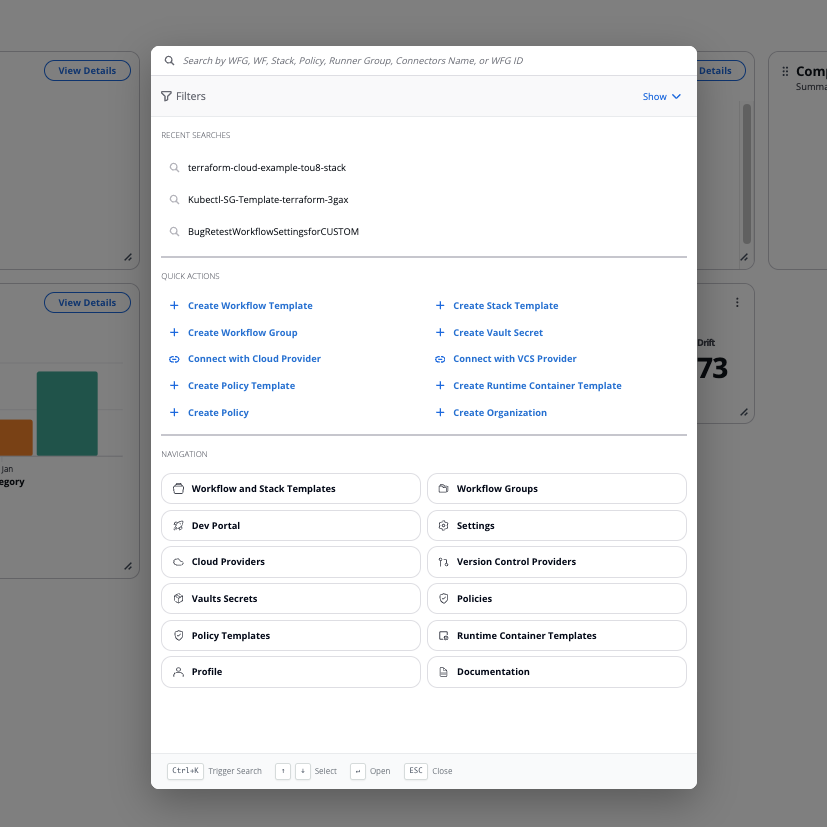
The Search screen
Your three most recent searches appear below the search field. Select any recent search to run it again without retyping.
The search looks across your current organization and returns matching resources grouped into categories. Each category shows results ordered by creation date, with the most recently created resources appearing first.
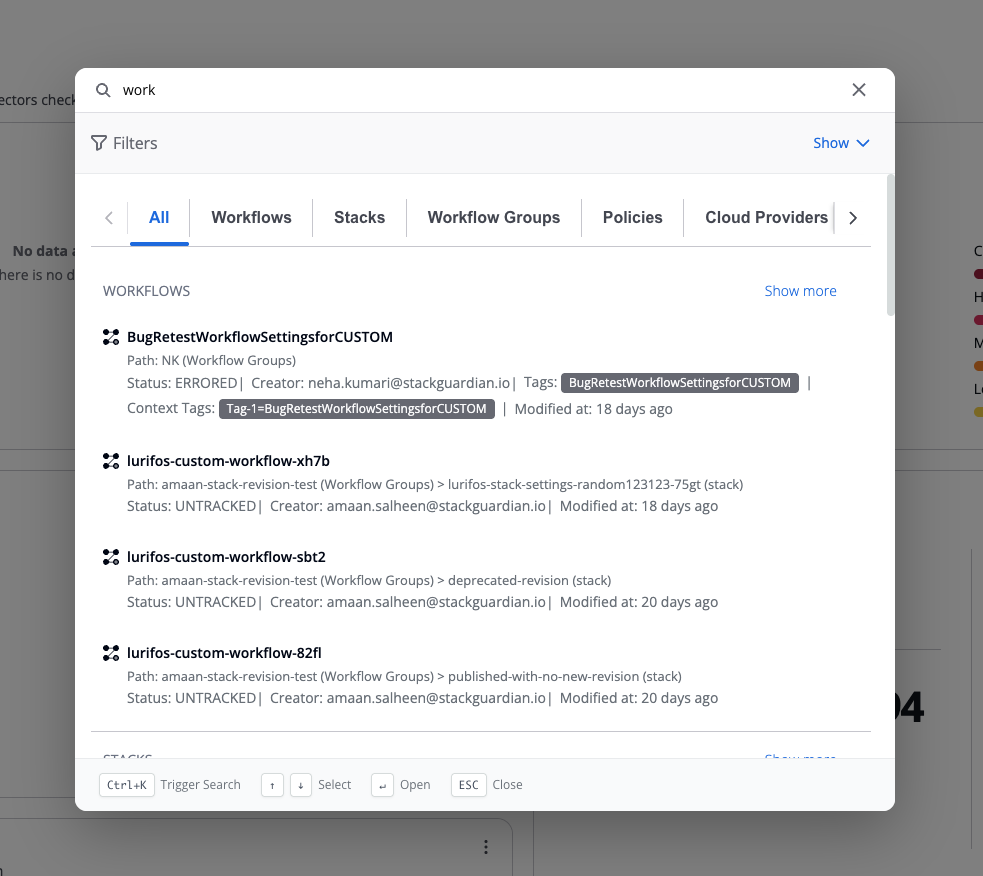
Search returning some results
Quick Actions
The Quick Actions section provides shortcuts to common tasks:
- Create Workflow Template
- Create Stack Template
- Create Workflow Group
- Connect with Cloud Provider
- Connect with VCS Provider
- Create Vault Secret
- Create Organization
- Create Runtime Container Template
Select any action to navigate directly to that creation flow.
Navigation
The Navigation section offers quick access to key areas of the platform:
- Workflow and Stack Templates
- Workflow Groups
- Cloud Providers
- Vaults Secrets
- Policy Templates
- Dev Portal
- Profile
- Settings
- Version Control Providers
- Runtime Container Templates
- Policies
- Documentation (opens in new tab)
Select any item to navigate directly to that section.
View and navigate results
Search results appear in the All tab by default, grouped by entity type and sorted by creation date (newest first).
Category tabs appear dynamically based on your search results:
- Only entity types with matching results display as tabs
- When results exist for multiple entity types, you'll see All plus tabs for each entity type with results
- When results exist for only one entity type, you'll see both the All tab and that specific entity type's tab
Each search result displays metadata specific to its entity type:
Workflow Groups
- Icon
- Name/title
- ID
- Creator
- Tags
- Modified date
Workflows and Stacks
- Icon
- Name/title
- Path - Shows the nesting context with entity type labels (example: "WFG: testing > WFG: lorem ipsum > Stack: test2")
- Status
- Creator
- Tags
- Context Tags
- Modified date
Workflow/Stack Runs
- Icon
- Run ID
- Path
- Workflow name
- Status
- Context Tags
- Modified date
Policies
- Icon
- Name
- Creator
- Tags
- Modified date
Cloud Providers
- Icon
- Name
- Type and subtype
- Tags
Version Control Providers
- Icon
- Name
- Type
- Tags
Vault Secrets
- Icon
- Name
- Creator
- Modified date
Runner Groups
- Name
- Creator
- Tags
- Creation date
By default, each category displays up to 4 results. If more results are available for a category, you'll see a Show more link in the top right corner of that category. Select Show more to navigate to that entity type's dedicated tab, which displays all matching results for that type.
To open a resource, select any result from the list. This takes you directly to that resource's detail page.
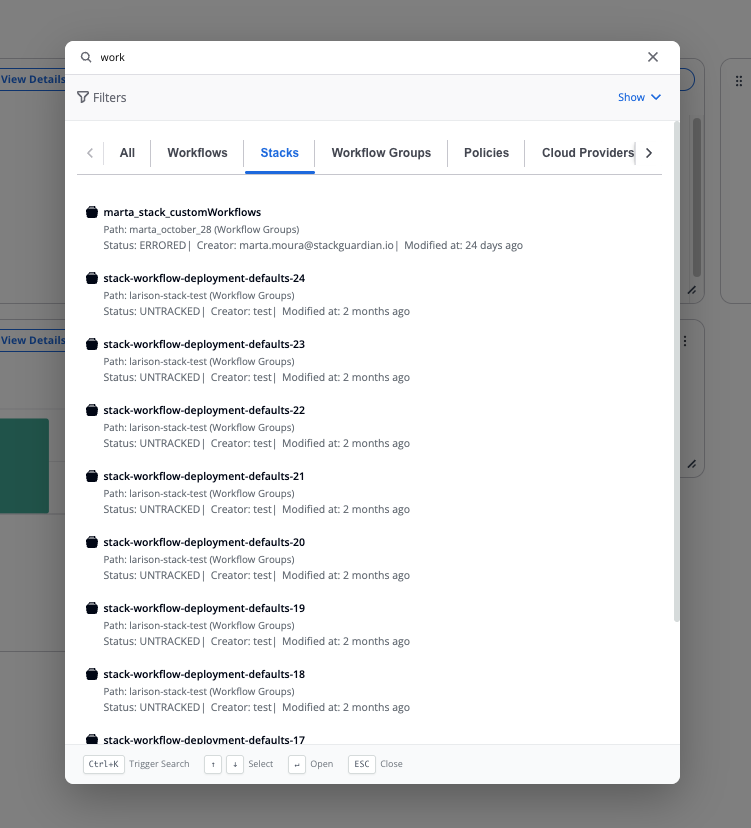
Search within a specific group
Filter results
The Search offers a way to narrow your results by specific attributes. Select Filters to expand the filter panel. When you apply multiple filters, results must match all active filters.
When filters are active, a blue badge with a counter appears on the Filters button, showing how many filters are currently applied.
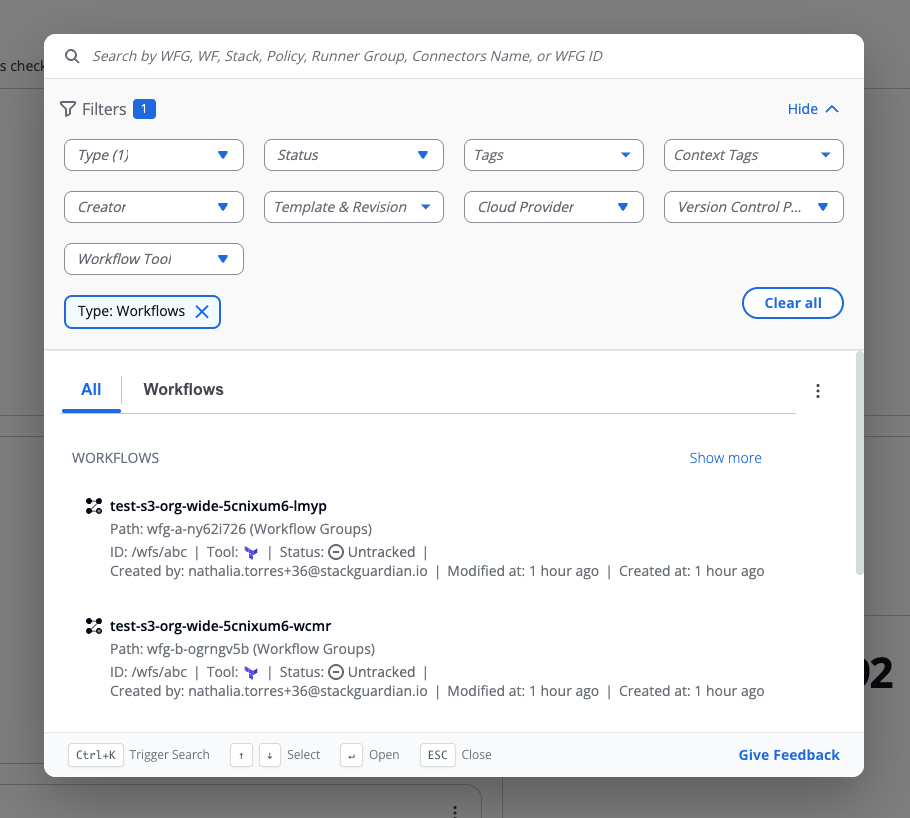
Filters
Available filters
Type
- Select from all available entity type options
- Results include all entity types matching your selection
Status
- Select from available status options using the nested dropdown
- Results include Workflows, Stacks, Workflow Runs, and Runner Groups matching your selection
Workflow Tool
- Select the execution engine for workflows
- Options: Terraform, OpenTofu, and Custom Workflow types
- Results include Workflows matching your selection
Template & Revision
- Select a specific template and its revision number
- Results include resources using the selected template and revision
Cloud Provider
- Select from your connected cloud providers
- Results include resources associated with the selected cloud provider connection
Version Control Provider
- Select from your connected version control providers
- Results include resources associated with the selected version control provider connection
Tags
- Enter tag names in the text field
- Tags search is case sensitive and uses exact matching only
- Results include Workflow Groups, Workflows, Stacks, Workflow Runs, Policies, Cloud Providers, Version Control Providers, and Runner Groups matching the entered tags
Context Tags
- Enter context tag names in the text field
- Search is case sensitive with exact matching for Key and partial or exact matching for Value
- Results include Workflows, Stacks, and Workflow Runs matching the entered context tags
Manage active filters
Active filters appear as chips below the search field, making it easy to see which filters are currently applied. You can combine multiple filters together and use filters alongside search terms to narrow your results.
To remove filters:
- Select the X on any filter chip to remove that specific filter
- Select Clear all to remove all active filters at once
When you apply a filter, the system retrieves all matching results from the applicable entity types and updates the display instantly.
Sort results
By default, search results appear sorted by last modified date with the newest items first. You can change the sort order to find resources more quickly. To change sorting, select the sort dropdown in the search results area. Available sort options:
- Last modified: newest first (default) — Most recently updated resources appear first
- Last modified: oldest first — Least recently updated resources appear first
- Created: newest first — Most recently created resources appear first
- Created: oldest first — Oldest resources appear first
- Name (A-Z) — Resources sorted alphabetically by name
- Name (Z-A) — Resources sorted in reverse alphabetical order by name
The selected sort order applies to all result categories in the current search.