Webhook 🆕
Webhooks in StackGuardian, offer a dynamic way to integrate external services with your cloud infrastructure workflows. These hooks trigger HTTP POST requests in response to specified events in your workflows or stacks, enabling real-time automation and communication with other systems.
Step-by-Step Guide to Create a Webhook
In this guide, we configure a webhook to alert the team upon the success, failure, or on Drift Detection of a Terraform workflow. This workflow is responsible for deploying and managing an AWS website using the 'aws-s3-demo-website' Infrastructure as Code template.
To begin, click "Create Workflow" and select the terraform type with Use Wizard (Preview):
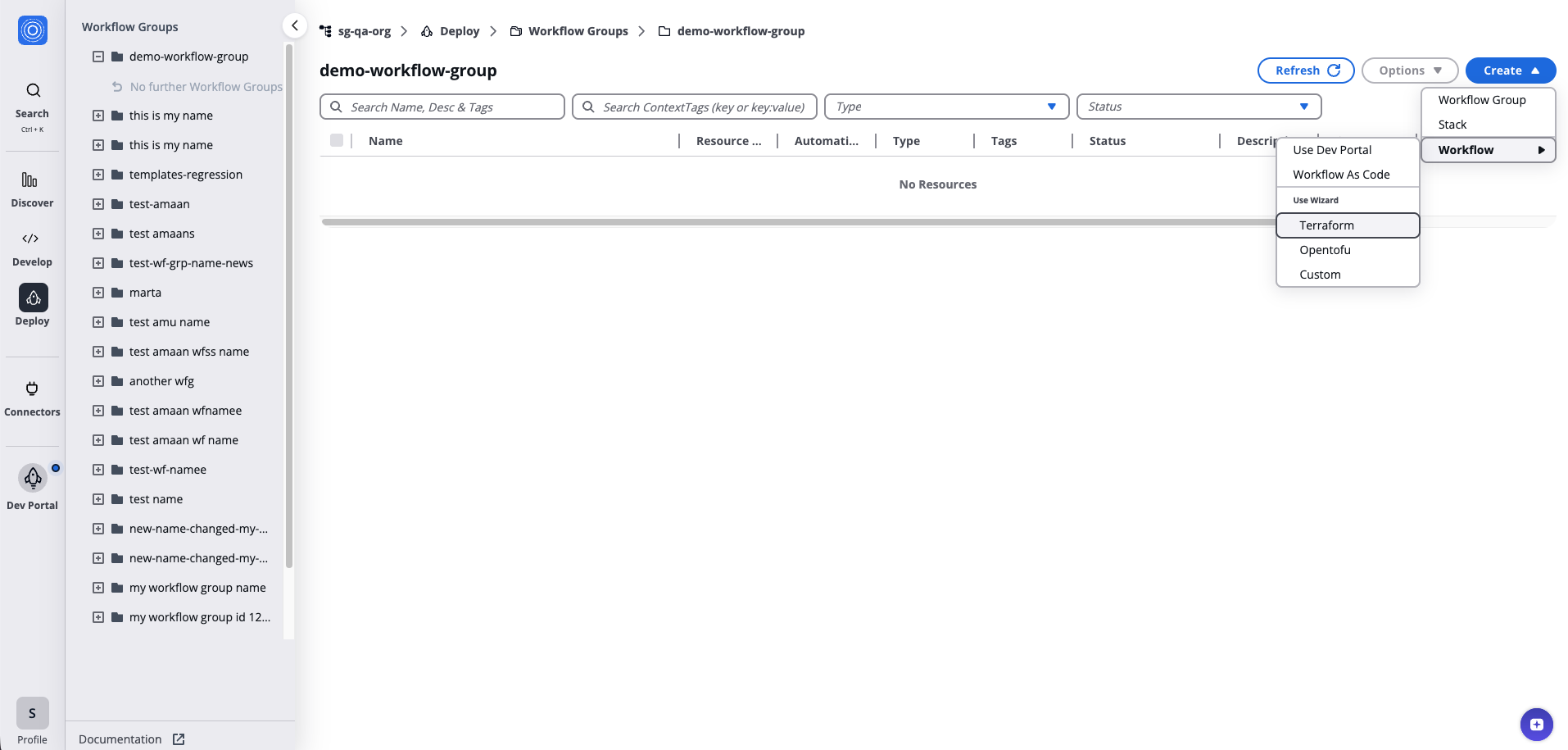
1. Source and Parameters
- Choose "Subscribed Templates" for ready-to-use blueprint templates from your library.
- Under Source Type, choose Subscribed Template and search for
aws-s3-demo-website - In "Template Parameters" pick the latest revision, click Next.
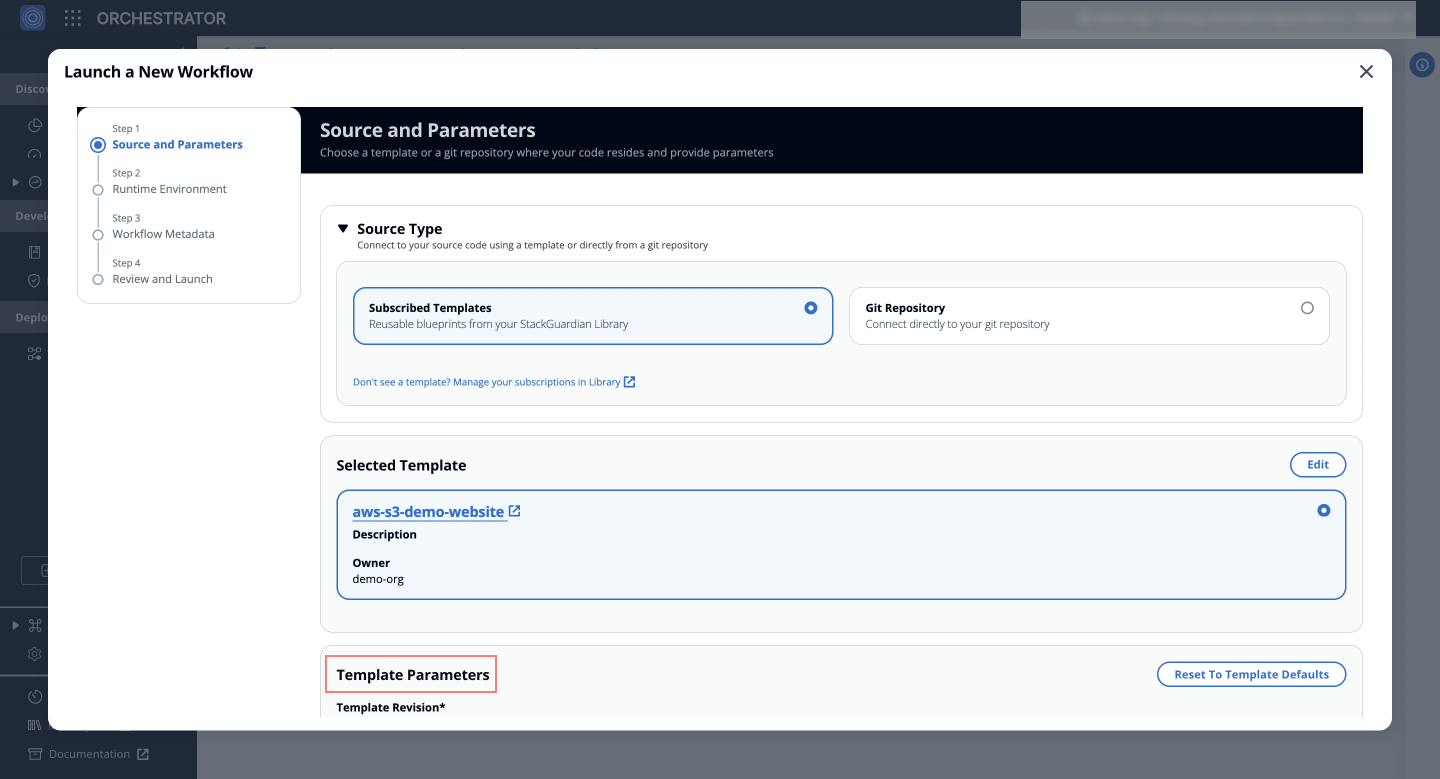
2. Runtime Environment
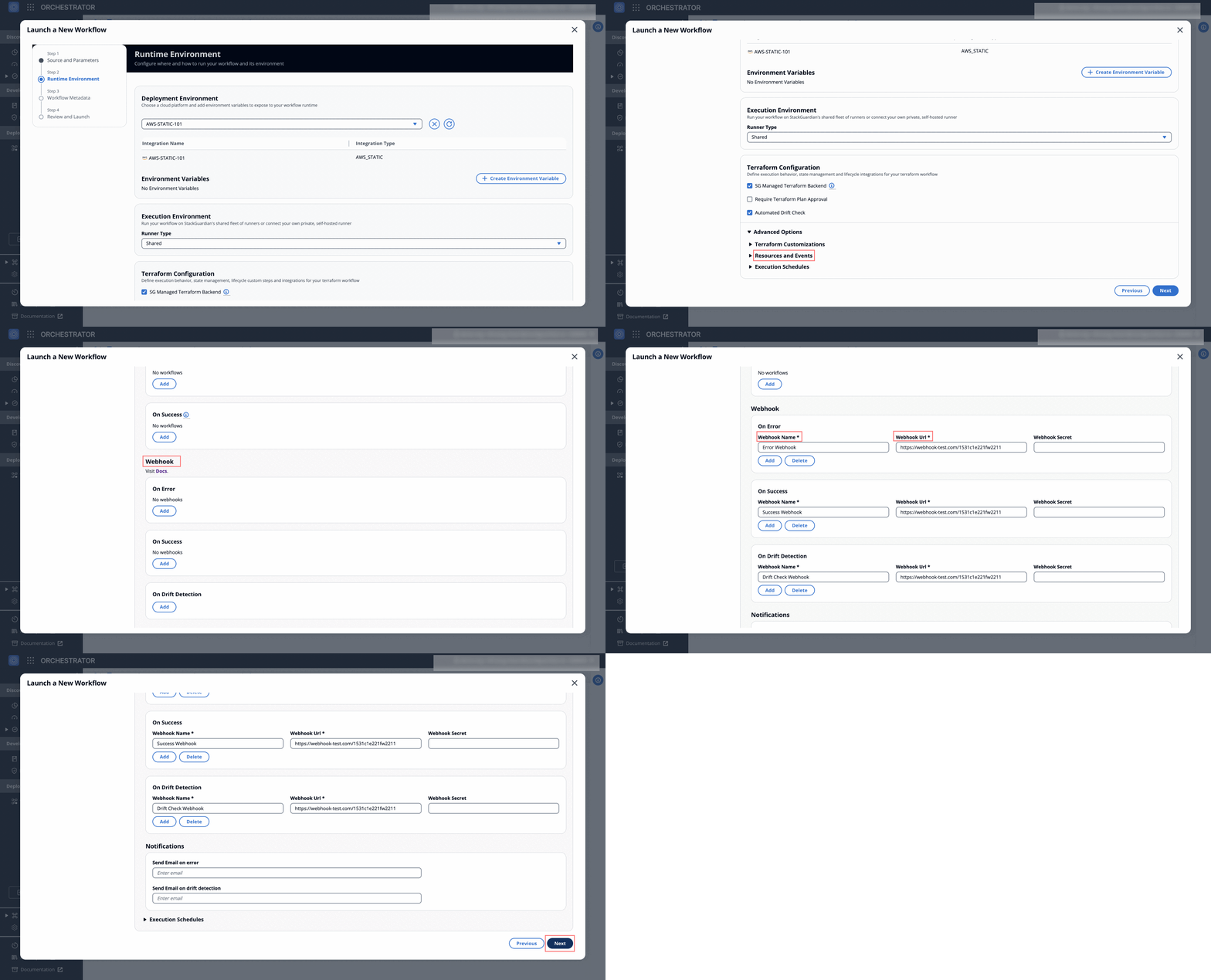
- In "Deployment Environment", select a connector that matches your platform or environment, set environment variables if needed, and click Next.
- Specify the "Runner type" under "Execution Environment" for execution flexibility and organizational visibility.
- Opt-in for
Automated Drift Check,Terraform Plan Approval, andSG Managed Backendto streamline workflow execution, state and lifecycle management for the workflows. - Under Advanced Options > Resources and Events > Webhook, set up the webhooks:
-
For Errors: Captures and notifies when workflow errors occur.
- Webhook Name:
Error Webhook. - Webhook URL: Enter the Generic JSON webhook URL.
- Webhook Secret: Enter the secret (optional).
- Webhook Name:
-
For Success: Sends notifications upon successful completion of the workflow.
- Webhook Name:
Success Webhook. - Use the same Generic JSON webhook URL and secret as for errors.
- Webhook Name:
-
On Drift Detection: Alerts when configuration drift is detected in the infrastructure.
- Webhook Name:
Drift Detection Webhook. - Use the same Generic JSON webhook URL and secret as for other events.
- Webhook Name:
-
Click
Addfor each event to finalize and click Next.
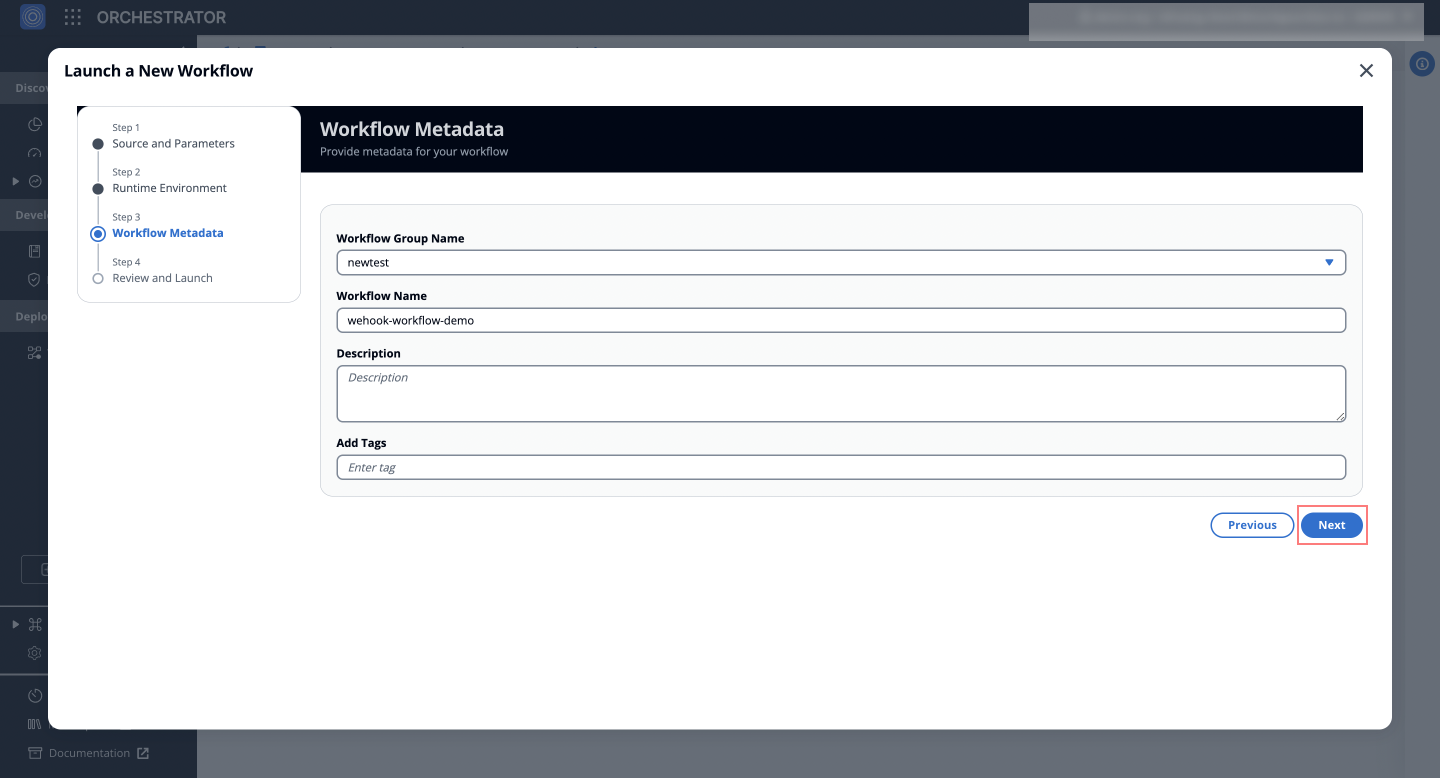
3. Workflow Metadata
- Workflow Name: Suggest a name, like
wehook-workflow. - Description and Tags: Provide an optional description and tags, click "Next" to proceed.
4. Review and Launch
- Review the settings and click Launch to create your workflow.
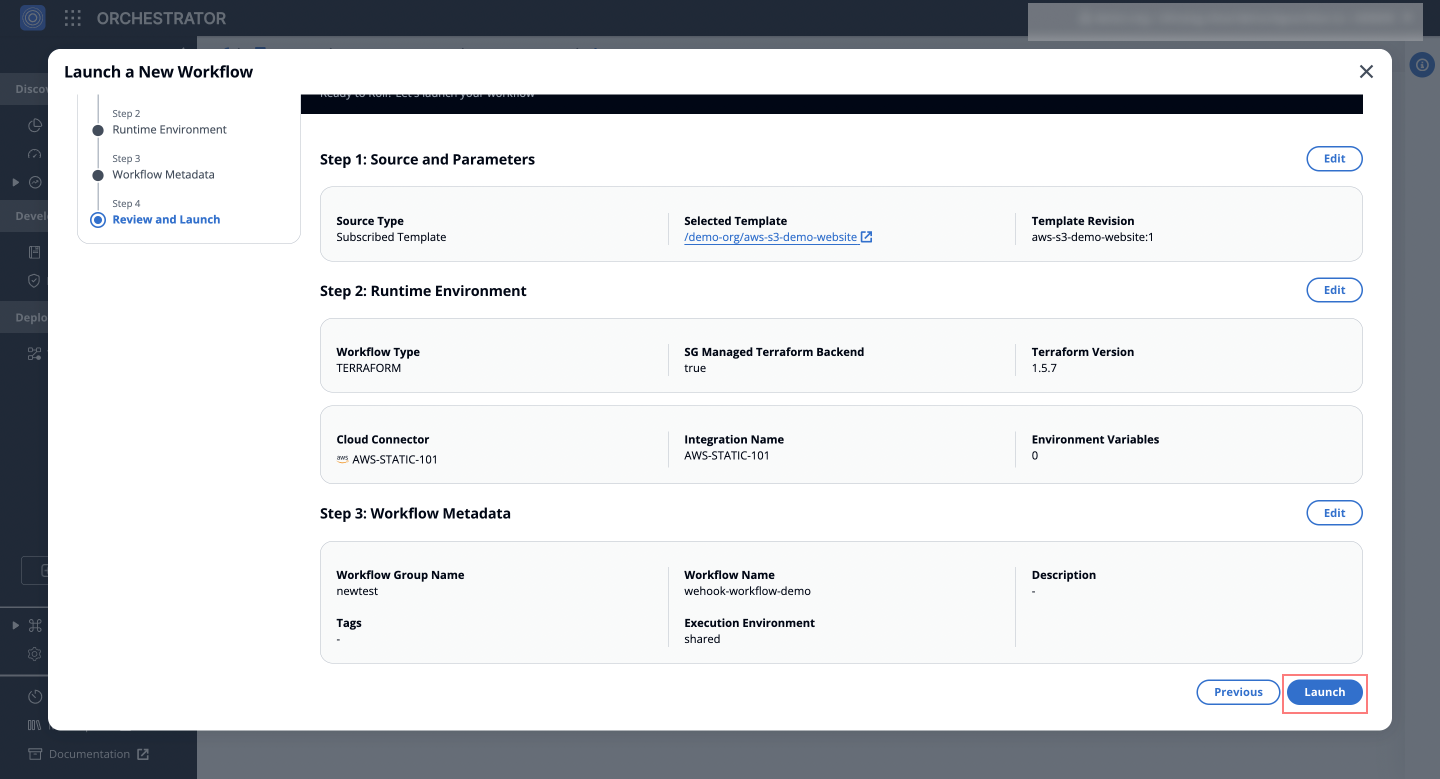
Fig: Setting up a 'Static S3 website' Terraform workflow with webhook
With these steps, StackGuardian will emit a JSON payload the workflow's outcome, which can integrated with other different services.
Example: HTTP POST Request Body
- Here is an example of what the HTTP POST request body looks like:
{
  "Org": "wicked-hop",
  "Timestamp": 1763045349466,
  "WorkflowGroup": {
    "ResourceName": "test-webhook"
  },
  "WorkflowRun": {
    "OrgId": "/orgs/wicked-hop",
    "WfgrpId": "/wfgrps/test",
    "WfId": "/wfgrps/test/wfs/aws-s3-demo-website-op9v",
    "WfrunId": "/wfgrps/test/wfs/aws-s3-demo-website-op9v/wfruns/g389yenk9hrp",
    "ResourceName": "g389yenk9hrp",
    "WfrunDetails": {
      "LatestStatus": "COMPLETED",
      "LatestStatusKey": "on_0_generate-terraform-plan",
      "RuntimeParameters": {
        "iacTemplate": {
          "/stackguardian/aws-s3-demo-website:16": {
            "RuntimeSource": {
              "sourceConfigDestKind": "GITHUB_COM",
              "config": {
                "includeSubModule": false,
                "ref": "main",
                "isPrivate": false,
                "workingDir": "",
                "repo": "https://github.com/stackguardian/template-tf-aws-s3-demo-website"
              }
            },
            "IsArchive": "0",
            "IsActive": "1",
            "IsPublic": "1",
            "CreatedAt": 1696247453148,
            "TemplateName": "aws-s3-demo-website",
            "OwnerOrg": "/orgs/stackguardian",
            "TemplateType": "IAC",
            "SourceConfigKind": "TERRAFORM",
            "TemplateId": "/stackguardian/aws-s3-demo-website:16"
          }
        },
        "wfStepsConfig": [
          {
            "name": "generate-terraform-plan",
            "mountPoints": null,
            "wfStepTemplateId": "/stackguardian/terraform:19",
            "wfStepInputData": {
              "schemaType": "FORM_JSONSCHEMA",
              "data": {
                "approvalPreApply": false,
                "managedTerraformState": true,
                "terraformPlanOptions": "",
                "prePlanHooks": [],
                "runPostPlanHooksOnDrift": false,
                "preInitHooks": [],
                "postApplyHooks": [],
                "terraformInitOptions": "",
                "preApplyHooks": [],
                "terraformVersion": "1.5.7",
                "terraformAction": "plan",
                "postPlanHooks": [],
                "runPreInitHooksOnDrift": false,
                "applyPolicy": true,
                "runPrePlanHooksOnDrift": false
              }
            },
            "timeout": 2100,
            "approval": false
          }
        ],
        "cacheConfig": {
          "path": [
            "user/repo/.terraform",
            "user/repo/tf_plan.out"
          ],
          "enabled": true,
          "key": "tf_cache",
          "policy": "PULL_PUSH"
        },
        "runnerConstraints": {
          "selectors": [
            "shared"
          ],
          "type": "shared",
          "sharedType": "shared-external"
        },
        "terraformAction": {
          "action": "plan"
        },
        "environmentVariables": [],
        "deploymentPlatformConfig": [
          {
            "config": {
              "profileName": "aws-demo",
              "integrationId": "/integrations/aws-demo"
            },
            "kind": "AWS_STATIC"
          }
        ],
        "workflowStepsTemplates": {
          "/stackguardian/terraform:19": {
            "SharedOrgs": {
              "/orgs/adorsys-test": {},
              "/orgs/siemens-di": {},
              "/orgs/wicked-hop": {}
            },
            "RuntimeSource": {
              "sourceConfigDestKind": "CONTAINER_REGISTRY",
              "config": {
                // EU region: 476299211833.dkr.ecr.eu-central-1.amazonaws.com/...
                // US region: 476299211833.dkr.ecr.us-east-2.amazonaws.com/...
                "dockerImage": "476299211833.dkr.ecr.eu-central-1.amazonaws.com/workflow-steps/iac-terraform:1761049860-v4.0.20-terraform",
                "isPrivate": false
              }
            },
            "IsArchive": "0",
            "IsPublic": "1",
            "IsActive": "1",
            "CreatedAt": 1679583161499,
            "TemplateName": "terraform",
            "OwnerOrg": "/orgs/stackguardian",
            "TemplateType": "WORKFLOW_STEP",
            "TemplateId": "/stackguardian/terraform:19",
            "SourceConfigKind": "DOCKER_IMAGE"
          }
        },
        "iacPoliciesTemplates": {},
        "vcsConfig": {
          "iacVCSConfig": {
            "iacTemplateId": "/stackguardian/aws-s3-demo-website:16",
            "useMarketplaceTemplate": true
          },
          "iacInputData": {
            "schemaType": "FORM_JSONSCHEMA",
            "data": {
              // EU region example: eu-central-1
              // US region example: us-east-2
              "bucket_region": "eu-central-1"
            }
          }
        },
        "terraformConfig": {
          "approvalPreApply": false,
          "managedTerraformState": true,
          "prePlanHooks": [],
          "runPostPlanHooksOnDrift": false,
          "preInitHooks": [],
          "postApplyHooks": [],
          "driftCheck": true,
          "preApplyHooks": [],
          "terraformVersion": "1.5.7",
          "postApplyWfStepsConfig": [],
          "prePlanWfStepsConfig": [],
          "driftCron": "0 */6 * * ? *",
          "preApplyWfStepsConfig": [],
          "postPlanHooks": [],
          "runPreInitHooksOnDrift": false,
          "runPrePlanHooksOnDrift": false
        },
        "wfType": "TERRAFORM"
      }
    }
  },
  "Workflow": {
    "ResourceName": "aws-s3-demo-website-op9v"
  },
  "Type": "COMPLETED"
}